API Product Application Registrations
Info
Application registrations are defined as public by default and do not require extra approval.
You can visit the API Product Access Settings link to enable the relevant setting to manage application registration requests by admin.
For detailed information on how to make application registration through the Portal, you can visit the Usage in Portal Interface link.
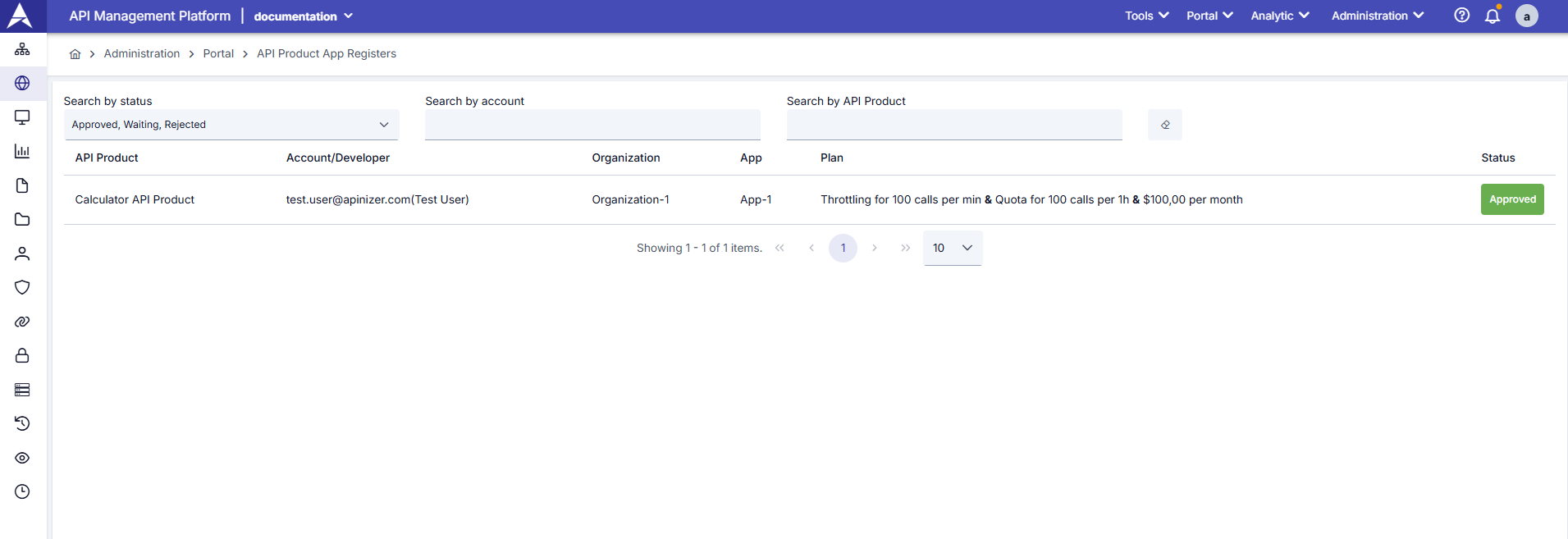
Filtering Options
The page has three main filtering criteria:
| Filtering Criteria | Description | Details |
|---|---|---|
| 1. Search by Status | Used to filter registration requests by their status. | - Approved: Shows approved, active registrations by admin. - Waiting: Shows registrations still waiting for admin approval. - Rejected: Shows registrations rejected by admin. |
| 2. Search by Account/Developer | Used to view registrations belonging to a specific user. | Search can be done by user's email address or name information. For example: test.user@apinizer.com or Test User. |
| 3. Search by API Product | Used to filter registrations belonging to a specific API product. | For example, used to view application registrations of only Calculator API Product. |
Registration List
The following information is displayed for each registration on the page:
| Field | Description / Operation |
|---|---|
| API Product (API Product) | This field shows information about an API product. It refers to the API product for which registration was made. For example, "Calculator API Product" is the name of a calculation API. |
| Account/Developer (Account/Developer) | This field shows the email address and name of users applying for API products. Users register as members of the portal to use APIs, and each application is associated with the user's email address and name. For example, in a format like "test.user@apinizer.com (Test User)", the user's email address and name information are displayed. |
| Organization (Organization) | Specifies the organization to which users belong. Every user who is a member of the Portal is linked to an organization. This organization can be the company or group the user works for. For example, organization names like "Organization-3" and "Organization-1" are displayed here. |
| Application (Application) | The application name used during API application. This field specifies the name of the application that will use the API. For example, application names like "App-1" or "test" can be seen. When the user applies for an API product, whichever application name they are registering for, that application name is displayed here. |
| Plan (Plan) | Details of the subscription plan selected for API usage are included here. The plan includes various limits for API usage (e.g., call limits, pricing). For example, a description like "Throttling for 100 calls per min & $100,00 per month" shows the plan's content and pricing. This specifies how much the API can be used and how much it will be charged. |
| Status (Status) | Shows the status of the approval process the user went through during API application. This becomes active after the user verifies their email address. Status options are: - Confirmation Needed (Account Approval Required): This status becomes active after the user verifies their email address. The user must take an additional step for their account to be approved. - Approved: The user has been accepted and approved for the API product they applied for. - Rejected: The user's application has been rejected, and permission to use the API has not been granted. |
Status Management
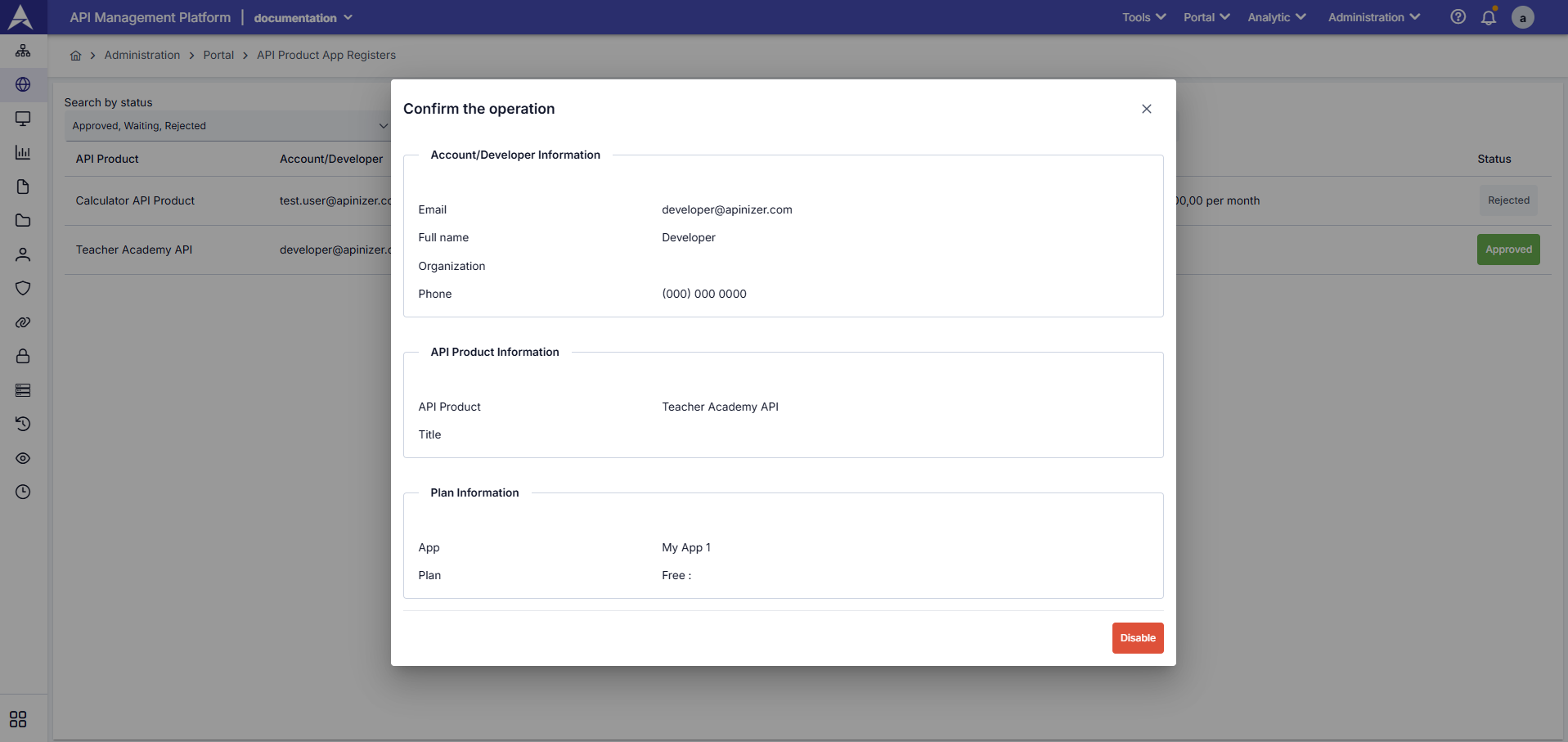
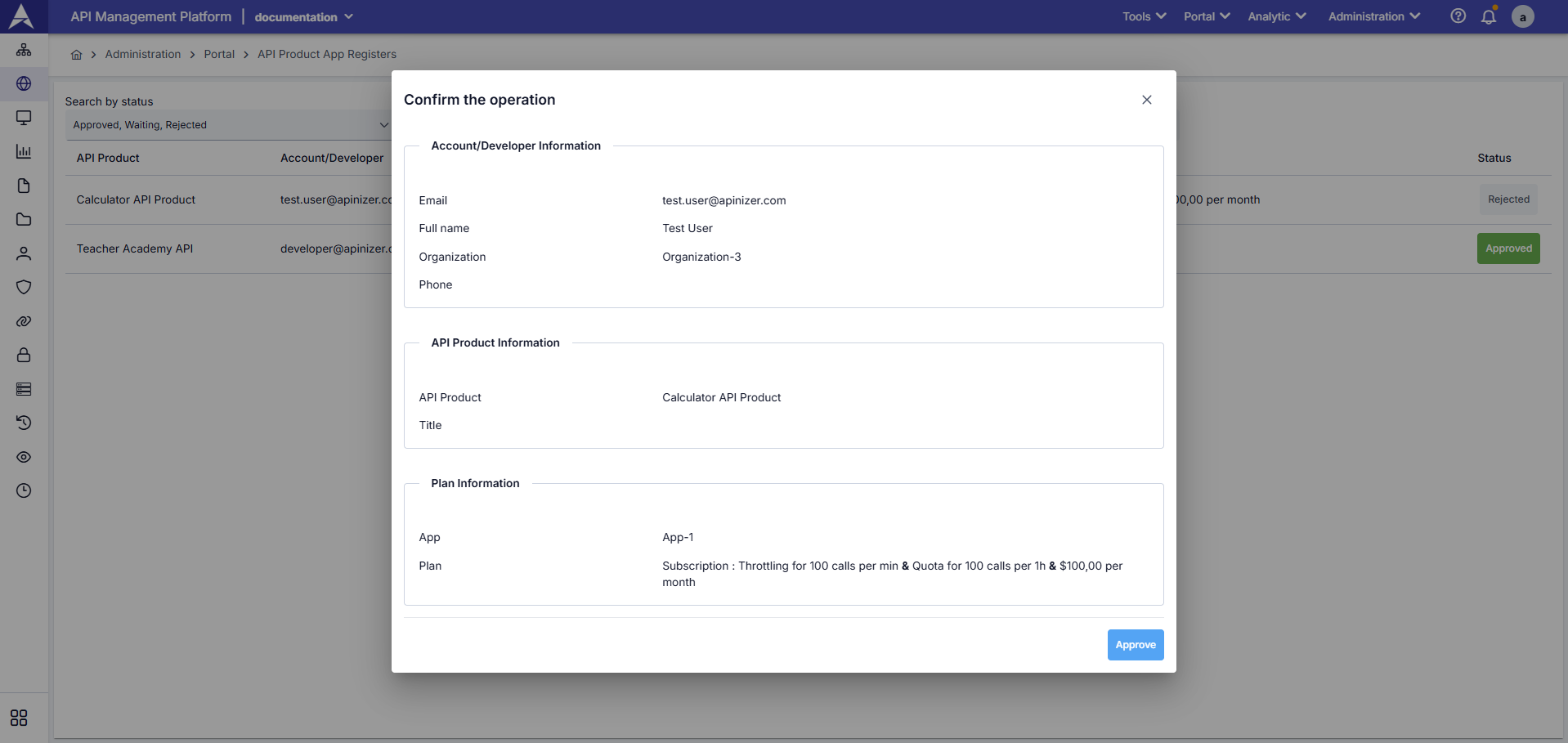
Through buttons in the Status column:
- You can view detailed information of the application registration.
- You can approve or reject registrations in Waiting status.
- You can cancel registrations in Approved status.
- You can reprocess registrations in Rejected status for re-evaluation.
- Automatic notification email is sent to the user with each status change.
Info
You can review the Email Templates link to customize automatic notification emails.