Frequently Asked Questions
Usage of Frequently Asked Questions
Defined questions are displayed on the "Frequently Asked Questions" page on the API Developer Portal. Users can filter frequently asked questions by category in this area and review detailed answers.
This structure enables:
- API consumers to quickly find solutions to frequently encountered topics,
- Support load decreases,
- Portal's ease of use and guidance power increases.
A screenshot containing Frequently Asked Questions list screen details is shown below:
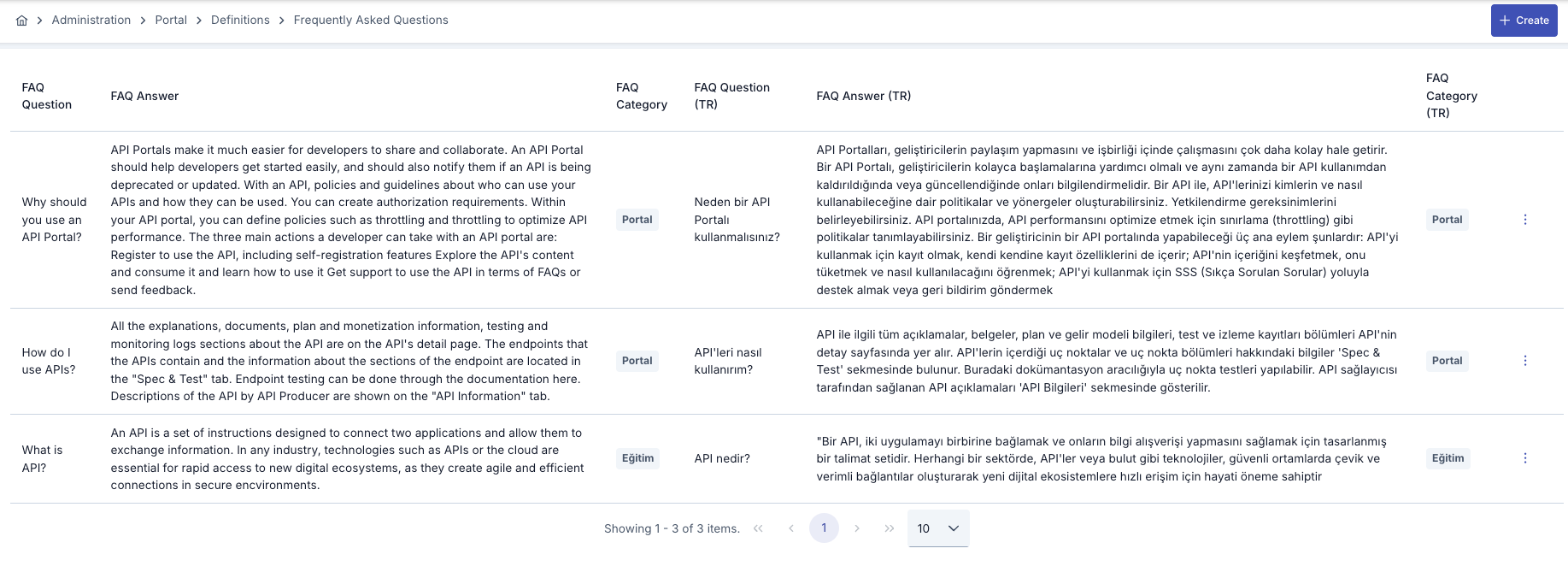
List Screen Fields
| Field | Description |
|---|---|
| Question | The text of the frequently asked question in English. This field is displayed when the user's language preference is English on the API Portal. |
| Answer | The answer text for the question. Should be explanatory and informative. |
| Category | The category to which the question belongs is selected here. |
| Question(TR) | Displayed when multi-language support is active. The Turkish version of the question is entered in this field. |
| Answer(TR) | Displayed when multi-language support is active. The Turkish answer to the question is entered in this field. |
| Category(TR) | Turkish category name. This value is shown when the portal is displayed in Turkish. |
When both Turkish Language Option and English Language Option are enabled in Portal settings, the system automatically switches to Multilanguage mode.
If the Multilanguage feature is enabled from Portal Settings, form fields are displayed in both English and Turkish, and separate data entry can be made for each language.
Creating a New Question
To create a new frequently asked question, click the Create (+) button in the top right of the screen. The registration process is completed by filling the following fields in the opened window (modal). After required fields (marked with *) are filled, the record is added to the system by pressing the Save button.
A screenshot containing Frequently Asked Questions screen details is shown below:
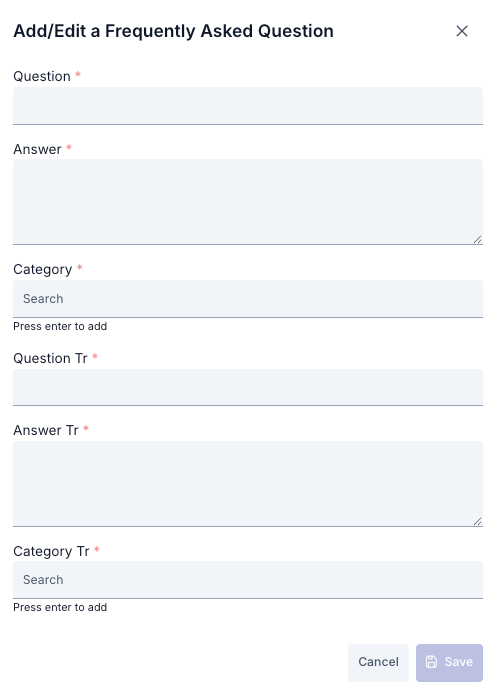
Fields used for Frequently Asked Questions creation configuration are shown in the table below.
Expand the Portal Management heading from the left menu. Click on the FAQ menu item. Verify that existing questions are listed.
Click the New FAQ button at the top of the page. frequently-asked-questions-update component opens as modal form.
Write the question that portal users will see in the Question field. Enter the detailed answer in the Answer field with Markdown support (paragraphs, lists, links can be used). Select an existing category from the Category field or determine a new category if there is an option to create a new category.
Check that required fields (Question, Answer, Category) are complete. Click the Save button. Request is sent to POST /api/portal/faq endpoint (PUT on update).
Appearance in Portal Interface
Every question you save in Manager automatically reflects on the FAQ page on the portal side. When the portal page is opened, the system fetches current questions and displays them in accordion format by categories as shown in the screen below.
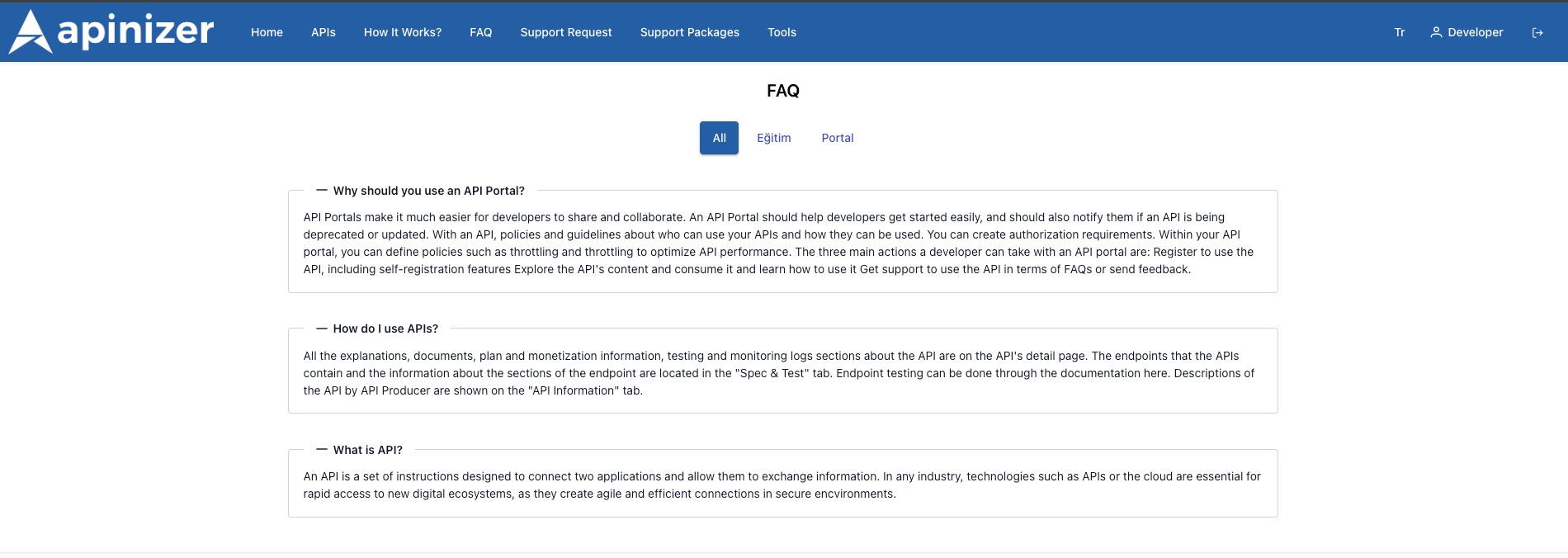
- Category Tabs: According to the category you selected in Manager, tabs (
All,Education,Portal, etc.) are automatically created in the top section on the portal. - Accordion Structure: Users clicking on a question see the answer expanded. Content entered with Markdown preserves formats such as bold text, lists, links.
- Language Support: When you change the portal language between TR/EN, only FAQ records created in that language are listed. If viewing in a different language is desired, a separate record should be opened for that language in Manager.
How Does Data Flow Work in Portal Application?
Manager → Portal Synchronization (User Perspective)
The moment you create and save the FAQ record leaving it Active, the information is written to the central database.
When a portal user enters the FAQ menu, the screen automatically loads all active questions registered at that moment.
Category names you provided in Manager appear as top tabs on the portal; users see only questions belonging to the category they click.
When you deactivate a question or change its answer in Manager, the new content is immediately reflected when the portal page is refreshed. No additional publishing step is needed.
Don't forget to add separate records for each language in multi-language portals. When the portal language is changed, questions in that language are shown; other languages are hidden.