Support Packages
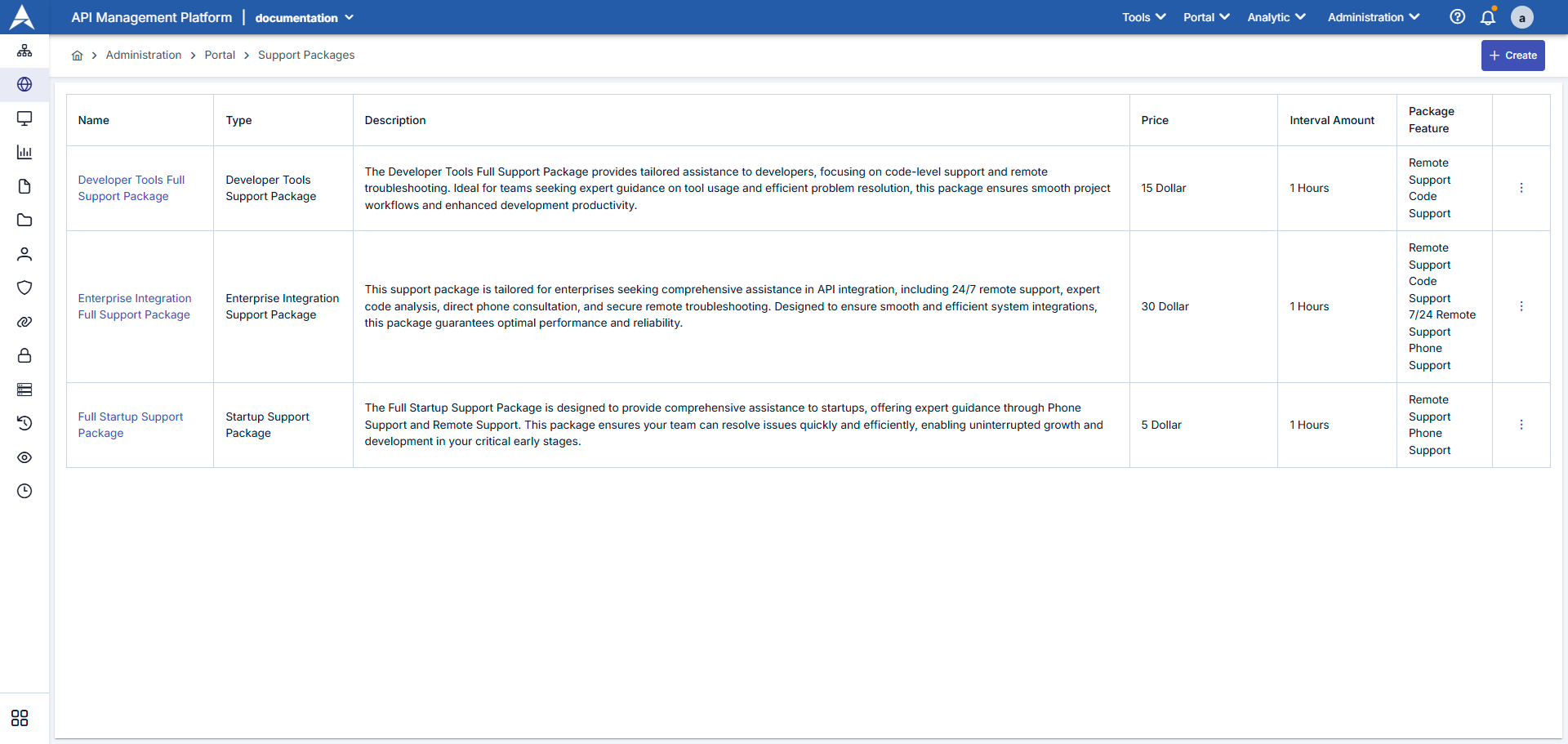
| # | Section | Description |
|---|---|---|
| 1 | Package List | Shows all defined support packages with name, package type, status, and publication date. |
| 2 | New Package Button | New Support Package button opens the new package creation form. |
| 3 | Filters | You can narrow the list with criteria such as package name, status (Active/Passive), package type. |
| 4 | Action Menu | You can perform package editing, copying, or deletion operations with icons on each row. |
Creating a New Support Package
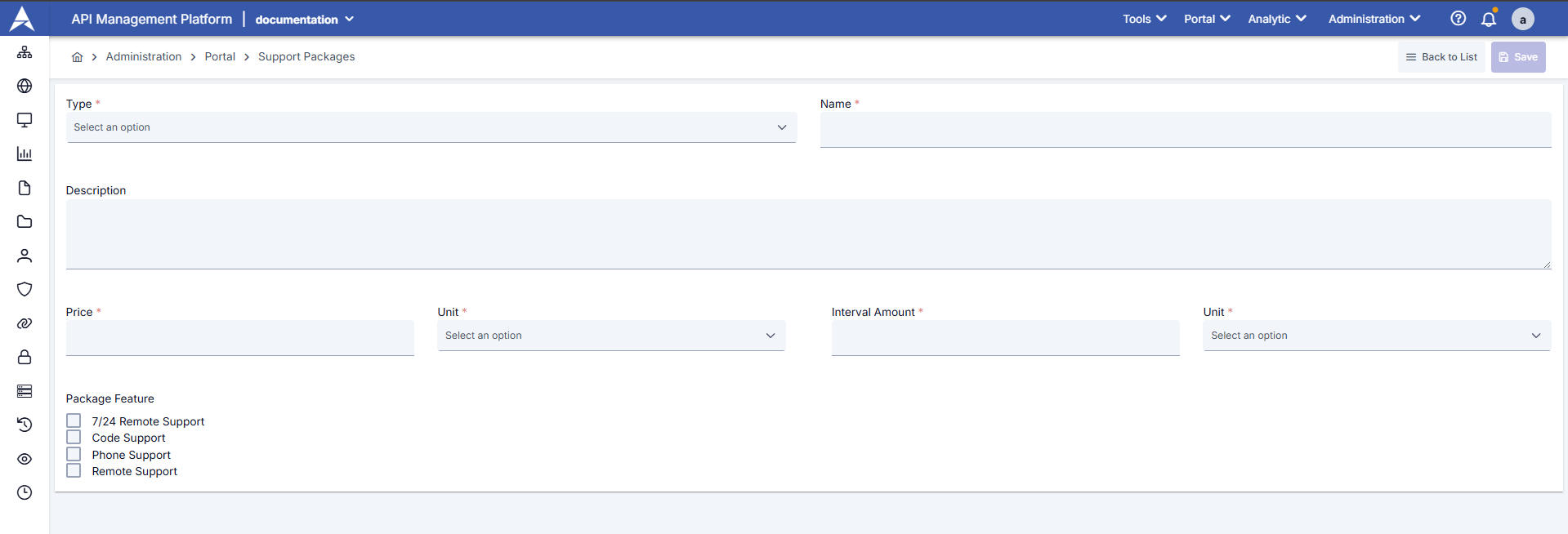
To create a new support package, click the "+ New" button and fill in the following information:
Open the Portal Management heading from the left menu. Click on Support Packages option. Verify that existing packages are listed.
Click the New Support Package button in the top right. support-package-update form opens as modal/panel.
Name: Write the name that will appear on the portal (e.g., "Premium Support"). Description: Enter a short description that users can understand the package scope. Support Package Type: Select one of the previously defined package types (e.g., Bronze, Silver, Gold). SLA Level: Specify expected response time or SLA metric. Available Channels: Select support channels such as phone, email, ticket.
In the "Features" section, select features you defined on the Support Package Feature screen (e.g., 24/7 support, dedicated customer representative).
Fill in the description of each feature that will appear on the portal.
If the package is paid, enter the price field and currency. If you want to use a badge or icon to be displayed on the portal, fill in the relevant fields.
Click the Save button.
| Field | Description / Operation |
|---|---|
| Type | Required. Determines the category of the support package. An appropriate type is selected from the dropdown menu. :::info |
You can visit the Support Packages page to create or edit Support Packages.
::: |
| Name | Required. Name of the support package. This is the name users will see when selecting packages.
* A clear and descriptive name should be used |
| Description | Detailed description of the support package. The package's content, services it offers, and benefits are specified in this field.
* Support scope (code support, remote troubleshooting, phone consultation, etc.)
* Target audience (developers, enterprise, startups)
* Service guarantees and features |
| Price | Price of the support package. |
| Unit | Unit of the price. Selected from dropdown menu.
* Example: Dollar, Euro, TL |
| Package Feature | Services to be included in the support package are checked:
* 24/7 Remote Support: 24/7 remote support service
* Code Support: Code-level support and troubleshooting
* Phone Support: Support service via phone
* Remote Support: Support via remote connection
Multiple features can be selected. Selected features are displayed to users in package details.
:::info
You can visit the Support Package Content page to add or edit package features.
::: |
Appearance and Data Flow on Portal
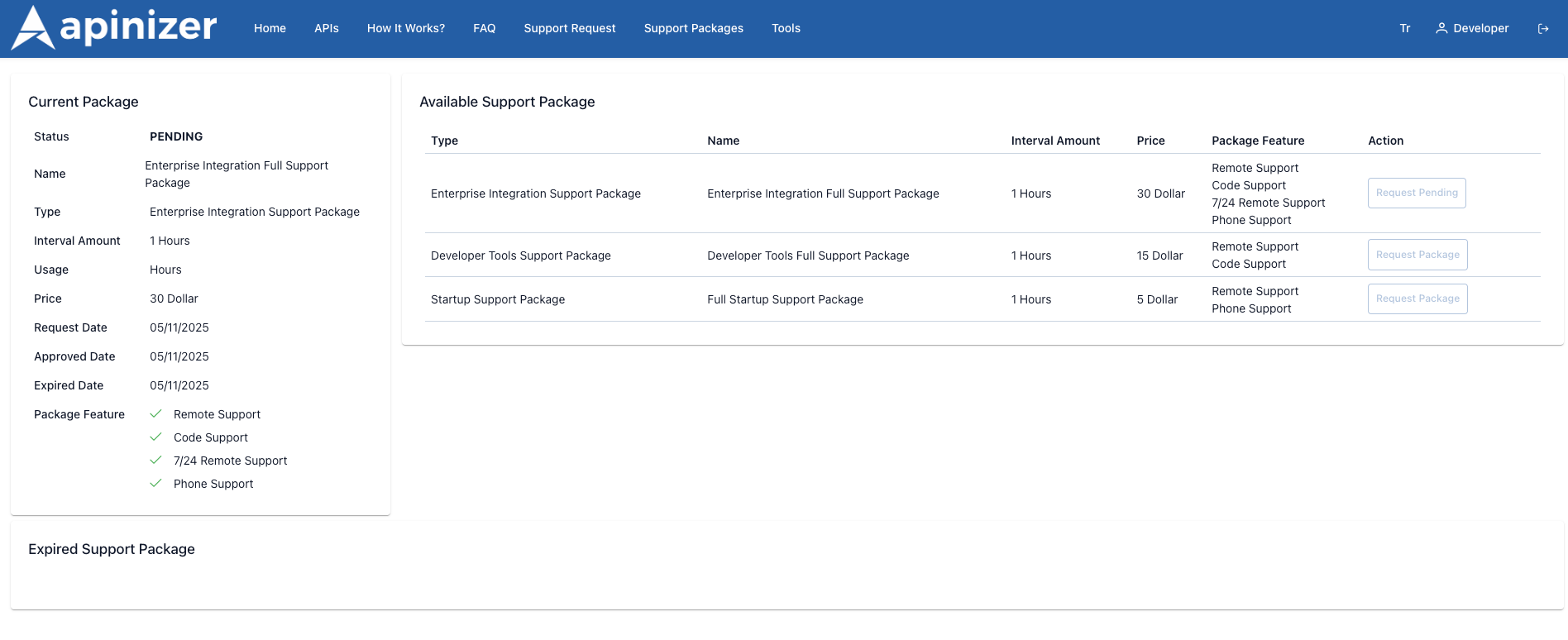
In the Portal application, users list support packages. Packages that are Active in Manager are listed on the portal; those that are Passive are not visible. When a user selects a package, the package's features and the type it belongs to are shown on the detail page. When the user presses the Request Support Package or similar button, they fill out the request form; the request appears on the Support Package Request screen in Manager.
| Package | Description | Function |
|---|---|---|
| Current Package | User's currently active or pending package is listed as a card. The card contains package name, type, period, price, request/repair dates, and feature list. | Status Effects: * Pending: Request is waiting for approval by administrators. Request Pending expression appears on the button and the user cannot apply again.* Approved / Active: Package is approved; user can use support rights. * Expired: Package period has expired or access has been cancelled. Card is moved to "Expired Support Package" section. |
| Available Support Package | Other packages that are Active in Manager are presented in table format. Each row shows package type, name, period, price, and features. | Action Buttons: * Request Package: Button that user can select and send request. * Request Pending: If there is a pending request for the same package, button appears inactive with this label. * Request Upgrade / Renewal (optional): Different labels can be used for upgrading or renewing the current package according to configuration. When user presses the button, portal opens the request form; when the form is submitted, the record appears on the Support Package Request list. |
| Expired Support Package | Packages that were used in the past but have expired are archived here. User can see the history and create a new request if needed. |