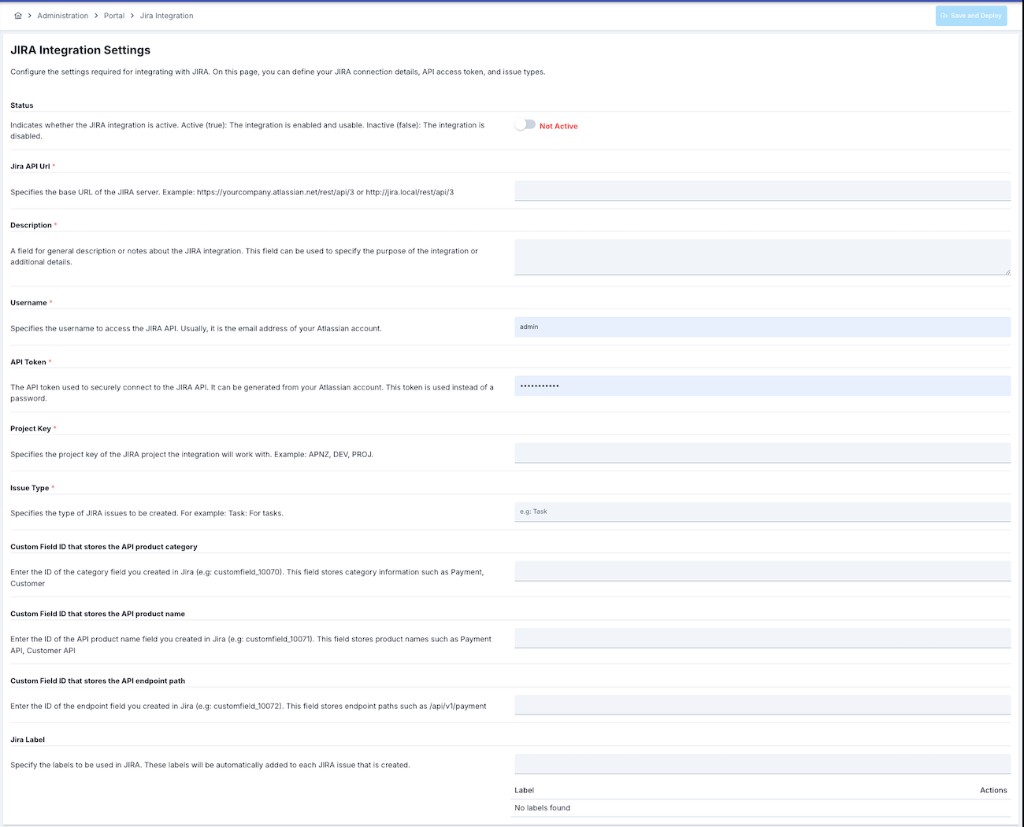
Integration Settings
| # | Field | Where It Appears on Portal | How to Fill | Impact on Jira |
|---|---|---|---|---|
| 1 | Jira Integration Status | Toggle at the top of the page. Shows green/red label next to Active/Passive information. | When toggle is on (Active), portal requests are sent to Jira. If toggle is off (Passive), when users create tickets on the portal, no record is opened in Jira. Portal internal record can continue but Jira sync stops. | If status=true, records coming from portal ticket form are transmitted to Jira via REST call, if false, no REST call is made; portal only saves within itself. |
| 2 | Jira URL | Required text field. Form validation shows red warning if URL is left empty. | Should be in https://<organization>.atlassian.net format for customers using Atlassian Cloud. If you are using a self-hosted Jira server, enter the full address (e.g., https://jira.company.com). Write without / at the end. | Used as base domain in REST calls (https://…/rest/api/3/*). If entered incorrectly, NOTFOUND or 404 error is returned, issue is not created. |
| 3 | Description | Multi-line description field. Visible in information note cards for administrators. | Use to leave notes for your internal team, explain which project it is directed to, or specify special rules on the Atlassian side. Maximum 1000 characters recommended. | Not directly synchronized with Jira; only stored as reference in portal management interface. |
| 4 | Username | Required text field. Gives entity.validation.required warning if value is not entered. | Log into your Atlassian account and create a new token from https://id.atlassian.com/manage-profile/security/api-tokens. Remember that you can only see the token once; copy it securely when saving portal settings. Write the email address of the account that created the token in the Username field. | Used as Basic Auth username in Jira REST call (usually Atlassian email address). If incorrect, 401 Unauthorized is received. |
| 5 | API Token | Required password field. Gives error message if value is not entered. | Log into your Atlassian account and create a new token from https://id.atlassian.com/manage-profile/security/api-tokens. Remember that you can only see the token once; copy it securely when saving portal settings. | Used as Basic Auth password. If token is incorrect, Jira returns 401 and issue cannot be created. |
| 6 | Project Key | Required text field. | Found in the top right corner of the Jira project or on the Project settings → Details page. If entered incorrectly, requests cannot be created; “Project does not exist” message is observed in error logs. | Written to project field; if Jira returns 404, “Project does not exist” error is received. When successful, all Jira tickets are opened in this project. |
| 7 | Issue Type | Required text field, shows example value with placeholder. | Must be one of the issue types defined in your project. For Atlassian Cloud, you can verify existing types with REST endpoint: GET /rest/api/3/issuetype. | Written to issuetype field. If type is invalid, Jira returns 400 Bad Request; portal completes save operation but issue creation fails. |
| 8 | Category Custom Field ID | Optional text field. | Used to customize data mapping between Portal requests and Jira issues. To learn the custom field ID value in Jira, find the customfield_XXXXX expression in the URL when editing the relevant field. If field is left empty, no mapping is made; portal request is opened with basic information. Enter the ID of the category field you created in Jira (e.g., customfield_10070). This field contains category information such as Payment, Customer. | Portal category is sent as fields[customfield_xxxxx] in Jira issue JSON. If field is empty, no sending is done. |
| 9 | API Product Custom Field ID | Optional text field. | Enter the ID of the API product name field you created in Jira (e.g., customfield_10071). This field stores product names such as Payment API, Customer API. If field is left empty, no mapping is made; portal request is opened with basic information. | Selected API product name on Portal is set to the relevant custom field in the same way. If left empty, it is skipped. |
| 10 | API Product Endpoint Custom Field ID | Optional text field. | Enter the ID of the endpoint field you created in Jira (e.g., customfield_10072). This field stores endpoint paths such as /api/v1/payment. If field is left empty, no mapping is made; portal request is opened with basic information. | Portal endpoint information is written to Jira issue as custom field; e.g., /payments/v1. |
| 11 | Label List | Input + table component. Shows “No labels found” message if list is empty. | When you write a label in the input field and press Enter, it is added to the list. You can delete the label by clicking the trash icon on the table. | Each label is added to Jira issue labels list. Can be used for automation or filtering in existing issues. |
Step-by-Step Jira Integration Setup Guide
Step 1: Pre-preparation (Jira Side)
- Determine the Atlassian account you will use for integration (preferably a service account).
- Make sure this user has
Create Issuespermission and permission to edit necessary custom fields in the relevant Jira project. - Create a new token from the Atlassian API token page and store it securely.
- Note the
Project Keyvalue of the Jira project to be used and the issue type to be used.
Step 2: Access Portal Jira Config Page
- Go to Portal Management → Portal Jira Config menu in Apinizer Manager.
- When the page opens, existing configuration is loaded if present; fields come empty on first setup.
Step 3: Enter Basic Connection Information
- Write the instance address in the Jira URL field (e.g., https://company.atlassian.net).
- Enter the Atlassian email where you created the token in the Username field.
- Paste the token you created in the API Token field.
- Fill in Project Key and Issue Type fields.
Step 4: Configure Optional Fields
- If you want to transfer category, API product, or endpoint information to Jira issues, fill in the relevant custom field ID fields.
- If you need automatic labels, add one or more labels to the Label List field.
- Use the Description field if you need a description for your internal teams.
Step 5: Activate Integration
- If you wish, you can first leave the Status toggle passive and save. When all fields are ready, activate the integration by bringing the toggle to Active position.
Step 6: Save and Test
- Press the Save button in the top right.
- After successful save, create a test request from a form on the portal that uses Jira integration.
- Go to the relevant project in Jira and verify that the new issue is opened correctly.
Step 7: Troubleshooting
- If you get an error, review portal logs and browser console.
- If necessary, create a new token and save again or update project permissions.
Frequently Encountered Scenarios and Solution Steps
| Error | Possible Causes | Solution |
|---|---|---|
| 401 Unauthorized Error | Incorrect username, expired/cancelled API token, Atlassian account not having access permission to the required project. | 1. Generate a new token from Atlassian account settings. 2. Make sure the Username field in portal configuration belongs to the same user as the token. 3. Verify that the relevant user has “Create Issues” permission in the Jira project. |
| 404 Project Does Not Exist | Incorrect Project Key or user does not have access permission to the project. | 1. Check the Key value of the project in Jira from Project settings → Details screen.2. Update the Project Key in portal settings. 3. If there is a permission issue, give the user project access on the Atlassian side. |
| 400 Issue Type Is Not Valid | Entered issue type is not valid in the selected project or was written incorrectly. | 1. List the issue types allowed for the project in Jira with GET /rest/api/3/issuetype or via UI.2. Update the Issue Type field in portal settings with one from this list. |
| Label Information Not Appearing in Jira | Label list is empty, issue is not updated after Portal record, Jira workflow does not allow label addition. | 1. Make sure at least one value is entered in the label list on Portal. 2. Check that the labels field is editable in Jira issue details.3. If there is automation or workflow constraint, provide necessary permissions. |
Portal Support Requests and JIRA Integration
Overview
The JIRA integration configured in Apinizer Manager enables automatic transfer of support requests created by Portal users to JIRA. This section explains in detail the relationship between the configuration in Manager and support requests on Portal and the data flow.- Enables Portal users to communicate problems they encounter, development requests, or suggestions to the support team.
- Sent requests are created as tickets on JIRA and their statuses can be tracked on this screen.
- Users can filter their past requests and review their statuses.
- All users logged into Portal account can access this page.
- Menu path: Portal → Support Requests.
- Required fields (label, summary, description) must be filled to send a request.
List View

- When the page opens, existing requests are listed in a table.
- You can quickly search in the Issue ID or Summary field with the search boxes at the top.
- You can go to the new request creation form by clicking the “New” button.
- Clicking the Issue ID link opens the detail page of the relevant request.
- Table columns include;
- Request code (Issue ID)
- Summary text
- Status, label, and category information
- Related API product and endpoint name (if any)
- Last update date information.
Creating New Request

Step 1: Click New button
Step 2: Fill Fields in Opened Form
- Label: Select the type of request (e.g., Bug, Enhancement). System administrator pre-defines which labels are required.
- Summary: Write the problem or request briefly and clearly.
- Description: Specify details, how it can be reproduced, or your expectation.
- Category: Select which area the request belongs to. If you select “Other Request”, the product field closes.
- API Product and Endpoint: If the subject is related to a specific API product, select the product and relevant endpoint. Specifying which endpoint experienced the problem speeds up the solution process.
- Attachment: Users who want to add screenshots, logs, or documents can upload files here.
Step 3: Saving
How to View Request Details?
- Click on the issue ID on the list screen.
- On the opened page:
- Request code, label, status, and reporter information are included.
- Which category, API product, and endpoint it is connected to can be seen.
- Summary and description texts are visible in full.
- If there is an attachment file, you can download it with the “Download” button.
- Notes left by support teams and their history are listed in the “Comments” section.
- You can return to the list with the “Back” button.
Connection with API Manager
- This portal screen collects user requests and creates tickets on JIRA in the background.
- The API Product selection in the request form is based on products published in API Manager. This way, the support team easily understands which product the problem is related to.
- Management of request processes (status changes, comments, resolution) is done on JIRA; portal only provides viewing.
Connection Between Manager JIRA Configuration and Portal
1. Configuration Source The support requests system on Portal directly uses the JIRA integration settings defined in Manager.- All settings made on the Manager → Portal Management → Portal Jira Config screen are valid for the Support Requests page on the Portal interface.
- Portal does not have a separate JIRA configuration within itself; all connection information is managed centrally through Manager.
- Every change made in Manager (URL, token, project key, custom field IDs, etc.) is automatically reflected to Portal.
- When Portal users create a new request from the Support Requests page:
- Request information is sent to Portal API
- Portal API makes a request to JIRA REST API using the JIRA configuration in Manager
- New issue is automatically created in JIRA
- The Issue Key (e.g., SUP-123) of the created issue is returned to Portal
- Request on Portal is associated with this issue key
- User can see the JIRA issue key in the request list on Portal
- Portal users can create support requests
- However, no request is sent to JIRA
- Request is only stored in Portal database
- No issue is created on JIRA side
- This mode is used when testing integration or when it is desired to temporarily disable it
Portal Support Requests Page and JIRA Integration Data Flow
Step 1: User Creates New Request on Portal
| Portal Form Field | Description | Corresponding in JIRA |
|---|---|---|
| Label | Request type (Bug, Enhancement, Question, etc.) | Added to JIRA issue’s labels field |
| Summary | Short description of the request | JIRA issue’s summary field |
| Description | Detailed description of the request | JIRA issue’s description field |
| Category | Request category (Payment, Customer, Other Request, etc.) | Written to Category Custom Field ID defined in Manager |
| API Product | Related API product name | Written to API Product Custom Field ID defined in Manager |
| Endpoint | Related API endpoint path | Written to API Product Endpoint Custom Field ID defined in Manager |
| Attachment | Screenshot, log file, etc. | Added to JIRA issue as attachment |
Step 2: Portal API Pulls Manager Configuration
- Portal frontend POSTs form data to Portal backend API
- Portal backend:
- Pulls JIRA integration settings from Manager API
- Checks integration status (Active/Passive)
- If Active, gets JIRA connection information
Step 3: JIRA REST API Call is Made
- Username: Atlassian account email address defined in Manager
- API Token: Token securely stored in Manager
- Basic Auth: Sent in Base64 encoded
username:tokenformat
- Category Custom Field ID (e.g., customfield_10070) defined in Manager carries Portal category information
- API Product Custom Field ID (e.g., customfield_10071) contains selected API product name
- API Product Endpoint Custom Field ID (e.g., customfield_10072) stores endpoint path
- If these fields are left empty in Manager, Portal only sends basic fields (summary, description, labels)
Step 4: JIRA Response is Processed
- Gets the Issue Key (SUP-123) returned from JIRA
- Associates this key with the request record in Portal database
- Shows success message to user
- When list page is refreshed, SUP-123 appears in the Issue ID column
Step 5: Request is Displayed in Portal List
- JIRA Issue Key (SUP-123) is shown as clickable link in each row
- When link is clicked, detail page on Portal opens (no redirection to JIRA)
- Status information is periodically synchronized from JIRA
- User can track their request’s status on JIRA through Portal
Frequently Asked Questions
Where does my request go?
When is status updated?
Can I edit or delete a request?
Is adding an attachment file mandatory?
Request Created on Portal But No Issue in JIRA Why?
- Status is “Passive” in Manager
- JIRA URL is incorrect
- Network connection issue
- API Token expired
- Check Manager → Portal Jira Config → Status toggle (should be “Active”)
- Review logs in Manager
- Verify you can access JIRA URL from browser
- Create a new API token in Atlassian and update in Manager
- Send test request from Portal and track logs
Issue Created in JIRA But Custom Fields Empty
- Custom Field IDs entered incorrectly in Manager
- Custom fields do not exist in JIRA
- Custom fields’ data type incompatible
- Open the relevant issue in JIRA
- Click Settings (•••) → View Screen
- Verify custom fields are visible
- Verify field IDs from JIRA Admin → Issues → Custom Fields:
- Press Edit button
- Copy
customfield_XXXXXexpression from URL
- Update Custom Field IDs in Manager
- Send new test request
Conclusion
The JIRA integration configuration made in Manager is critical for automatically transferring support requests from Portal users to JIRA. Thanks to this integration:- Centralized Management: All JIRA settings are controlled from a single point (Manager)
- Automatic Synchronization: Portal requests instantly become JIRA issues
- Data Consistency: Portal and JIRA data remain synchronized thanks to custom field mappings
- Easy Tracking: Users can view JIRA issue statuses through Portal
- Efficient Support: Support teams manage all requests centrally on JIRA