Token Acquisition Methods
For the full endpoint reference (request/response schemas, parameters, and HTTP methods), see Gateway Token Endpoints.
1. Token Acquisition with "Manage From This Policy" Option
The ways to obtain client_id and client_secret values according to the management level of the Authentication policy are as follows:
- If Authentication Policy is Added to API Proxy: client_id and client_secret values are obtained from the "Show Proxy Key" section in the Overview section of the API Proxy.
- If Authentication Policy is Added to Proxy Group: client_id and client_secret values are obtained from the "Show Proxy Key" section in the Overview section of the API Proxy Group.
- If Authentication Policy is Added to Policy Group: client_id and client_secret values are obtained from the "Show Proxy Key" section in the Definition section of the relevant Policy Group.
1.1 Token Acquisition with JWT
If the "Manage From This Policy" option is selected in the created JWT Policy, tokens are acquired using this method.
Prepare a new HTTP request using Apinizer Test Console or another application of your choice.
- The address should be entered similar to the following according to your own Apinizer access address:
https://apinizerErisimAdresiniz/auth/jwt.
If the Allow URL Parameters option is selected, information can be sent using GET method and URL parameters. (See the table below for parameters to be sent)
- HTTP Method should be POST.
- "x-www-form-urlencoded" value should be selected in the Body field. If Apinizer Test Console is not used, a header should be added with "Content-Type" name and "application/x-www-form-urlencoded" value.
- The values to be entered in the Body field are as shown in the table below.
| Key Name | Value to Enter if "client_credentials" is Selected When Defining Policy | Value to Enter if "password" is Selected When Defining Policy |
|---|---|---|
| grant_type | client_credentials | password |
| client_id | Public Key value obtained from API Key field | Public Key value obtained from API Key field |
| client_secret | Secret Key value obtained from API Key field | "-" (dash) |
| username | This field is not added | Username of one of the records in the authentication pool you selected |
| password | This field is not added | Password of one of the records in the authentication pool you selected |
Token Refresh
If the Token Should Be Immortal option is closed and the Token Refresh Should Be option is opened, tokens that will become invalid after a certain period can be refreshed within the period specified in the Refreshed Token Validity Period field.
Prepare a new HTTP request using Apinizer Test Console or another application of your choice.
- The address should be entered similar to the following according to your own Apinizer access address:
https://apinizerErisimAdresiniz/auth/jwt.
If the Allow URL Parameters option is selected, information can be sent using GET method through URL parameters. (See the table below for parameters to be sent).
- HTTP Method should be POST.
- "x-www-form-urlencoded" value should be selected in the Body field. If Apinizer Test Console is not used, a header should be added with "Content-Type" name and "application/x-www-form-urlencoded" value.
- The values to be entered in the Body field are as shown in the table below.
| Key Name | Key Value |
|---|---|
| grant_type | refresh_token |
| client_id | Public Key value obtained from API Key field |
| client_secret | "-" (dash) |
| refresh_token | Value in the "refresh_token" key in the previously acquired token |
If grant_type is client_credentials
Add a JWT Authentication policy with default values. While doing this, copy your API Key information to use.
Send your token acquisition request with a message like the example below.
The image containing the settings for sending a request to Token Service through Apinizer Test Console is shown below:
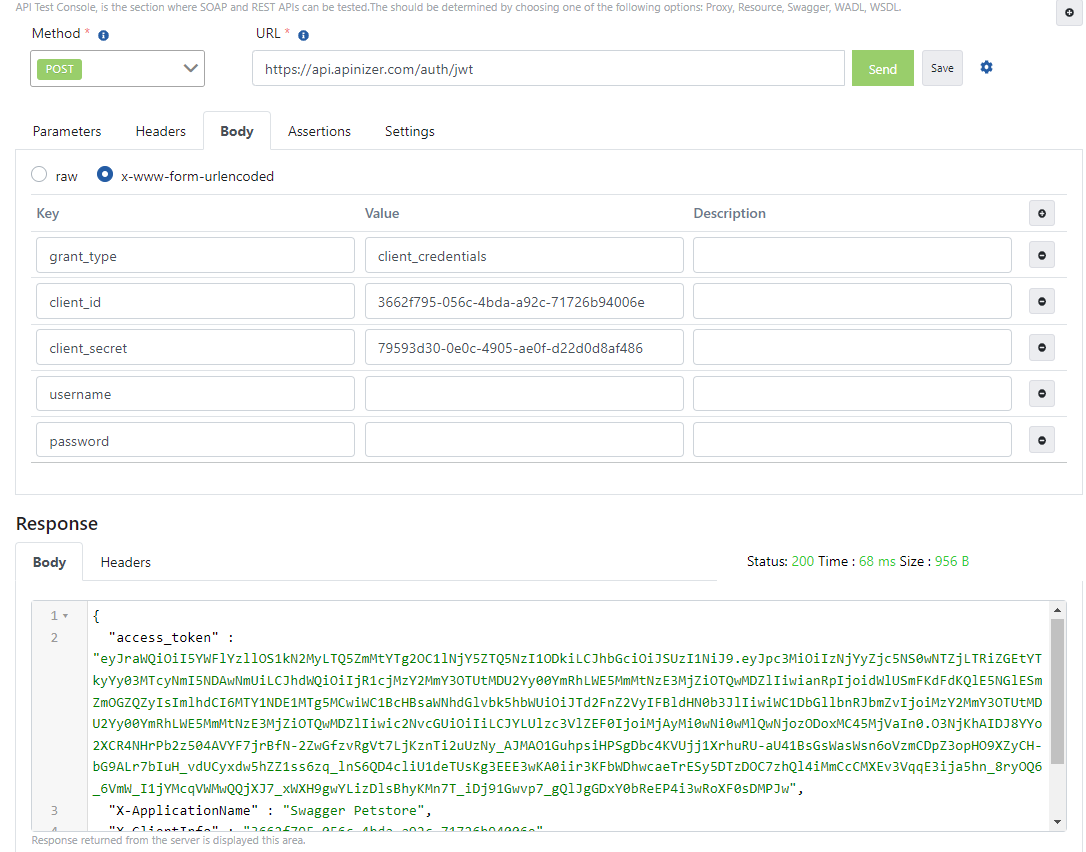
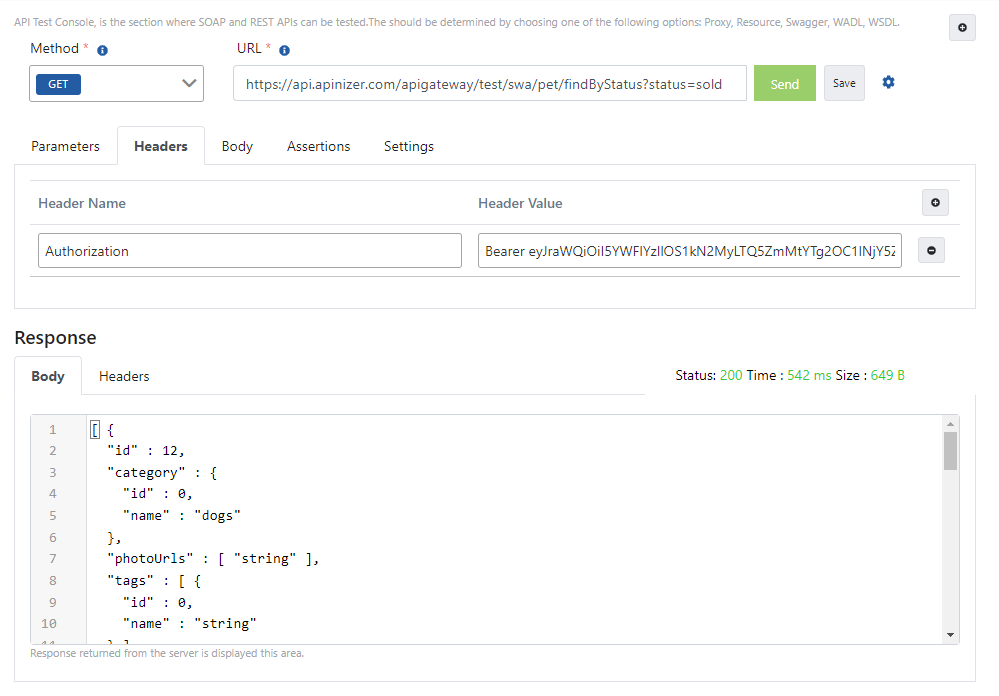
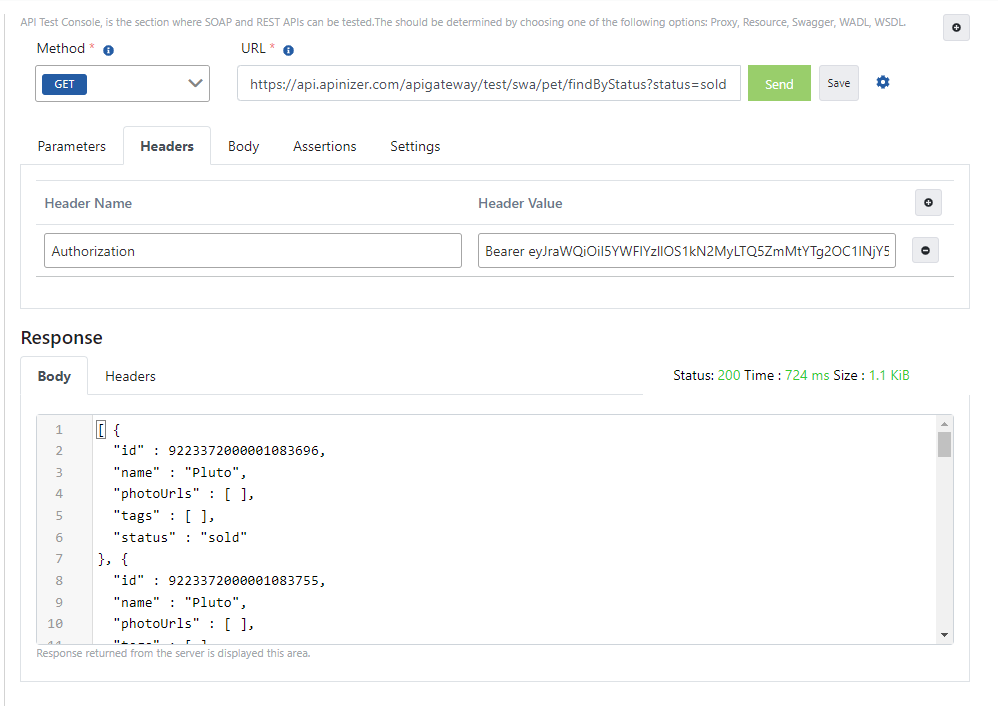
The value in the "access_token" field in the response message, when given as a value to the "Authorization" key in all requests to be sent to this API Proxy, provides secure access to the relevant API.
The image containing the operation of sending a request with token information through Apinizer Test Console is shown below:
If grant_type is password
Add a JWT Authentication policy with Grant Type value Password. While doing this, copy your API Key information to use.
Send your token acquisition request with a message like the example below.
The image containing the settings for sending a request to Token Service through Apinizer Test Console is shown below:
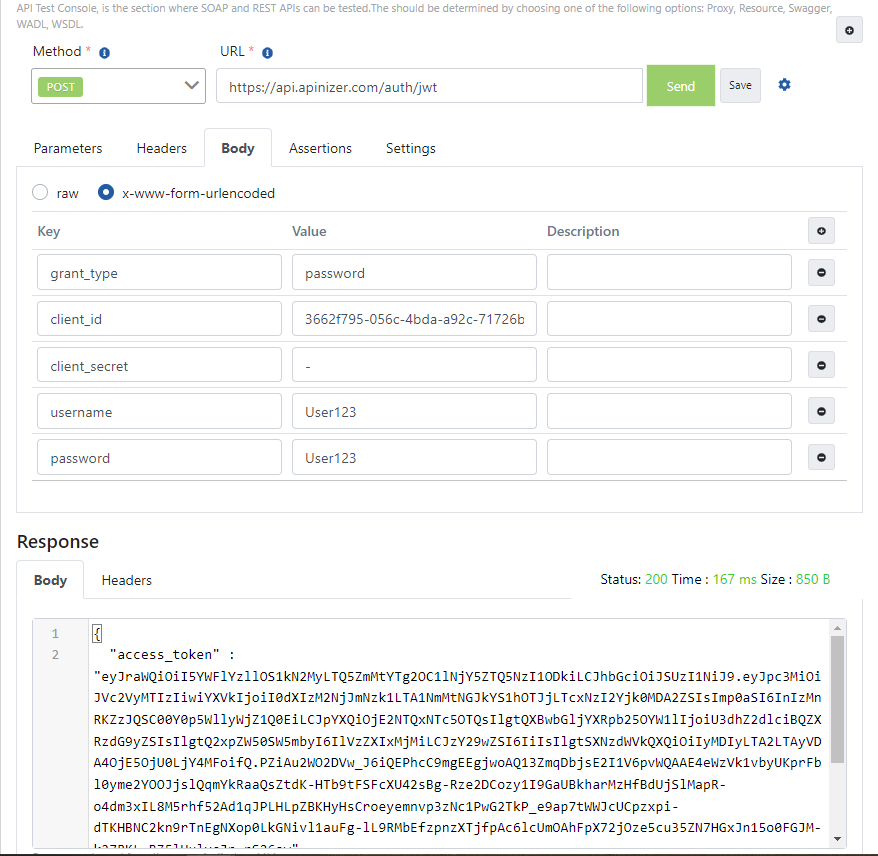
The value in the "access_token" field in the response message, when given as a value to the "Authorization" key in all requests to be sent to this API Proxy, provides secure access to the relevant API.
The image containing the operation of sending a request with token information through Apinizer Test Console is shown below:
If grant_type is refresh_token
Add a JWT Authentication policy with refresh option enabled. While doing this, copy your API Key information to use.
Send your token acquisition request with a message like the example below.
The image containing the settings for sending a request to Token Service through Apinizer Test Console is shown below:
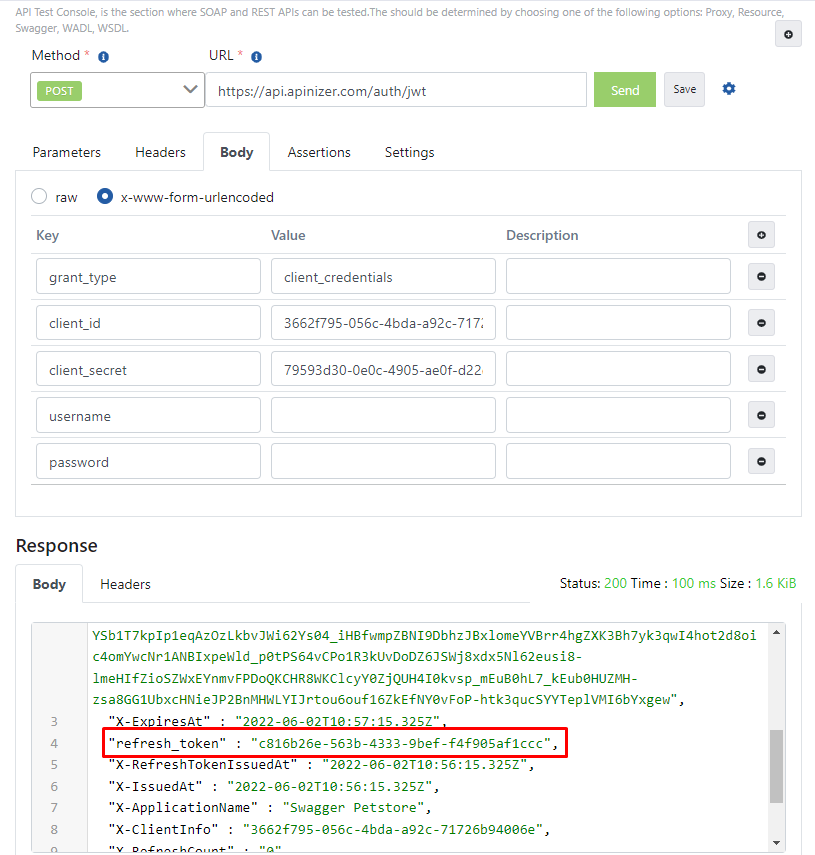
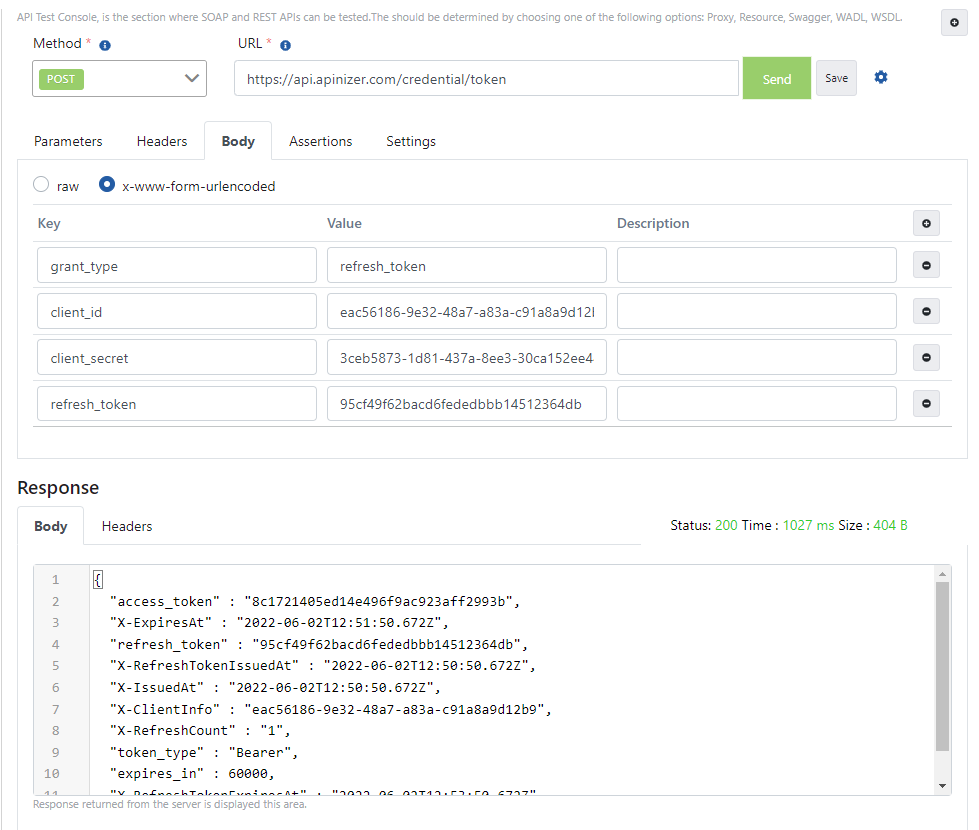
To refresh the token, take the value in the "refresh_token" field in the response from the first request and give it as a value to the refresh_token key in the message you prepared as below.
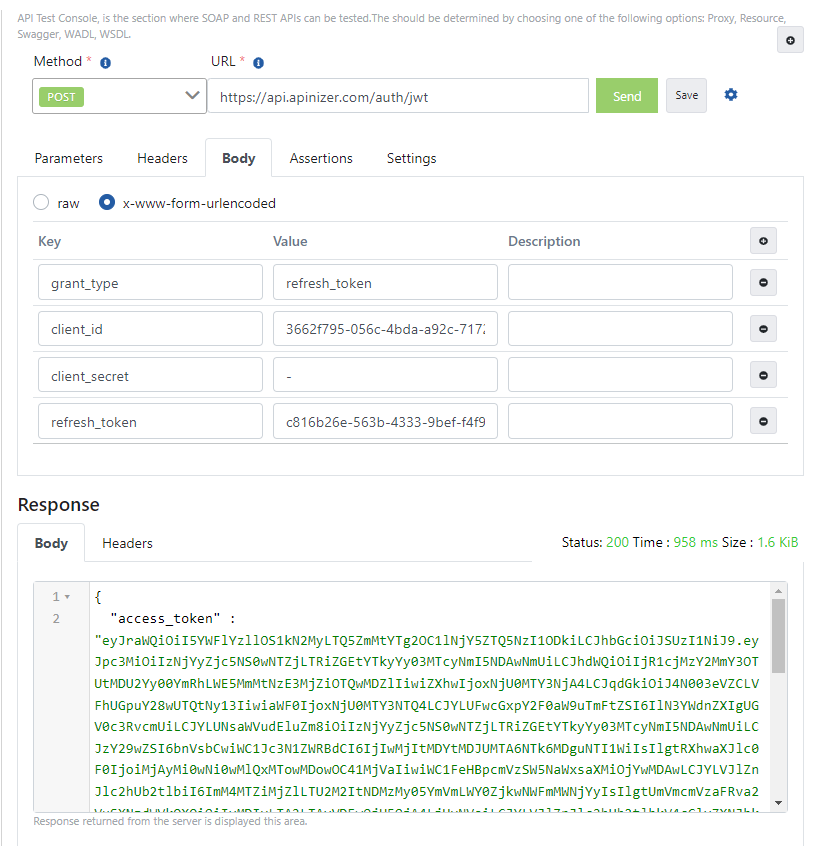
The value in the "access_token" field in the response to come will be your refreshed token value.
The image containing the example request sent to refresh the token through Apinizer Test Console is shown below:
1.2 Token Acquisition with OAuth2
If the "Manage From This Policy" option is selected in the created OAuth2 Policy, tokens are acquired using this method.
Prepare a new HTTP request using Apinizer Test Console or another application of your choice.
- The address should be entered similar to the following according to your own Apinizer access address:
https://apinizerErisimAdresiniz/auth/token.
If the Allow URL Parameters option is selected, information can be sent using GET method and URL parameters. (See the table below for parameters to be sent)
- HTTP method should be POST.
- "x-www-form-urlencoded" value should be selected in the Body field. If Apinizer Test Console is not used, a header should be added with "Content-Type" name and "application/x-www-form-urlencoded" value.
- The values to be entered in the Body field are as shown in the table below.
| Key Name | Value to Enter if "client_credentials" is Selected When Defining Policy | Value to Enter if "password" is Selected When Defining Policy |
|---|---|---|
| grant_type | client_credentials | password |
| client_id | Public Key value obtained from API Key field | Public Key value obtained from API Key field |
| client_secret | Secret Key value obtained from API Key field | "-" (dash) |
| username | This field is not added | Username of one of the records in the authentication pool you selected |
| password | This field is not added | Password of one of the records in the authentication pool you selected |
Token Refresh
If the Token Should Be Immortal option is closed and the Token Refresh Should Be option is opened, tokens that will become invalid after a certain period can be refreshed within the period specified in the Refreshed Token Validity Period field.
Prepare a new HTTP request using Apinizer Test Console or another application of your choice.
- The address should be entered similar to the following according to your own Apinizer access address:
https://apinizerErisimAdresiniz/auth/token.
If the Allow URL Parameters option is selected, information can be sent using GET method through URL parameters. (See the table below for parameters to be sent).
- HTTP method should be POST.
- "x-www-form-urlencoded" value should be selected in the Body field. If Apinizer Test Console is not used, a header should be added with "Content-Type" name and "application/x-www-form-urlencoded" value.
- The values to be entered in the Body field are as shown in the table below
| Key Name | Key Value |
|---|---|
| grant_type | refresh_token |
| client_id | Public Key value obtained from API Key field |
| client_secret | Secret Key value obtained from API Key field |
| refresh_token | Value in the "refresh_token" key in the previously acquired token |
If grant_type is client_credentials
Add an OAuth2 Authentication policy with default values. While doing this, copy your API Key information to use.
Send your token acquisition request with a message like the example below.
The image containing the settings for sending a request to Token Service through Apinizer Test Console is shown below:
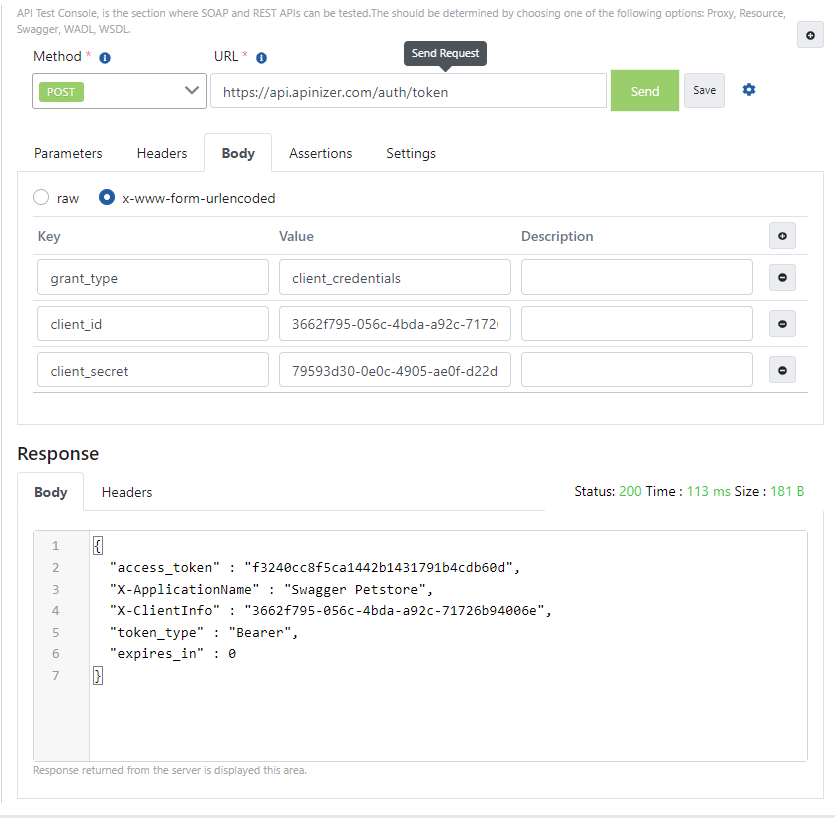
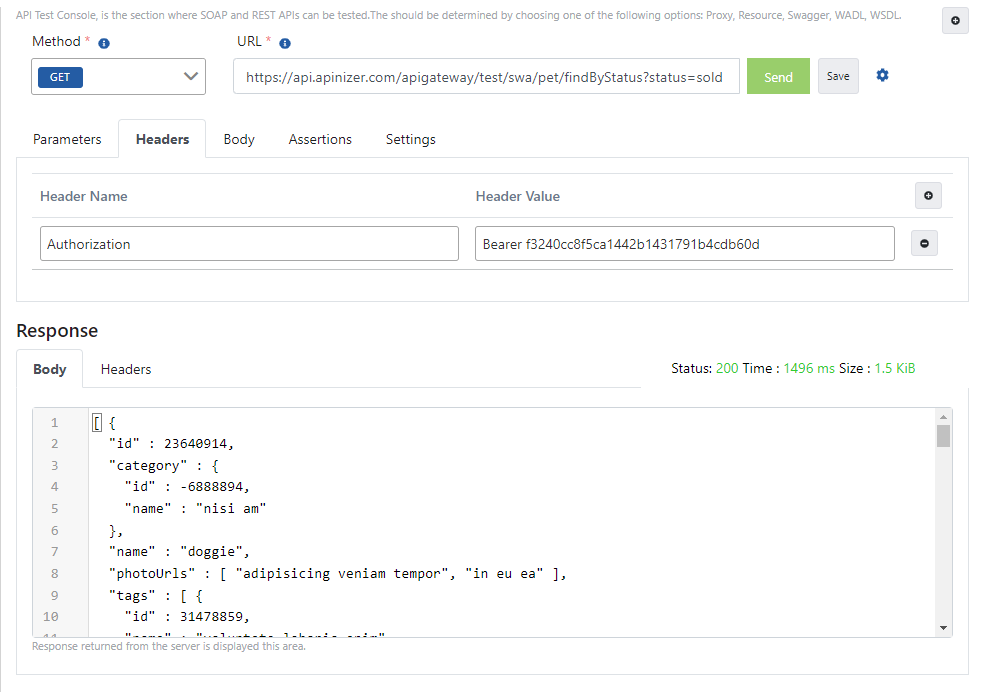
The value in the "access_token" field in the response message, when given as a value to the "Authorization" key in all requests to be sent to this API Proxy, provides secure access to the relevant API.
The image containing the operation of sending a request with token information through Apinizer Test Console is shown below:
If grant_type is password
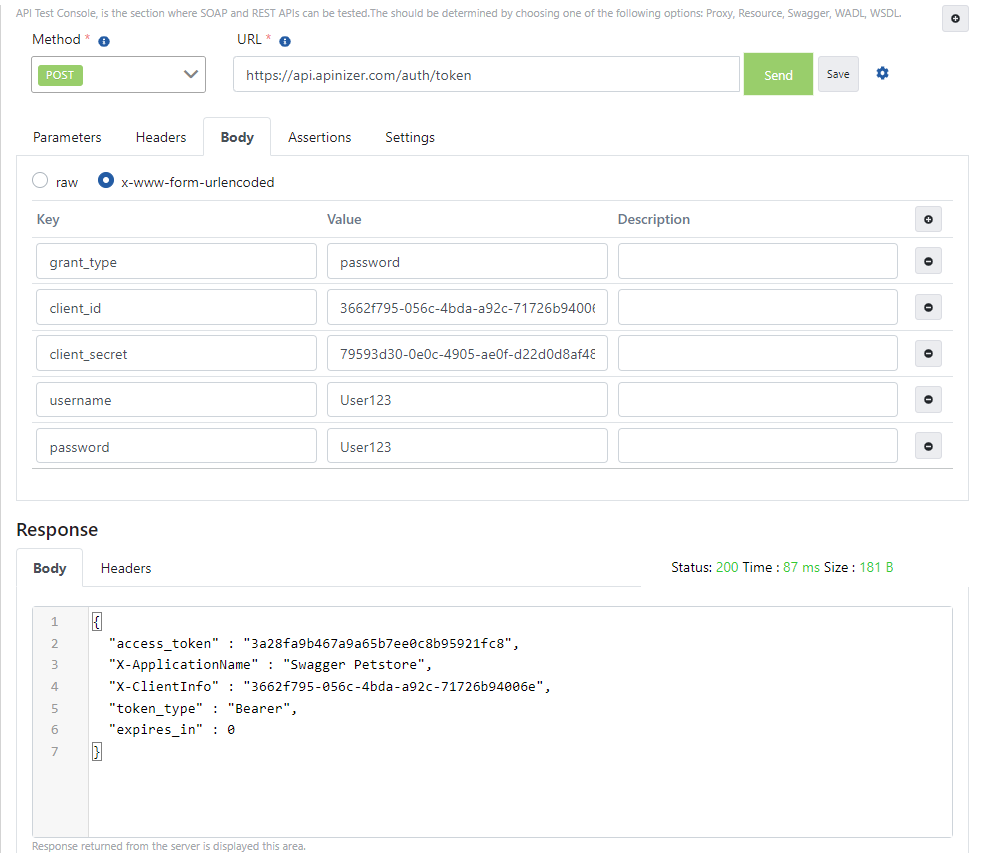
Add an OAuth2 Authentication policy with Grant Type value Password. While doing this, copy your API Key information to use.
Send your token acquisition request with a message like the example below.
The image containing the settings for sending a request to Token Service through Apinizer Test Console is shown below:
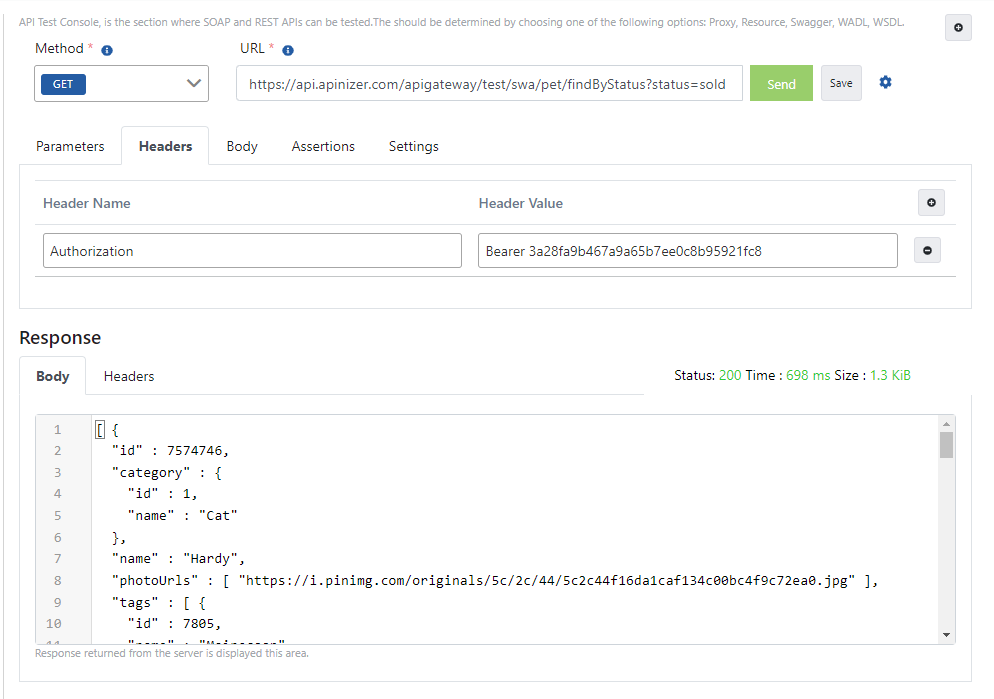
The value in the "access_token" field in the response message, when given as a value to the "Authorization" key in all requests to be sent to this API Proxy, provides secure access to the relevant API.
The image containing the operation of sending a request with token information through Apinizer Test Console is shown below:
GrantType: Refresh Token
Add an OAuth2 Authentication policy with refresh option enabled. While doing this, copy your API Key information to use.
Send your token acquisition request with a message like the example below.
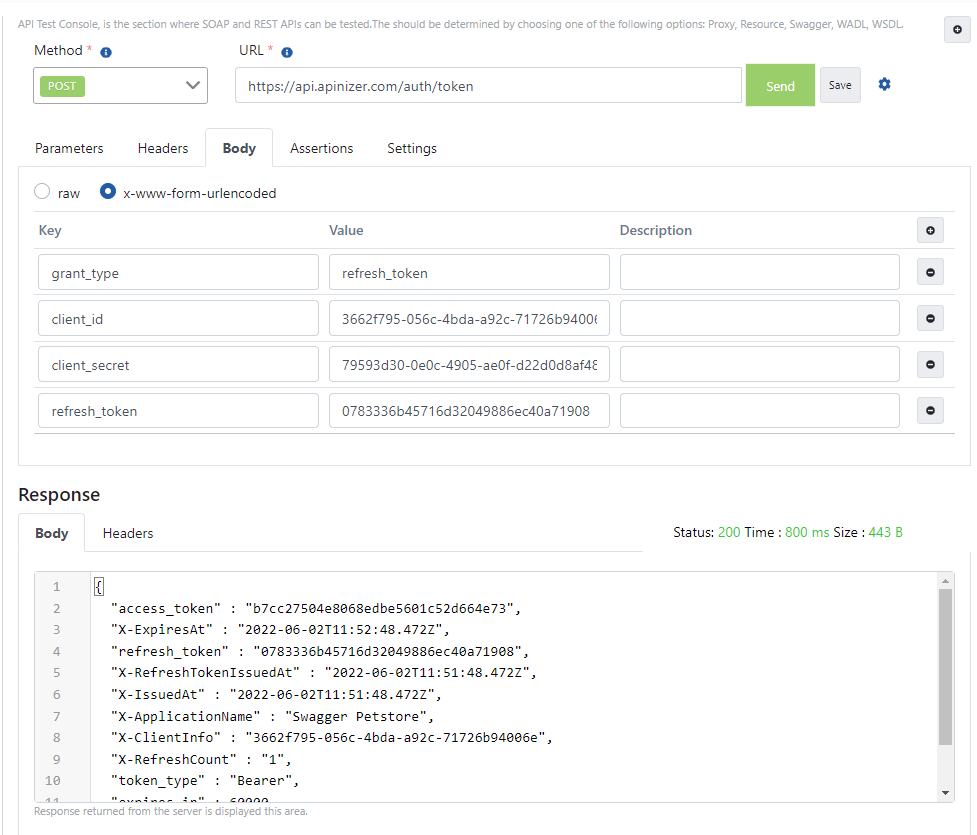
The image containing the settings for sending a request to Token Service through Apinizer Test Console is shown below:
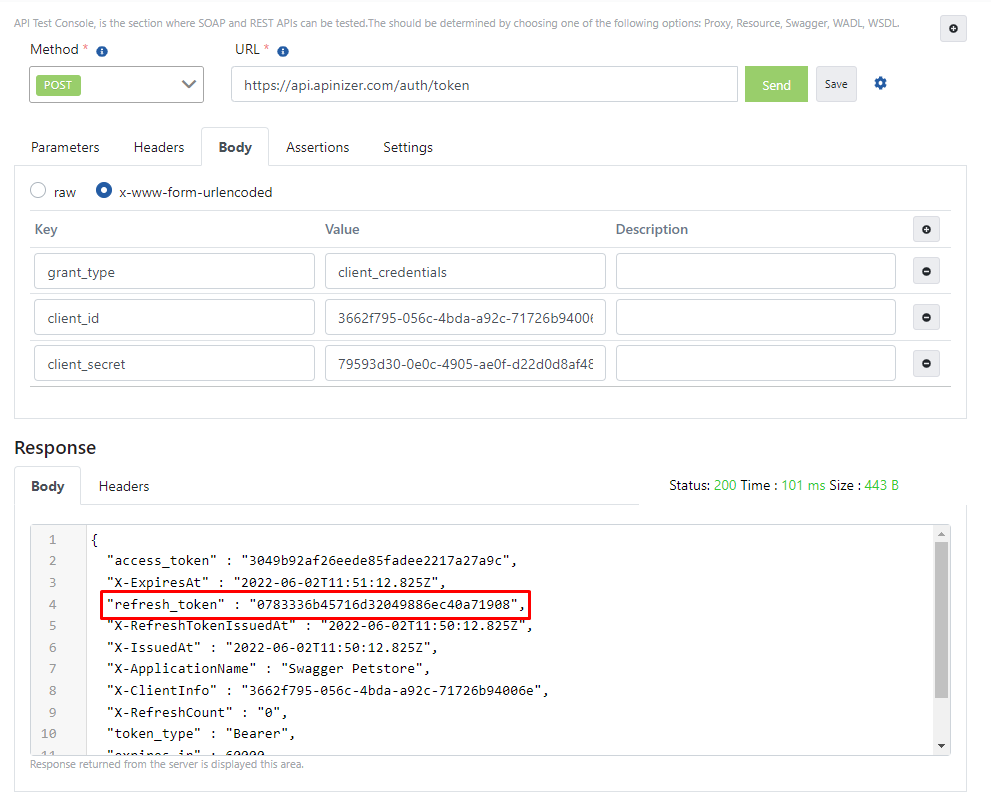
To refresh the token, take the value in the "refresh_token" field in the response from the first request and give it as a value to the refresh_token key in the message you prepared as below.
The value in the "access_token" field in the response to come will be your refreshed token value.
The image containing the example request sent to refresh the token through Apinizer Test Console is shown below:
1.3 Token Acquisition with Scope
Prepare a new HTTP request using Apinizer Test Console or another application of your choice.
- The address should be entered similar to the following according to your own Apinizer access address:
https://apinizerErisimAdresiniz/auth/jwt. - HTTP Method should be POST. "x-www-form-urlencoded" value should be selected in the Body field. If Apinizer Test Console is not used, a header should be added with "Content-Type" name and "application/x-www-form-urlencoded" value.
- The values to be entered in the Body field are as shown in the table below
| Key Name | Value to Enter if "client_credentials" is Selected When Defining Policy | Value to Enter if "password" is Selected When Defining Policy |
|---|---|---|
| grant_type | client_credentials | password |
| client_id | Public Key value obtained from API Key field | Public Key value obtained from API Key field |
| client_secret | Secret Key value obtained from API Key field | "-" (dash) |
| username | This field is not added | Username of one of the records in the authentication pool you selected |
| password | This field is not added | Password of one of the records in the authentication pool you selected |
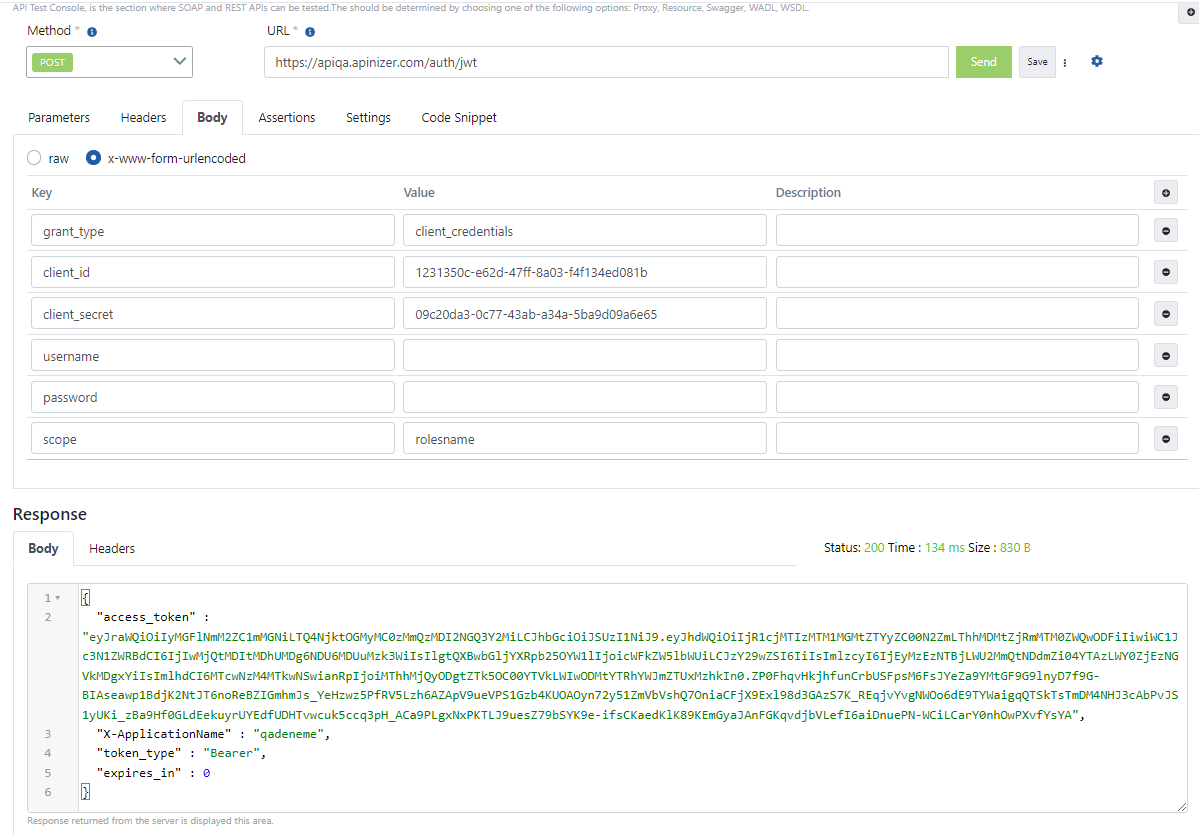
| scope | Role name defined for the user | Role name defined for the user |
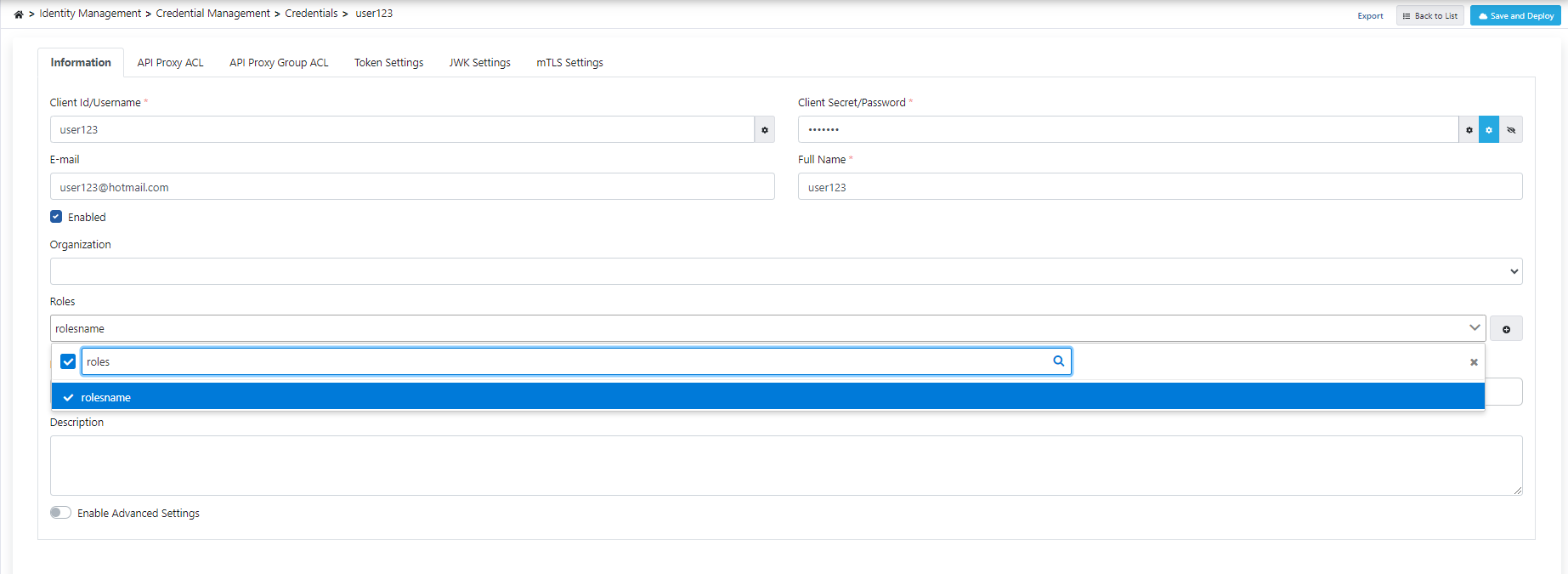
Defining Role for User
To define a role for the user, a new role should be added from the roles section as below and that Proxy should be added to the user from the API Proxy ACL section.
If grant_type is client_credentials
Add a JWT Authentication policy with default values. While doing this, copy your API Key information to use.
Send your token acquisition request with a message like the example below.
The image containing the settings for sending a request to Token Service through Apinizer Test Console is shown below:
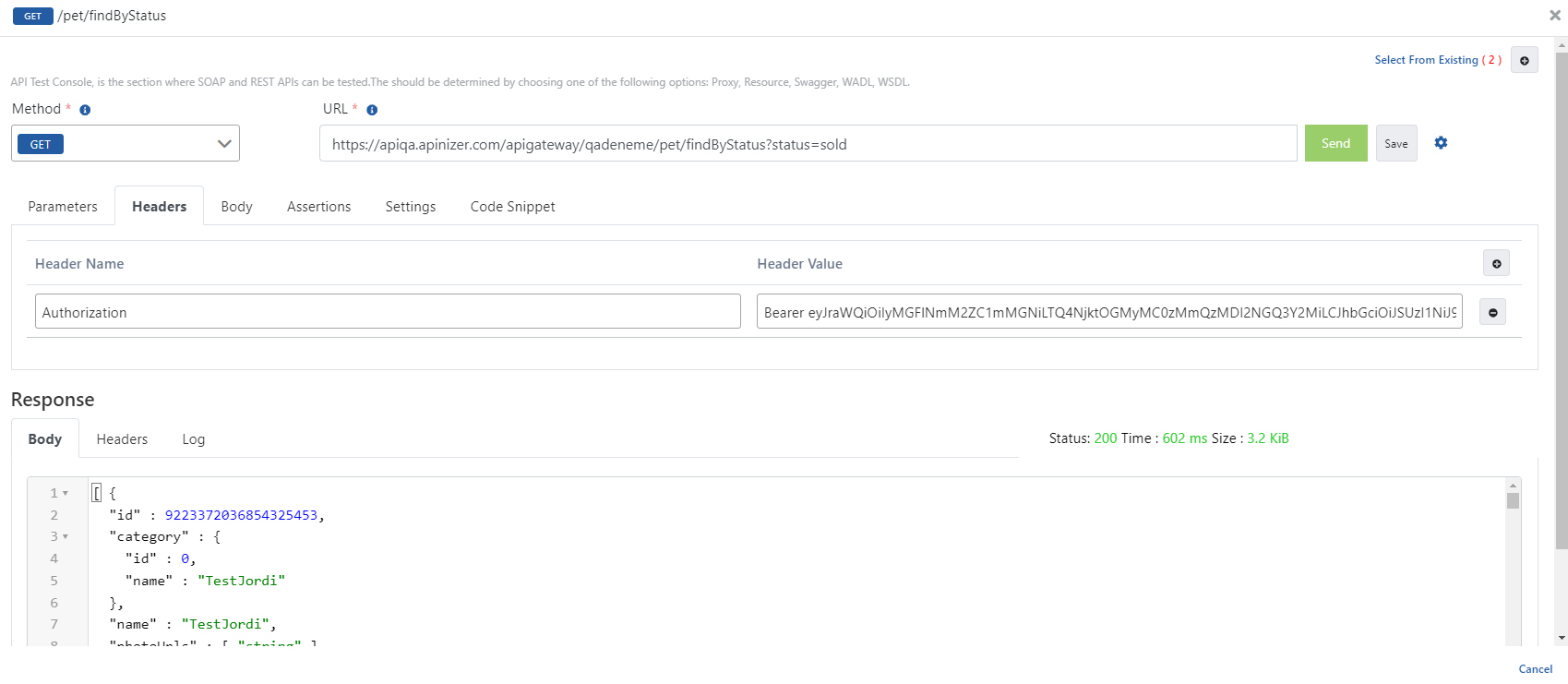
The value in the "access_token" field in the response message, when given as a value to the "Authorization" key in all requests to be sent to this API Proxy, provides secure access to the relevant API.
The image containing the operation of sending a request with token information through Apinizer Test Console is shown below:
If grant_type is password
Add a JWT Authentication policy with Grant Type value Password. While doing this, copy your API Key information to use.
Send your token acquisition request with a message like the example below.
The image containing the settings for sending a request to Token Service through Apinizer Test Console is shown below:
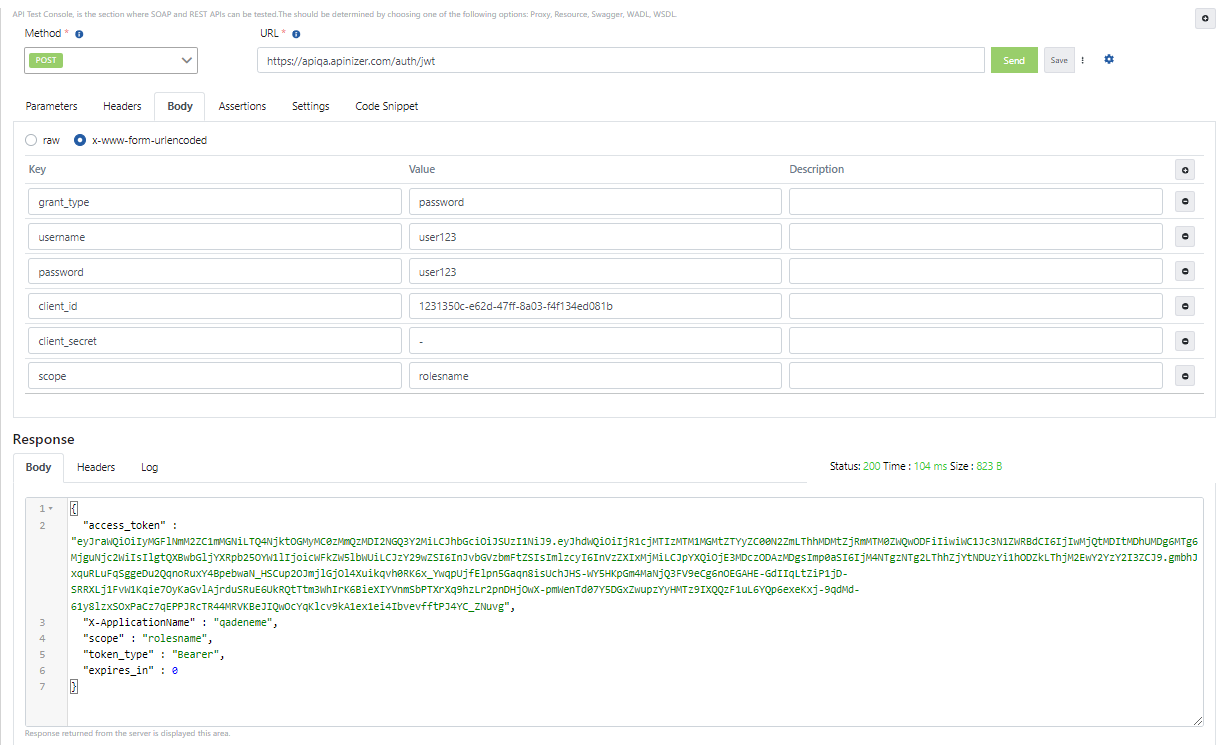
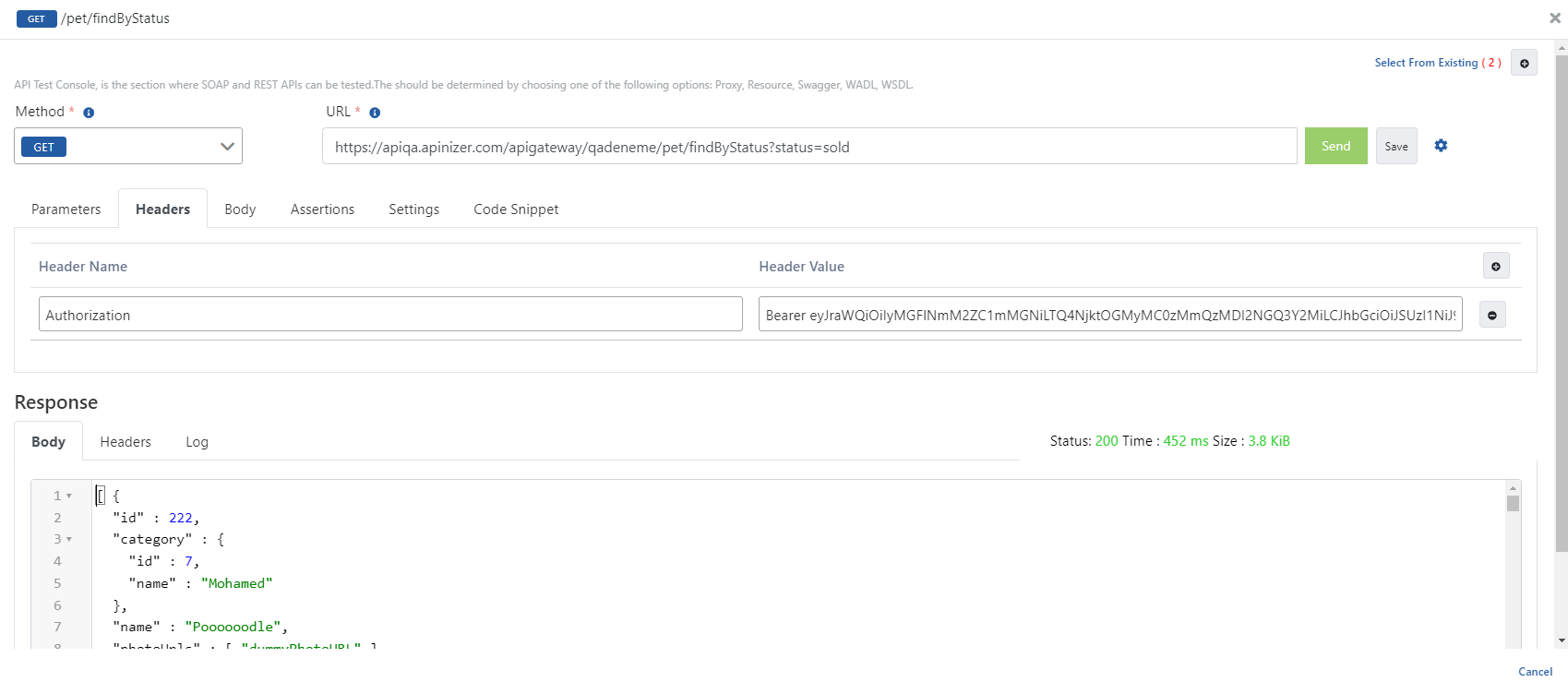
The value in the "access_token" field in the response message, when given as a value to the "Authorization" key in all requests to be sent to this API Proxy, provides secure access to the relevant API.
The image containing the operation of sending a request with token information through Apinizer Test Console is shown below:
Returning Scope in the Response and Its Behavior
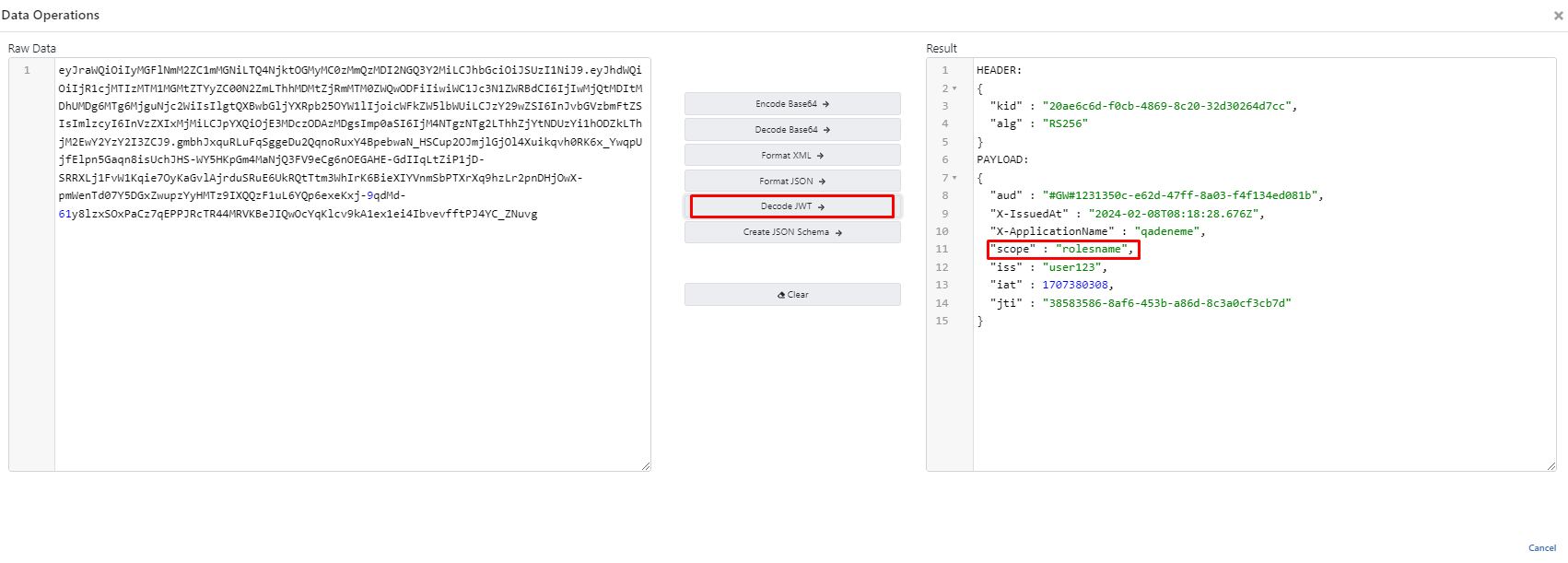
The resolved scope is returned in the response body, alongside the acquired token, as the scope field. This behavior works identically in both the "Manage From This Policy" flow on this page and the "Manage From ACL" flow below. When a JWT is acquired, the scope is also embedded inside the token.
Which scopes are returned in the response is determined by whether the requested scopes match the defined scopes and whether the request includes scope at all. You can configure this behavior — together with the response field names and whether the scope field is included in the response — from the Token Management Settings page.
For scope to be returned with a value, the relevant user or consumer must have a role (scope) defined. If no role is defined, scope is returned empty.
To attach custom claims to issued tokens beyond standard scope, see Consumer Metadata.
2. Token Acquisition with "Manage From ACL" Option
The client_id / client_secret pair in the tables below may also be an API client's own client id and client secret — issued and activated separately from any consumer. For what differs when the caller is an API client instead (only client_credentials and refresh_token, expires_in always in seconds, scope always empty, and more), see Obtaining a Token with an API Client.
Token acquisition with scope works the same way in this method as well: the scope key is added to the request body, and the resolved scope is returned together with the token in the response. For a step-by-step description and examples, see the Token Acquisition with Scope section; to configure the response behavior (mismatch handling, whether the scope field is included in the response, etc.), see the Token Management Settings page.
2.1 Token Acquisition with JWT
If the "Manage From ACL" option is selected in the created JWT Policy, tokens are acquired using this method.
Prepare a new HTTP request using Apinizer Test Console or another application of your choice.
- The address should be entered similar to the following according to your own Apinizer access address:
https://apinizerErisimAdresiniz/credential/jwt.
If the Allow URL Parameters option is selected, information can be sent using GET method and URL parameters. (See the table below for parameters to be sent)
- HTTP Method should be POST.
- "x-www-form-urlencoded" value should be selected in the Body field. If Apinizer Test Console is not used, a header should be added with "Content-Type" name and "application/x-www-form-urlencoded" value.
- The values to be entered in the Body field are as shown in the table below.
| Key Name | Value to Enter if "client_credentials" is Selected When Defining Policy | Value to Enter if "password" is Selected When Defining Policy |
|---|---|---|
| grant_type | client_credentials | password |
| client_id | Client Id value belonging to Consumers | Client Id value belonging to Consumers |
| client_secret | Client Secret value belonging to Consumers | Client Secret value belonging to Consumers |
| username | This field is not added | Username of one of the records in the authentication pool you selected |
| password | This field is not added | Password of one of the records in the authentication pool you selected |
Token Refresh
If the Token Should Be Immortal option is closed and the Token Refresh Should Be option is opened, tokens that will become invalid after a certain period can be refreshed within the period specified in the Refreshed Token Validity Period field.
Prepare a new HTTP request using Apinizer Test Console or another application of your choice.
- The address should be entered similar to the following according to your own Apinizer access address:
https://apinizerErisimAdresiniz/credential/jwt.
If the Allow URL Parameters option is selected, information can be sent using GET method through URL parameters. (See the table below for parameters to be sent).
- HTTP Method should be POST.
- "x-www-form-urlencoded" value should be selected in the Body field. If Apinizer Test Console is not used, a header should be added with "Content-Type" name and "application/x-www-form-urlencoded" value.
- The values to be entered in the Body field are as shown in the table below.
| Key name | Key Value |
|---|---|
| grant_type | refresh_token |
| client_id | Client Id value belonging to Consumers |
| client_secret | Client Secret value belonging to Consumers |
| refresh_token | Value in the "refresh_token" key in the previously acquired token |
If grant_type is client_credentials
Add a JWT Authentication policy with Manage From ACL option. Go to Token Settings panel from Consumer screen and save default values.
Send your token acquisition request with a message like the example below.
The image containing the settings for sending a request to Token Service through Apinizer Test Console is shown below:
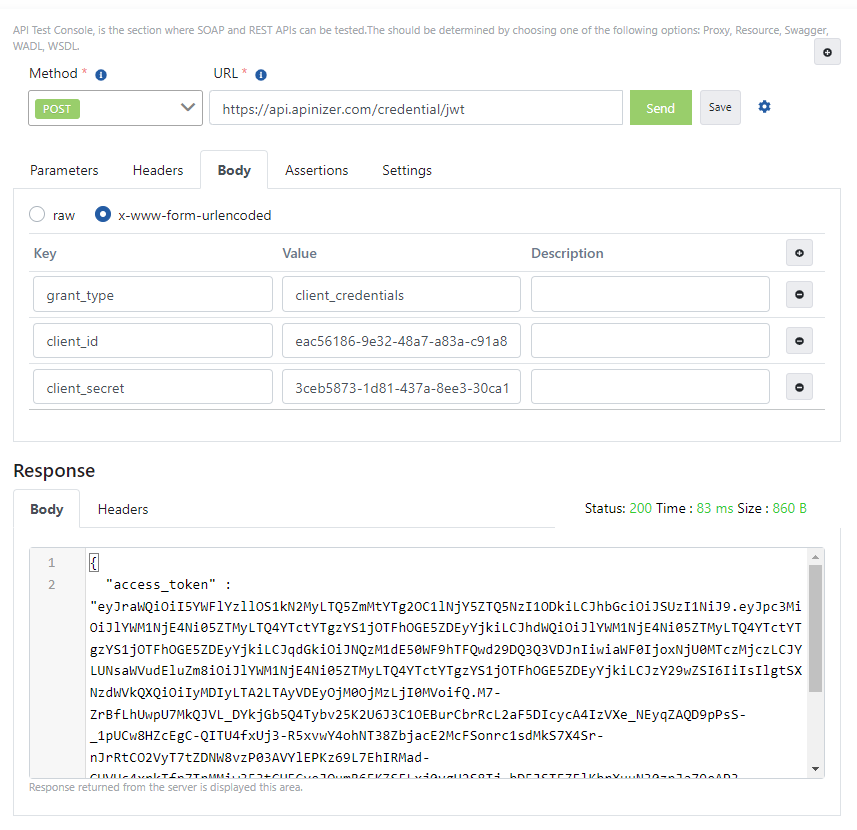
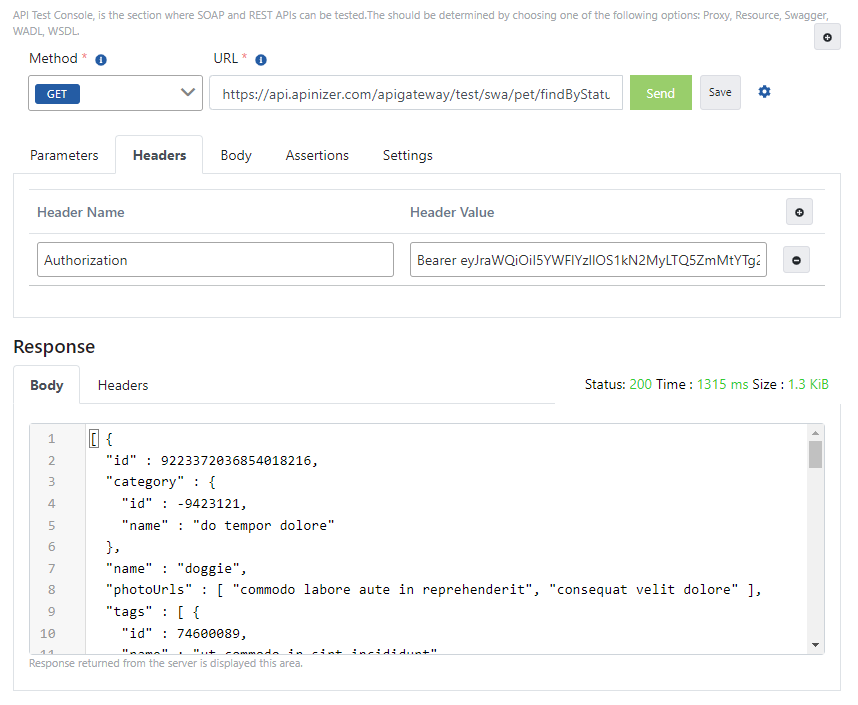
The value in the "access_token" field in the response message, when given as a value to the "Authorization" key in all requests to be sent to this API Proxy, provides secure access to the relevant API.
The image containing the operation of sending a request with token information through Apinizer Test Console is shown below:
If grant_type is password
Add a JWT Authentication policy with Manage From ACL option. Go to Token Settings panel from Consumer screen, select Grant Type value as Password and save.
Send your token acquisition request with a message like the example below.
The image containing the settings for sending a request to Token Service through Apinizer Test Console is shown below:
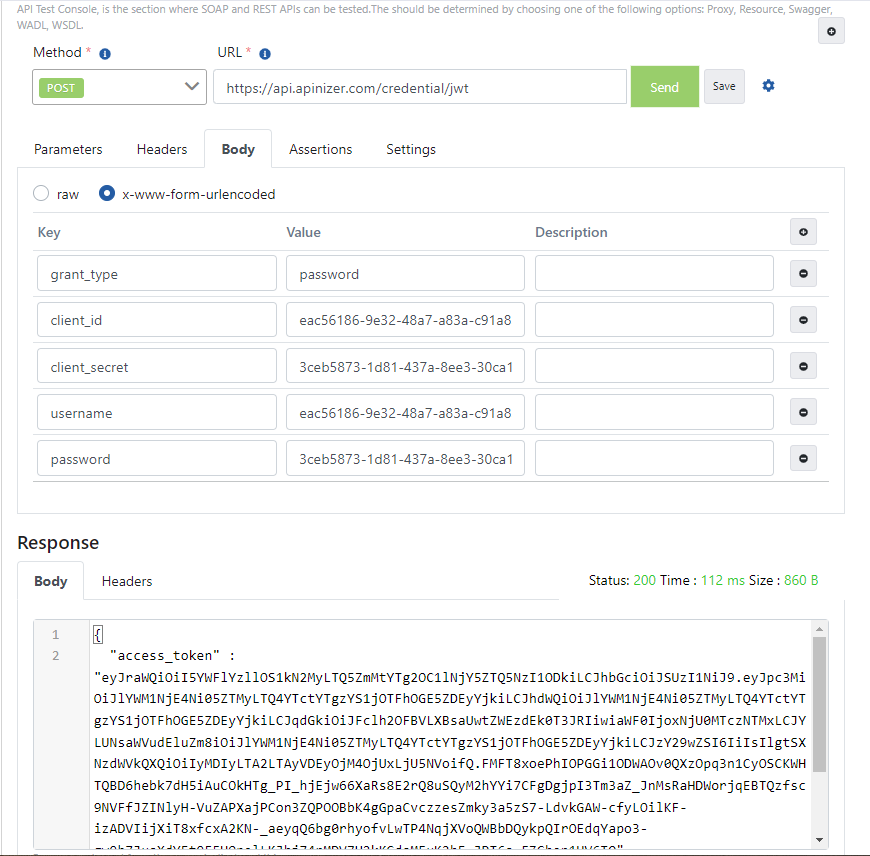
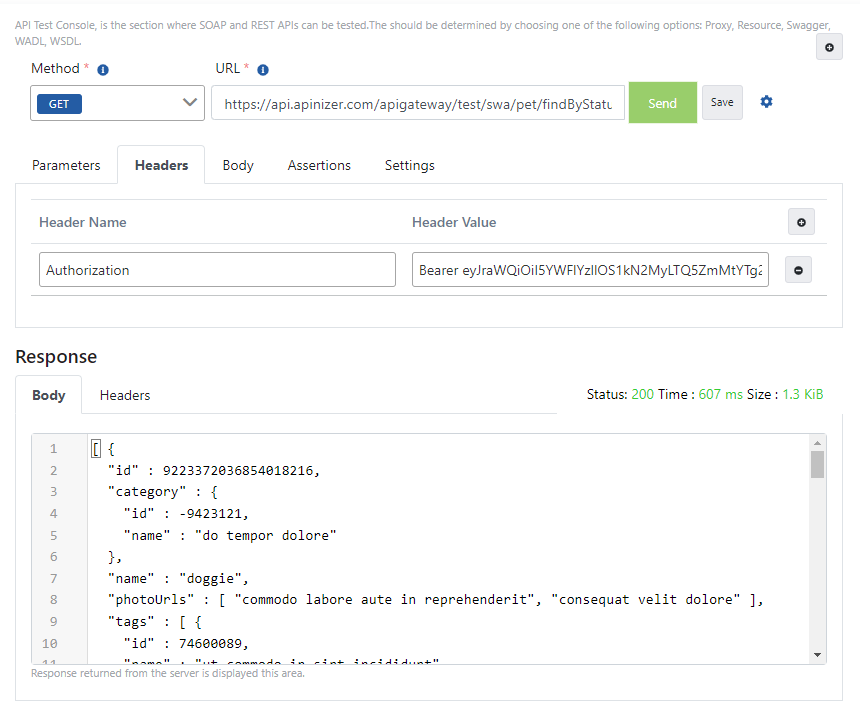
The value in the "access_token" field in the response message, when given as a value to the "Authorization" key in all requests to be sent to this API Proxy, provides secure access to the relevant API.
The image containing the operation of sending a request with token information through Apinizer Test Console is shown below:
If grant_type is refresh_token
Add a JWT Authentication policy with Manage From ACL option. Go to Token Settings panel from Consumer screen, enable Token Refresh option and save.
Send your token acquisition request with a message like the example below.
The image containing the settings for sending a request to Token Service through Apinizer Test Console is shown below:
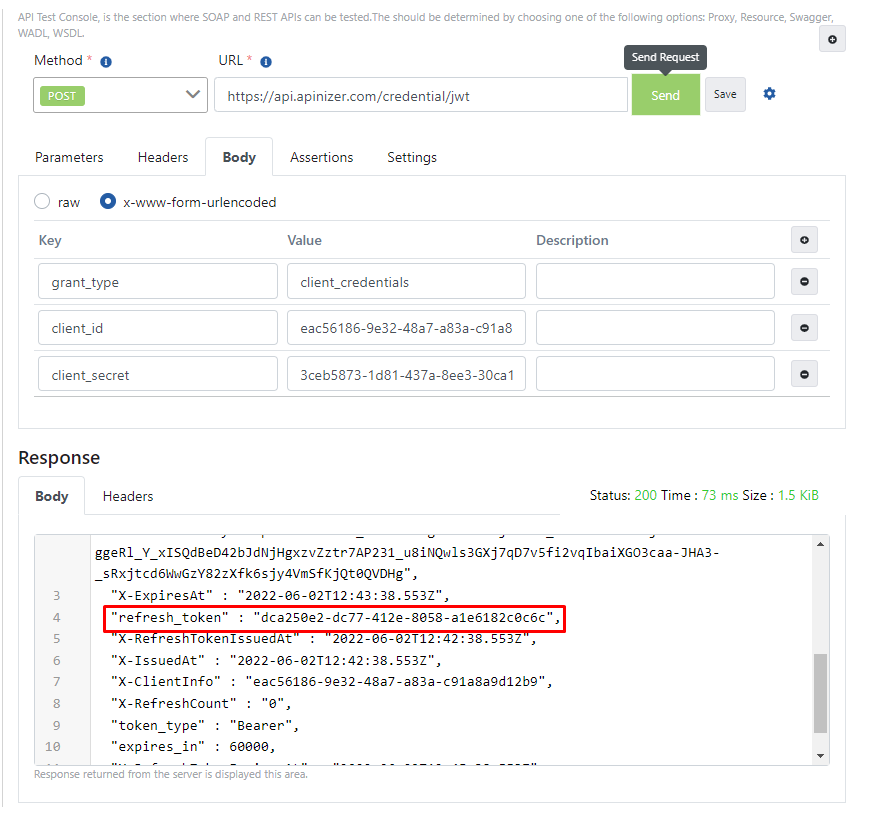
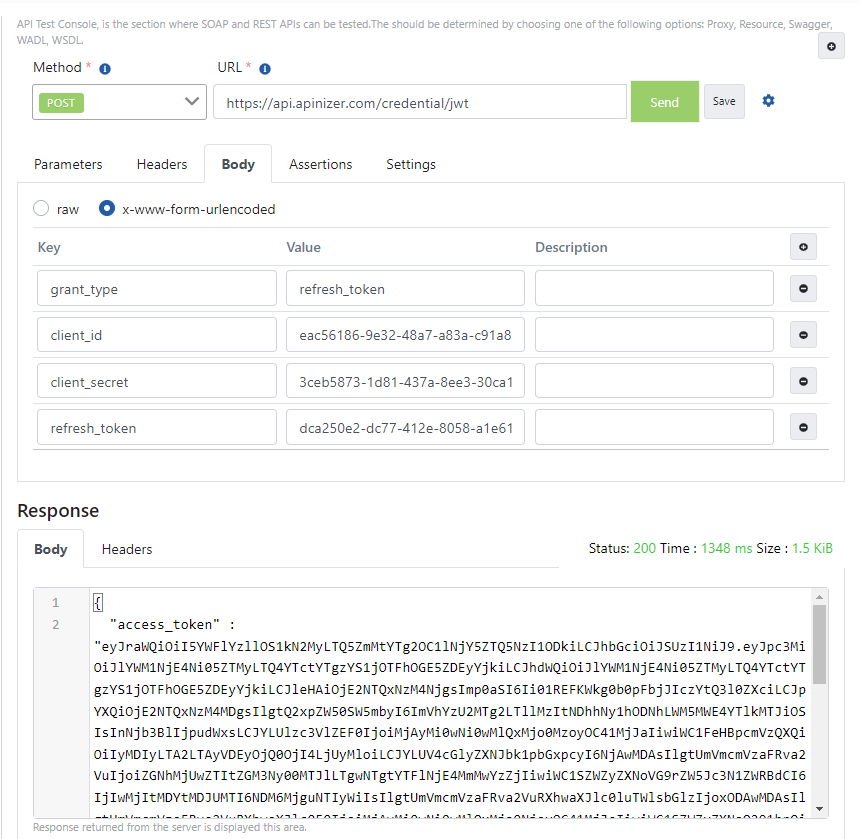
To refresh the token, take the value in the "refresh_token" field in the response from the first request and give it as a value to the refresh_token key in the message you prepared as below.
The value in the "access_token" field in the response to come will be your refreshed token value.
The image containing the example request sent to refresh the token through Apinizer Test Console is shown below:
2.2 Token Acquisition with OAuth2
If the "Manage From ACL" option is selected in the created OAuth2 Policy, tokens are acquired using this method.
Prepare a new HTTP request using Apinizer Test Console or another application of your choice.
- The address should be entered similar to the following according to your own Apinizer access address:
https://apinizerErisimAdresiniz/credential/token.
If the Allow URL Parameters option is selected, information can be sent using GET method and URL parameters. (See the table below for parameters to be sent)
- HTTP method should be POST.
- "x-www-form-urlencoded" value should be selected in the Body field. If Apinizer Test Console is not used, a header should be added with "Content-Type" name and "application/x-www-form-urlencoded" value.
- The values to be entered in the Body field are as shown in the table below.
| Key Name | Value to Enter if "client_credentials" is Selected When Defining Policy | Value to Enter if "password" is Selected When Defining Policy |
|---|---|---|
| grant_type | client_credentials | password |
| client_id | Client Id value belonging to Consumers | Client Id value belonging to Consumers |
| client_secret | Client Secret value belonging to Consumers | Client Secret value belonging to Consumers |
| username | This field is not added | Username of one of the records in the authentication pool you selected |
| password | This field is not added | Password of one of the records in the authentication pool you selected |
Token Refresh
If the Token Should Be Immortal option is closed and the Token Refresh Should Be option is opened, tokens that will become invalid after a certain period can be refreshed within the period specified in the Refreshed Token Validity Period field.
Prepare a new HTTP request using Apinizer Test Console or another application of your choice.
- The address should be entered similar to the following according to your own Apinizer access address:
https://apinizerErisimAdresiniz/credential/token.
If the Allow URL Parameters option is selected, information can be sent using GET method through URL parameters. (See the table below for parameters to be sent).
- HTTP method should be POST.
- "x-www-form-urlencoded" value should be selected in the Body field. If Apinizer Test Console is not used, a header should be added with "Content-Type" name and "application/x-www-form-urlencoded" value.
- The values to be entered in the Body field are as shown in the table below
| Key Name | Key Value |
|---|---|
| grant_type | refresh_token |
| client_id | Client Id value belonging to Consumers |
| client_secret | Client Secret value belonging to Consumers |
| refresh_token | Value in the "refresh_token" key in the previously acquired token |
If grant_type is client_credentials
Add an OAuth2 Authentication policy with Manage From ACL option. Go to Token Settings panel from Consumer screen and save default values.
Send your token acquisition request with a message like the example below.
The image containing the settings for sending a request to Token Service through Apinizer Test Console is shown below:
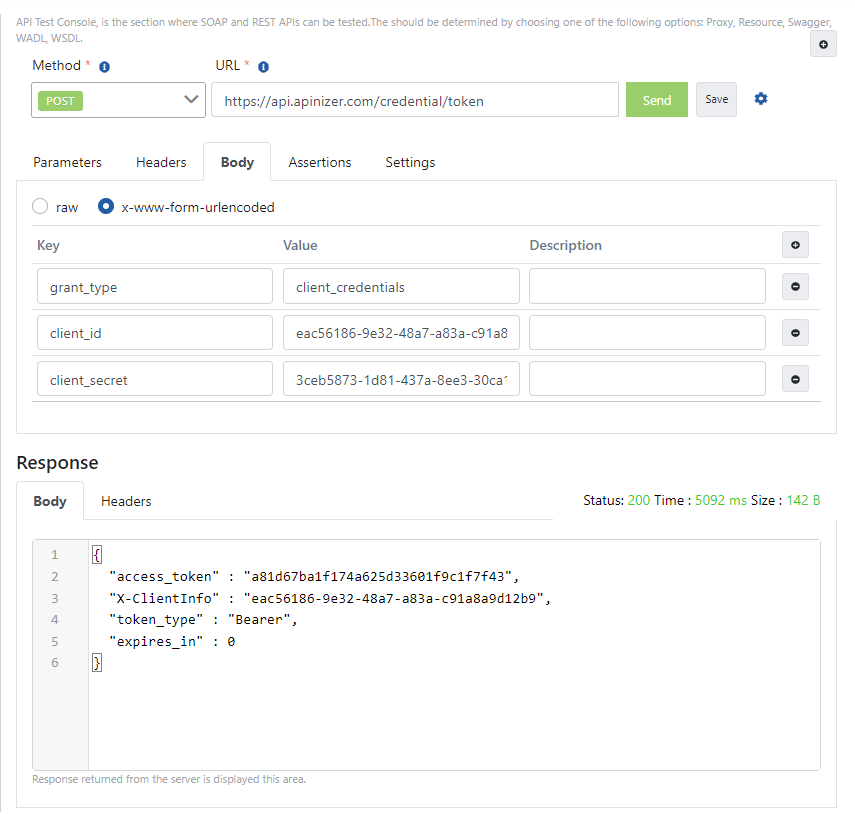
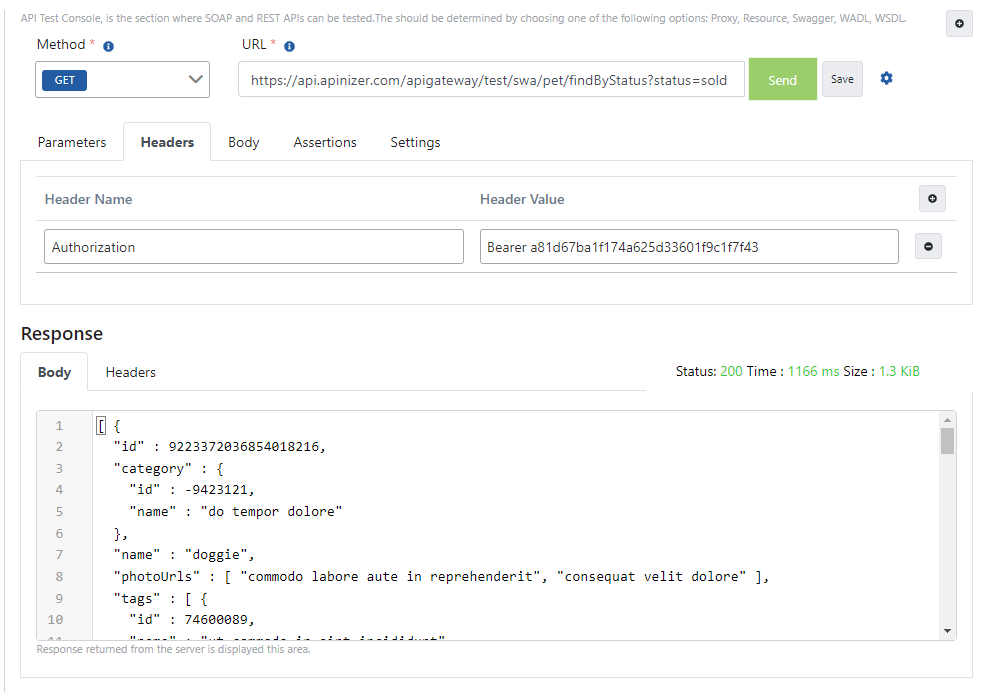
The value in the "access_token" field in the response message, when given as a value to the "Authorization" key in all requests to be sent to this API Proxy, provides secure access to the relevant API.
The image containing the operation of sending a request with token information through Apinizer Test Console is shown below:
If grant_type is password
Add an OAuth2 Authentication policy with Manage From ACL option. Go to Token Settings panel from Consumer screen, select Grant Type value as Password and save.
Send your token acquisition request with a message like the example below.
The image containing the settings for sending a request to Token Service through Apinizer Test Console is shown below:
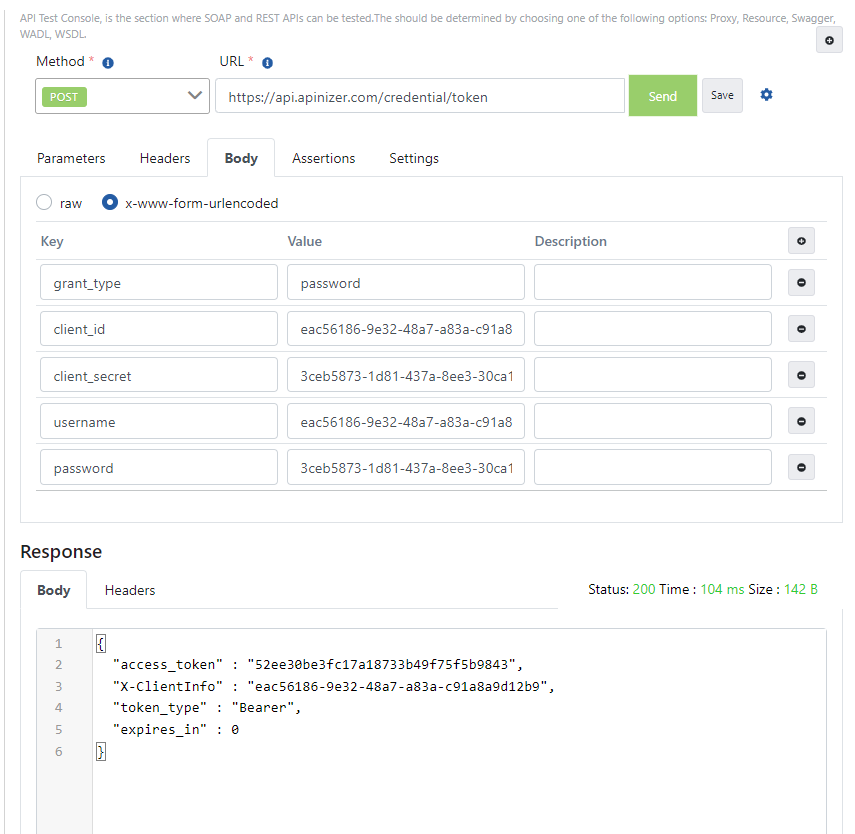
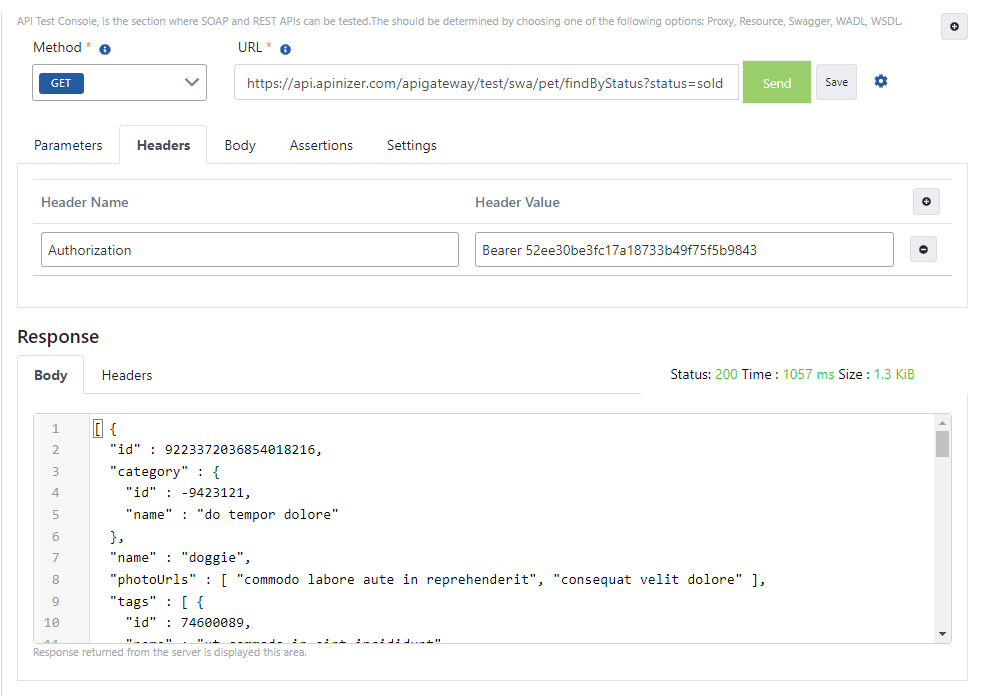
The value in the "access_token" field in the response message, when given as a value to the "Authorization" key in all requests to be sent to this API Proxy, provides secure access to the relevant API.
The image containing the operation of sending a request with token information through Apinizer Test Console is shown below:
If grant_type is refresh_token
Add an OAuth2 Authentication policy with Manage From ACL option. Go to Token Settings panel from Consumer screen, enable Token Refresh option and save.
Send your token acquisition request with a message like the example below.
The image containing the settings for sending a request to Token Service through Apinizer Test Console is shown below:
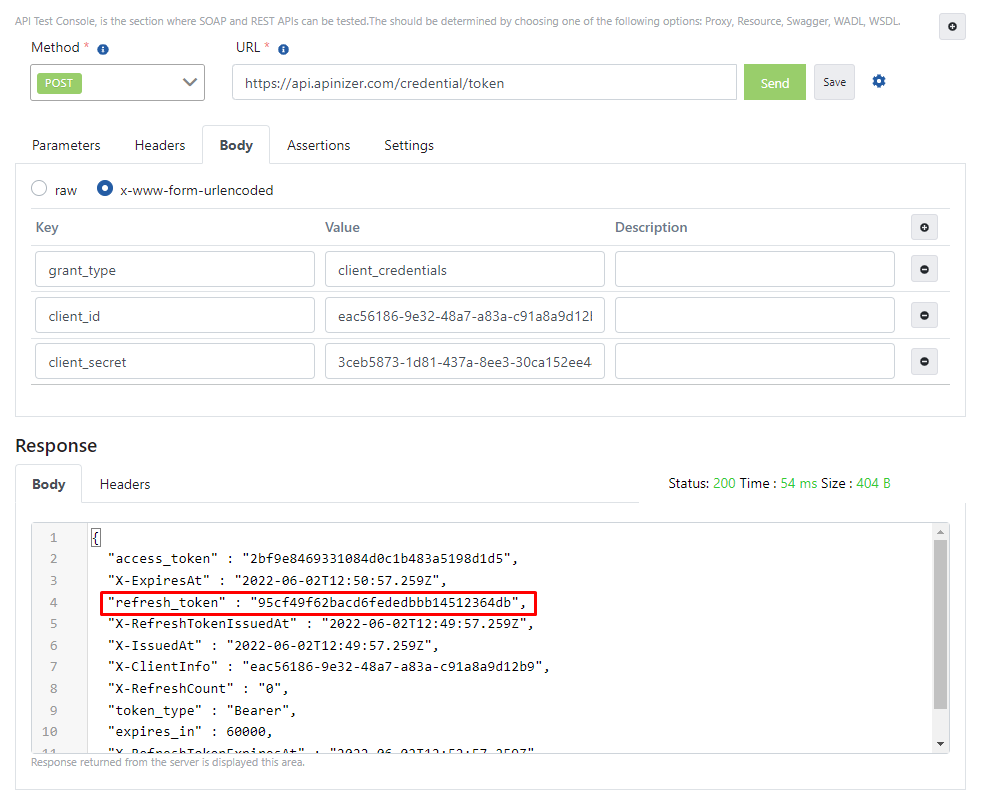
To refresh the token, take the value in the "refresh_token" field in the response from the first request and give it as a value to the refresh_token key in the message you prepared as below.
The value in the "access_token" field in the response to come will be your refreshed token value.
The image containing the example request sent to refresh the token through Apinizer Test Console is shown below: