Task-to-Task XML Data Transfer and Usage
Scenario: An API that returns XML data will be called, and each of the array-type elements in the returned result will be sent to another API in a specific format.
In this case, two API Call connectors should be added as tasks. The first is for reading and the other is for writing in a loop.
Task-1: Reading data with API Call connector
Click the API Call option from the dialog listing tasks.
Select the "Once" option to indicate that the task will run once.
Enter the relevant API access information where data reading will be performed.
To use the data returned from the API in the next task, set the output key information to "xmlResponse". (You can name this value as you wish.)
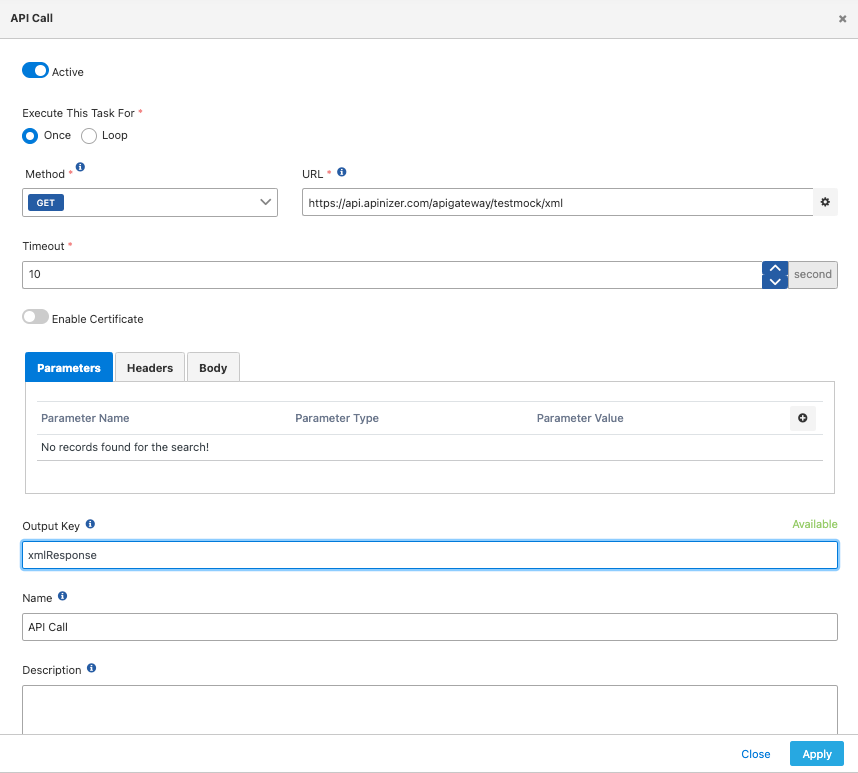
When this task runs, the following XML Data is returned in this example, meaning the xmlResponse value will contain the following data:
<root>
 <users>
  <user>
   <id>1</id>
   <name>user 1</name>
   <description>Description of user 1</description>
  </user>
  <user>
   <id>2</id>
   <name>user 2</name>
   <description>Description of user 2</description>
  </user>
  <user>
   <id>3</id>
   <name>user 3</name>
   <description>Description of user 3</description>
  </user>
 </users>
</root>
Task-2: Sending data to API with API Call connector
Click the API Call option from the dialog listing tasks.
Select the "Loop" option to indicate that work will be done in a loop on the array data from the previous task.
Write as XPath which part of the output key information value entered in the previous task ("xmlResponse") should be processed as an array.
When writing XPath, add the "#/" sign to the key information ("xmlResponse") to indicate that XML operations will be performed on the previous data. Then enter the path where the array elements are located as XPath. In this case, for this example, the following should be written in the XPath field:
{{xmlResponse#/root/users/user}}
Enter the relevant API access information where the data will be sent.
Enter the template message information you want to send. If you want to use the values of elements in the loop within the template message information, add the relevant data within the element to the template using the "LOOP_VARIABLE" expression. Along with LOOP_VARIABLE, the XPath information to access the XML data within the element indicated as the target for the loop must be entered.
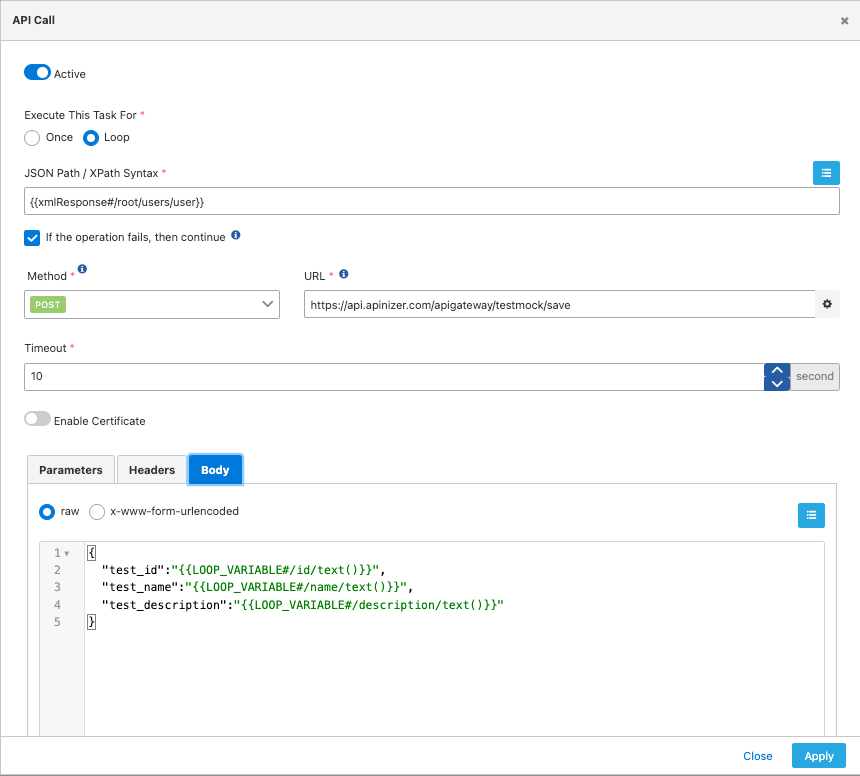
In this example, when the expression {{xmlResponse#/root/users/user}} is executed on the xmlResponse data returned from the previous task, 3 elements are returned, indicating that this task will run 3 times.
In the first run, the LOOP_VARIABLE value will contain the following XML.
<user>
 <id>1</id>
 <name>user 1</name>
 <description>Description of user 1</description>
</user>
Let's assume the template to be executed on this XML is as follows:
{
 "test_id":"{{LOOP_VARIABLE#/id/text()}}",
 "test_name":"{{LOOP_VARIABLE#/name/text()}}",
 "test_description":"{{LOOP_VARIABLE#/description/text()}}"
}
Note that the XPath used next to LOOP_VARIABLE to get the target data ends with the text() method.
In this case, the request body to be sent with API Call will be as follows:
{
 "test_id": "1",
 "test_name": "user 1",
 "test_description": "Description of user 1"
}