Route Analysis
Open this screen via Administration > Gateway Infrastructure > Route Analysis. It is not part of the Metrics page.
Tabs
The page has two tabs:
Static analysis of the stored configuration. Shows whether routes conflict with one another.
Asks running worker pods about the request you describe. A record of the gateway's current behaviour rather than of its configuration.
The Route Conflicts tab has its own Environment and Project filters; the date range is not used for these reports. Route Conflicts has its own export on the filter row; Route Match Test has no Excel export.
Route Conflicts
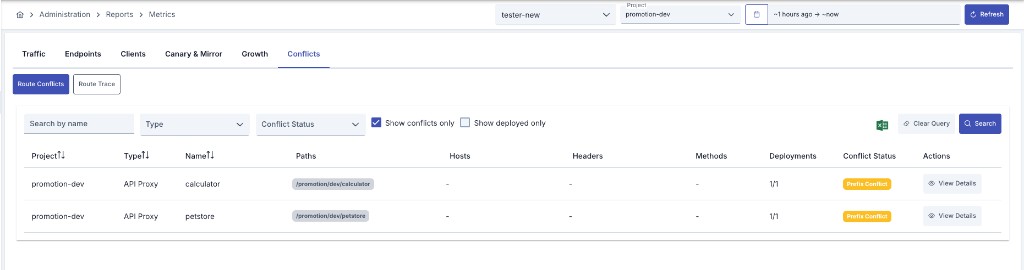
Filtering
| Option | Description |
|---|---|
| Search by name | Text search on name, path, or host (auto-search with 300 ms debounce while typing) |
| Type | API Proxy or Proxy Group |
| Conflict Status | No Conflict, Exact Match, Prefix Conflict |
| Show conflicts only | Lists only conflicting routes (default: checked) |
| Show deployed only | Lists only routes deployed to at least one environment |
| Clear Query / Search | Resets filters or triggers a manual query |
| Excel Export | Downloads a ZIP with current filters (apinizer-route-conflict-report.zip) |
Table Columns
| Column | Description |
|---|---|
| Project | Project the route belongs to |
| Type | API Proxy or API Proxy Group |
| Name | API Proxy / Proxy Group name |
| Paths | Defined client route paths |
| Hosts | Defined hosts; - when empty |
| Headers | Headers in name:value format; - when empty |
| Methods | Supported HTTP methods; - when empty |
| Deployments | Deployed / total environment count (e.g. 1/1) |
| Conflict Status | No Conflict, Exact Match, or Prefix Conflict |
| Actions | View Details — detail dialog |
You can sort by Project, Type, and Name. Results are not paginated; they appear in a scrollable table (max height ~600 px).
View Details
The View Details dialog shows:
Project, type, name, paths, hosts, headers, methods, and conflict status
Environment name, access URL, deploy status, redeploy required
Other conflicting routes: project, type, name, path, reason
Conflict Statuses
No conflict with other routes.
Path, host, header, and method configuration exactly matches another route — serious conflict.
Path conflicts with another route's path prefix — potential issue.
Route Match Test
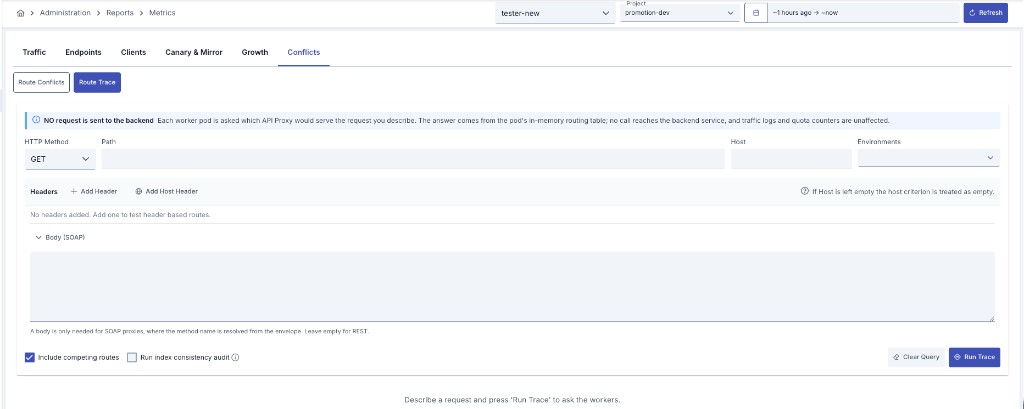
Route Match Test asks every running worker pod, separately, which API Proxy would serve the request you describe.
The conflict report examines stored configuration; Route Match Test looks at the worker's in-memory routing table. When the two disagree, the problem is in worker memory rather than configuration.
No request is sent to the backend. The answer comes from the pod's in-memory routing table. Traffic logs, quota, and rate limit counters are unaffected. It is safe to run against a live environment.
Describing the Request
| Field | Description |
|---|---|
| HTTP Method | Request method. Configuration wildcard ALL is not in the list |
| Path | Requested address; must start with / |
| Host | For host-based routes. If left empty the host criterion is treated as empty |
| Environments | Environments to probe. Leave empty to probe every published environment |
| Headers | Name/value pairs for header-based routes; Add Header / Add Host Header |
| Body (SOAP) | Only needed for SOAP proxies; leave empty for REST |
Additional options:
- Include competing routes — lists routes that lost the match and why each was eliminated
- Run index consistency audit — scans the worker's in-memory route index; costly; enable when a match looks impossible
Clear Query resets the form; Run Test runs the probe. Results can be copied to the clipboard as JSON (header values are excluded from the copy).
Reading the Result
The result leads with agreement across pods, not the pod list:
Routing table is consistent across pods; configuration decides the outcome.
The same request resolves on some pods and not others — intermittent 404 from outside.
Different destinations per pod; in-memory routing tables have drifted apart.
Pods that answered agree; at least one pod could not be reached.
Below the agreement banner, pods with identical answers are collapsed into one card; the pod table at the bottom serves as evidence. Expanding a row shows:
- How the request was read — path interpretation and root context stripping
- Competing routes — host/header/URI/method rule outcomes and elimination reasons
- Index findings — index inconsistencies when the audit is enabled
- Group members — evaluation order when the match came through a Proxy Group
A pod reporting an error does not mean the whole report failed; the banner states how many pods responded.
A competing route listed as Matched but not reached points at the worker's in-memory index rather than configuration. Index audit findings likewise concern the running worker's state; the affected worker may need to be restarted.