Proxy Creation Report
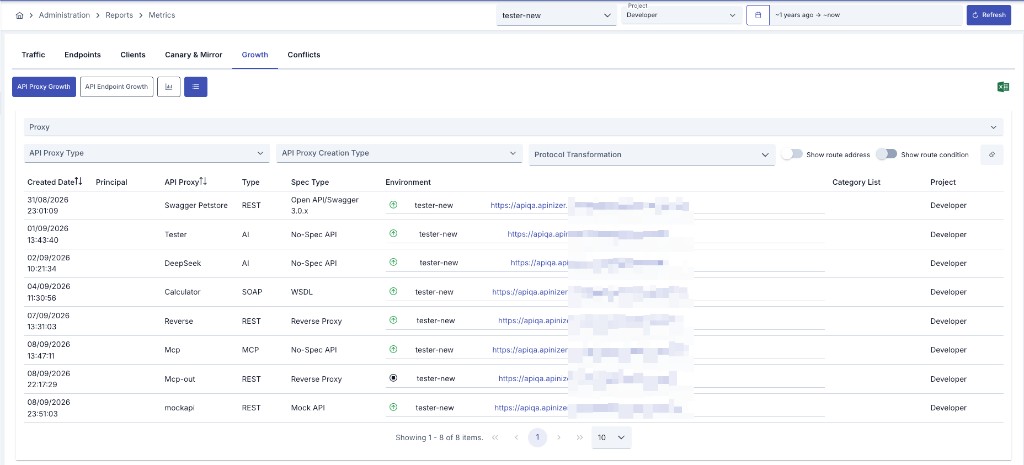
This report does not use Elasticsearch traffic data; it lists API Proxy metadata (creation date, type, deploy status) from MongoDB. The Environment selector on the Metrics filter row does not filter this report — the Environment column shows which environments each proxy is deployed to and their access URLs.
This report does not show its own date picker; the creation window comes from the shared date range at the top of the Metrics page. When the API Growth or Endpoint Growth tab is opened for the first time, the window automatically widens to the last year if the shared range has not been changed manually.
Metrics Page
This report is the API Growth tab of the Metrics page (full name: API Proxy Growth). Open it via Administration > Reports > Metrics or Reports > Metrics in the project menu.
The Endpoint Growth tab is related; see API Endpoint Creation Report for endpoint creation metrics.
View Options
Use the chart/list buttons on the sub-report row to switch views:
Shows proxy counts in the selected creation range as a vertical bar chart bucketed by Interval (Daily / Weekly / Monthly). Default interval is Monthly.
Lists created proxies in a paginated table with type, spec type, deploy status, and category information per row.
Filtering
Shared filter (Metrics top row)
| Option | Description |
|---|---|
| Environment | Applies to traffic reports; does not filter this report's list |
| Project | (Administration only) Limits creation records to selected projects |
| Date Range | Applied to proxy createdDate; ES date-math is mapped to yyyy-MM-dd creation bounds |
| Refresh | Re-queries the active sub-report with the selected filters |
| Excel Export | Exports according to the active view: chart uses project + date only; list applies all list filters below. ZIP filename: apinizer-api-proxy-report.zip |
List view filters
| Option | Description |
|---|---|
| Proxy | Narrows the list to selected API Proxies |
| API Proxy Type | REST, SOAP, gRPC, WebSocket, AI, MCP, A2A — multi-select; all types when empty |
| API Proxy Creation Type | WSDL, Swagger 2.x, Open API/Swagger 3.0.x, Reverse Proxy, No-Spec API, DB-2-API, Mock API, Script-2-API, Connector |
| Protocol Transformation | Filters REST proxies by protocol transformation |
| Show route address | Adds routing target addresses to the table (default: off) |
| Show route condition | Adds condition summaries when route address is enabled (default: off) |
| Clear | Resets report-specific filters; project scope and shared date range are preserved |
Table Column Descriptions
| Column | Description |
|---|---|
| Created Date | Proxy creation timestamp (dd/MM/yyyy HH:mm:ss) |
| Principal | User / account that created the proxy |
| API Proxy | Proxy name |
| Type | API type (REST, SOAP, gRPC, WebSocket, AI, MCP, A2A) |
| Spec Type | Creation source (Open API/Swagger 3.0.x, WSDL, No-Spec API, etc.) |
| Environment | Per deploy row: status icon (deployed / redeploy required / undeployed), environment name, and clickable gateway access URL |
| Category List | Category tags assigned to the proxy |
| Project | (Administration only) Project the proxy belongs to |
When route toggles are enabled, additional columns appear: Route Address, Route Condition (condition is available only when route address is on).
Pagination options: 10, 25, 50, 100 rows.
Filtering by API Proxy Type
Use the API Proxy Type filter in list view to select any platform type. Multiple types can be selected at once; when none is selected, all types are listed. The Type column shows each proxy's type on every row, independently of the filter.
Showing Routing Information
Two options in the filter row show where your API Proxies route requests. Both are off by default; when enabled, a new column is added to both the on-screen list and the Excel output.
Shows target addresses the API Proxy forwards requests to. Multiple targets are listed one under another, with primary, canary, mirror, and failover targets labelled separately.
When a target is used only if certain conditions are met, shows a summary on the same line as the address. The cell stays empty for targets without conditions. On LLM Gateways a condition can be defined by field comparison or semantic similarity.
The route condition option is available once route address is enabled. Condition summaries are aligned with address lines, so they carry no meaning without the address column.
How targets are displayed depends on the API Proxy type. REST, SOAP, gRPC, and WebSocket show backend addresses; AI shows provider and model information; MCP and A2A show the connected server name and address. For MCP configurations that expose their own tools the column states the number of exposed tools instead of an external address. For A2A configurations that expose their own agent, the column lists exposure together with the provider and model the agent uses.
Because route columns are off by default, scripts that process your existing Excel output are unaffected; the columns appear only when you enable them.