Anomaly Detector
Overview
Automatically detect abnormal situations in your API traffic
Monitor anomalies in metrics such as response time and error rate
Detect changes such as traffic increase/decrease early
Perform statistical anomaly detection with EMA algorithm
Receive instant notifications when anomalies are detected
Visualize historical anomaly data with charts
What is Anomaly Detector?
Basic Concept
Anomaly Detector is a monitoring system that automatically detects deviations from normal behavior in your API traffic.
Anomaly Detection, in its simplest sense, is a technique that enables finding unexpected situations or patterns in data. These unexpected situations or patterns are actually situations or patterns that do not conform to the expected behaviors of data. In the literature, these unexpected situations are called outliers (outlier values), exceptions (exceptional situations), or anomalies (outside the norm).
Example Scenario: Let's say you spend approximately 200-300 TL per month from your credit card. That is, in your bank's profile, you are a customer who makes low-budget expenditures every month. So what happens if one day you make a purchase of 1500 TL?
Actually, this situation indicates that you have deviated from your normal behavior and that you have suddenly become a customer who spends 1500 TL unexpectedly, while normally you are a customer who spends at most 200-300 TL. This situation is actually an anomaly behavior. If your bank uses anomaly detection techniques in this case, it predicts that this could be credit card fraud (Credit Card Fraud Detection) and sends you a message. This simple example is actually an anomaly detection example.
When to Use?
Detecting abnormal increases in response times
Detecting sudden rises in error rates
Detecting changes such as traffic increase/decrease
Detecting deviations in service level agreements
Detecting suspicious traffic behaviors
Performing capacity planning by analyzing traffic trends
How Does It Work?
Query, filter, conditions, and scheduling are determined
Analysis is performed automatically at specified times (e.g., every 5 minutes)
API traffic is analyzed using query and filter
Anomaly check is performed according to defined conditions:
- Metric Check: Did the value exceed a certain threshold?
- Rate Check: Did the value increase/decrease by a certain rate?
- EMA Check: Is the value statistically abnormal?
When an anomaly is detected, the result is saved
When an anomaly is detected, configured notifications are triggered
Quick Start
Creating Your First Anomaly Detector
Click Monitoring → Anomaly Detector from the Main Menu
Click the "Create New" button
- Name: A name for your detector (e.g., "Response Time Anomaly Detection")
- Description: Optional description
- Environment: Select the environment to be analyzed
Define the API traffic to be analyzed with query and filter
Define anomaly detection conditions (Metric, Rate, or EMA)
Determine analysis frequency (e.g., Every 5 minutes)
Click the "Save" button
Creating a New Anomaly Detector
Step 1: Basic Information
Name - Required
Enter a unique name for the anomaly detector. This name:
- Must be unique within the project — a second detector with the same name cannot be saved, while the same name may still be used in another project
- Cannot start with a space
- The system automatically checks the availability of the name
The name is checked again only when you change it. A detector whose name stays the same can always be saved, so if two detectors in the same project already carry the same name — possible on installations upgraded from an earlier version, or when a detector is imported with its original name kept — both remain editable; rename one of them to clear the duplicate.
Changing only the capitalisation of a name does not count as a duplicate of the record you are editing:
renaming Response Time Anomaly Detection to response time anomaly detection is accepted and can be saved.
Good Name Examples:
Response Time Anomaly DetectionError Rate Increase MonitoringTraffic Anomaly DetectorCritical API Performance Monitoring
Description - Optional
You can enter descriptive information about the anomaly detector:
- Maximum 500 characters
- Used to explain the purpose and scope of the detector
- Displayed on the list page
Example Descriptions:
Created for response time anomaly detection of critical payment APIUsed to monitor error rate increases across all APIsUses EMA algorithm to detect traffic anomalies
Environment - Required
Select the environment to be analyzed:
- Select an environment from the environment list
- The selected environment must have Elasticsearch integration active
- Environments without integration are shown as disabled
The environment is required both when you create a new detector and when you edit an existing one — the Save button stays disabled until an environment is selected, and saving without one is also refused server-side. A detector needs its environment because it reads traffic only from that environment's Elasticsearch connection; without one, every scheduled run would fail.
The same rule applies if the environment stored on the record no longer exists in this installation — for example, the environment was deleted after the detector was created, or the detector was imported from another installation. In that case the field shows "Select an option", a message underneath explains that the stored environment can no longer be found, and the Save button stays disabled until you pick a valid environment. When you create a new detector, the environment field only preselects an environment that has Elasticsearch integration active; when you edit an existing detector, the environment is never preselected for you.
The check is not only in the form: the server also rejects saving or activating a detector whose environment has no Elasticsearch connection defined, or has it defined but not enabled — this applies even if a request reaches the server outside the normal form, for example through the Management API. Setting a detector to passive is never blocked by this check.
Status - Default: Active
Determines the active/passive status of the detector:
- Active: Detector runs, scheduled analyses are performed
- Passive: Detector is stopped, no analysis is performed (historical data is preserved)
Step 2: Scheduling Settings
Determine how often the detector will run. Scheduling is done using Cron Expression.
Common Scheduling Examples
| Description | Cron Expression | Use Case |
|---|---|---|
| Every 5 minutes | 0 */5 * ? * * | For critical APIs (most common) |
| Every 15 minutes | 0 */15 * ? * * | For normal APIs |
| Every hour | 0 0 * ? * * | For test/development environments |
| Every day at 09:00 | 0 0 9 * ? * | For daily reporting |
Recommendations:
- For critical APIs: Every 5 minutes
- For normal APIs: Every 15-30 minutes
- For test/development: Every hour
Step 3: Query and Filter Configuration
In this section, you define the API traffic to be analyzed.
Query - Required
Query defines the API traffic to be analyzed:
Click the "Select or Create Query" button
In the opened dialog:
- You can select an existing query OR
- Create a new query
- API Proxy: Which APIs will be analyzed?
- HTTP Method: Which HTTP methods will be analyzed?
- Endpoint: Which endpoints will be analyzed?
- And more...
Query Examples:
- Analyze all failed requests
- Analyze all requests of a specific API proxy
- Analyze response times of a specific endpoint
For detailed information about queries, see the Queries page.
Filter - Optional
Filter is used to further narrow down query results:
Click the "Select or Create Filter" button
In the opened dialog:
- You can select an existing filter OR
- Create a new filter
- Date Range: Which time range will be analyzed?
- Proxy List: Which proxies will be included?
- Result Type: Successful/Failed/Blocked requests
Filter Examples:
- Analyze traffic from the last 1 hour
- Analyze only failed requests
- Exclude specific proxies
For detailed information about filters, see the Filters page.
Step 4: Condition Definition
Conditions are the criteria used for anomaly detection. You can define multiple conditions. An anomaly is detected when at least one condition is met.
Condition Types
Anomaly Detector supports 4 different types of conditions:
Direct check of metric values - Did the value exceed a certain threshold?
Metric increase/decrease rate check - Did the value increase/decrease by a certain rate?
Use of EMA with bollinger bands - Is the value statistically abnormal?
Query/Filter rate check - Ratio of query results to filter results
Adding Conditions
-
Click the "+" button to add a new condition
-
Select the condition type (Metric / Rate / EMA / Query - Filter Rate)
-
Fill in the condition parameters
1. Metric Value Check
Metric condition checks whether a metric value exceeds a certain threshold.

Example configuration of metric value check Configuration Fields:
Field Description average of Indicates which operation will be applied to the value in the next column. In this example, average value is selected. time api proxy total Specifies which metric field will be processed. In this example, API Proxy total time is selected. above Specifies how the found metric will be compared with the next value. for ... times Specifies that this condition must be met in ... consecutive analyses, the current analysis included. A single analysis that falls back below the threshold breaks the streak, so a past threshold crossing on its own never produces a new anomaly. Supported Operators:
- Above:
Value > Threshold - Above or Equal:
Value >= Threshold - Below:
Value < Threshold - Below or Equal:
Value <= Threshold - Between:
Threshold1 < Value < Threshold2
Example Scenario:
- Metric Type: Average Response Time
- Operator: Above
- Threshold Value: 1000 ms
- Repeat Count: 3
- Meaning: Anomaly is detected when average response time exceeds 1000 ms in 3 consecutive analyses, the current analysis included.
2. Metric Increase/Decrease Rate Check
Rate condition checks whether a metric value increases or decreases by a certain rate.

Example configuration of metric increase/decrease rate check Configuration Fields:
Field Description average of Indicates which operation will be applied to the value in the next column. In this example, average value is selected. time api proxy total Specifies which metric field will be processed. In this example, API Proxy total time is selected. increased by Specifies what the behavior of the found metric will be. In this example, increase rate is selected. more than Specifies how the metric behavior will be compared with the previous value. In this example, greater than comparison is selected. average Specifies how the last values to be checked will be handled. In this example, it specifies that the "Average" of the last values to be checked should be taken. previous ... result Specifies that this condition must be met for the last ... times. How Does It Work?
- Previous N results are compared with current result
- Increase/decrease rate is calculated
- This rate is compared with threshold value
InfoWhen there is no previous value or the baseline is zero
A rate is a change relative to a previous value, so it cannot be calculated in two cases:
- First run: there is no earlier result to compare with, so no anomaly is reported.
- Baseline is zero: if the previous values are all
0and the current value is also0, nothing changed and no anomaly is reported. This is the expected behaviour for a detector that watches an API with no traffic in the selected window.
If the baseline is
0and the current value is greater than0, the change is treated as an unbounded increase and the condition is met for the increase operators (Above,Above or Equal) and forNot Between.Example Scenario:
- Metric Type: Total Request Count
- Operator: Increase Rate
- Rate Operator: Above
- Threshold Value: 50%
- Previous Result Count: 5
- Meaning: Anomaly is detected when total request count increases by more than 50% compared to the last 5 analysis results.
3. EMA with Bollinger Bands
EMA (Exponential Moving Average) condition detects statistically abnormal values.

Example configuration of EMA with bollinger bands Configuration Fields:
Field Description average of Indicates which operation will be applied to the value in the next column. In this example, average value is selected. time api proxy total Specifies which metric field will be processed. In this example, API Proxy total time is selected. EMA Specifies what operation will be performed with the selected metric value. In this example, EMA value is selected. above from upper bollinger band Specifies how the result of the applied EMA formula will be applied. In this example, values above the Upper Bollinger Band value are selected. is calculated with Specifies how many previous values the EMA value will be calculated over. In this example, 10 values are selected. data points and standard deviation multiplier sensitivity of Specifies the sensitivity degree of EMA bollinger bands. How Does EMA Work?
- EMA calculates an average value based on historical data
- Upper and lower bands are created using standard deviation
- Anomaly is detected when current value goes outside these bands
Sensitivity Levels:
- High Sensitivity (0.5-1.0): Detects more anomalies (more sensitive)
- Medium Sensitivity (1.0-1.5): Balanced anomaly detection (recommended)
- Low Sensitivity (1.5-2.0): Detects fewer anomalies (less sensitive)
Example Scenario:
- Metric Type: Average Response Time
- EMA Operator: Outside
- Data Point Count: 20
- EMA Sensitivity: 1.5
- Meaning: Response times that go outside the upper or lower bands of the EMA value calculated based on the last 20 analysis results are detected as anomalies.
4. Query/Filter Rate Check
Query/Filter rate check checks the ratio of query results to filter results.

Example configuration of query/filter rate check Configuration Fields:
Field Description query/filter rate percent Enables expressing the ratio of only the filter result to the query result in the filter and query at runtime as a percentage. above Specifies how the found metric will be compared with the next value. 90 Specifies the value to be compared with the metric. for ... time Specifies that this condition must be met in ... consecutive analyses, the current analysis included. Example Scenario:
- Query/Filter Rate: 90%
- Operator: Above
- Repeat Count: 3
- Meaning: Anomaly is detected when the ratio of query results to filter results exceeds 90% in 3 consecutive analyses, the current analysis included.
- Above:
Step 5: Action Configuration
Configure actions to be triggered when an anomaly is detected:
Adding Actions
Click the "Select Action" button
Supported action types:
- Email: Sends email notification
- API Call: Sends HTTP POST request
- Webhook: Sends notification to webhook endpoint
- And more...
Fill in the necessary information according to the action type
For detailed information about actions, see the Connectors page.
Step 6: Saving
After filling in all information:
-
Make sure form validations pass:
- ✅ Name entered and available
- ✅ Environment selected
- ✅ Query defined
- ✅ At least one condition defined
- ✅ Scheduling settings configured
-
Click the "Save" button
-
After the detector is saved, you are automatically redirected to the listing page
Overview and All Detections Tabs
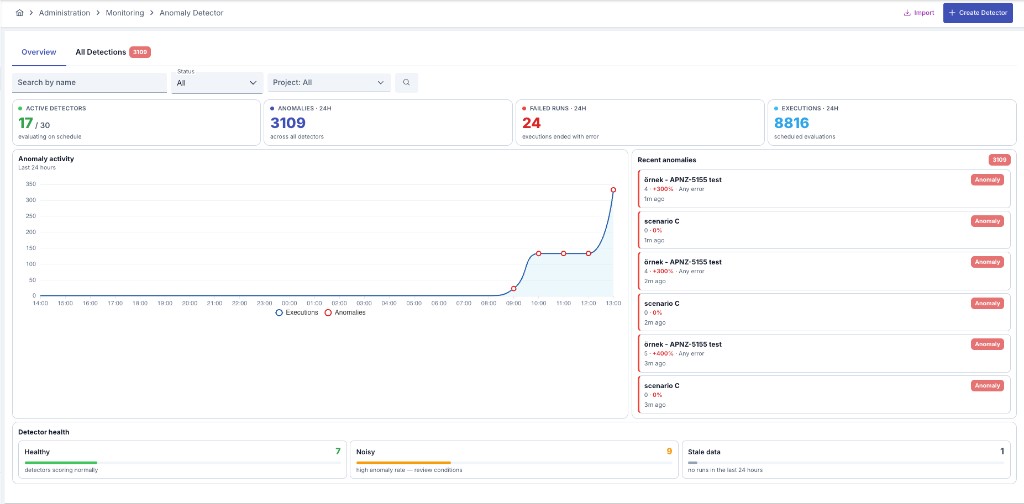
The detector list page has two tabs: Overview and All Detections. A shared filter bar (name search, status, and — in admin mode — project) sits above both tabs; results only refresh when you click the Search button.
Overview Tab
The Overview tab is a monitoring dashboard for all detectors in scope:
Number of detectors currently evaluating on schedule, out of the total
Total anomalies detected across all detectors in the last 24 hours
Executions that ended with an error in the last 24 hours
Total scheduled evaluations run in the last 24 hours
Below the metric cards:
- Anomaly activity: A chart of executions vs. detected anomalies over the last 24 hours
- Recent anomalies: A list of the most recent anomalies; clicking an item opens that detector's Detail page
- Detector health: Three clickable cards — Healthy (scoring normally), Noisy (high anomaly rate — conditions should be reviewed) and Stale data (no runs in the last 24 hours). Clicking a card filters the All Detections tab to that health state.
All Detections Tab
A table of every detector matching the current filters:
- Detector: Name (clickable, opens the Detail page) and, below it, the first condition's summary
- Last 24h: A small bar chart of recent executions
- Query: The query used by the detector
- Project (admin mode): The detector's project
- Every: The schedule (cron expression)
- Anoms 24h: Number of anomalies in the last 24 hours
- Last run: Time since the last evaluation
- ⋮: Operations menu
A health-state chip (e.g. "Noisy") appears above the table when a health card was clicked from the Overview tab, and can be cleared from there.
Detector Detail Page
Clicking a detector's name — or selecting Results from the operations menu (⋮) — opens the
detector's Detail page. There is no separate read-only "View" screen; the Detail page combines the
metric summary, the underlying query/filter/action configuration, and the result history in one place.
Links to the old /:id/view screen no longer work.
Header and Summary Cards
The top bar has Back, Activate/Deactivate, Edit and Refresh buttons, plus a date-range selector. Opening Edit from this page returns you to this same Detail page — on both Back and Save — instead of the detector list; Edit opened from the list still returns to the list.
Below it are 5 summary cards:
- Current value: The latest evaluated point
- Expected: The baseline range
- Deviation: How far the current value is from the expected range
- Anomalies: Number of anomalies detected in the selected date range
- Last run: Time since the last evaluation
The Expected and Deviation cards read differently depending on the condition type:
- Metric condition: Expected is the configured threshold; deviation is the current value against it.
- EMA condition: Expected is the current Bollinger band range; deviation is the current value against that band.
- Rate condition: Expected is the real baseline calculated from the previous results, and deviation is the current value against that baseline. Until a baseline exists — the detector's first runs, or a result recorded before this behavior was introduced — both cards show — instead of a number; a rate is a change relative to a baseline, so without one no meaningful percentage can be shown.
On the anomaly detector screens the measured value, the expected value and the threshold are shown with the unit implied by the condition's metric type: duration metrics (request/routing/response/total time, provider latency) in ms, size metrics (request/response size) in B, the rate-percentage metric and increase/decrease rate thresholds in %, and the document-count metric in requests (each counted document is one API traffic record), while token and cost metrics stay unitless. The unit is derived from the condition definition, so past execution records are displayed with the correct unit as well.
Below the cards, a Metric vs. expected range chart plots each condition (metric/rate line chart or EMA chart with bands) with its condition sentence shown above it.
Tabs
Anomalies
A table of anomalies detected in the selected date range: value + expected range, severity, deviation, and time detected.
Execution History
Table showing detailed results of each analysis run:
Columns:
- Date/Time: Date and time when the analysis run was performed
- Result: 🟢 Not Met (normal) · 🔴 Met (anomaly detected) · 🟠 Error
- Value: The metric value evaluated
- Execution time: How long the analysis run took
- Error message: Error summary, if any
- ⋮: Menu button
From the menu you can:
- View Error Message: View errors that occurred during analysis
- View Condition Results: View detailed results of each condition
- View Action Results: View notification sending status
- Delete: Delete the result
Configuration
A read-only summary of the detector's configuration, in two cards:
Detector definition: Name, detector ID, description, status (Enabled/Disabled), environment, project (admin mode), the query used, and — if a filter is attached — the filter name, date range and result types. The scope (which API proxies are covered) is also shown.
Conditions & schedule: Each condition's plain-language sentence (e.g. "average of API Proxy total time is above 1000 for 3 times") and the schedule (cron expression). Rate conditions show their threshold as a percentage.
A third card lists the Actions — whether they run once per anomaly event or in another mode, and the attached notification channels with their type and enabled/disabled status.
Anomaly Detector Management
List Page Features
You can view and manage all your detectors from the list page filter bar described above (Overview / All Detections tabs).
Search and Filtering
- Name search: Filters detectors by name
- Status: All / Active / Paused
- Project filter (Admin mode): Filter by one or more projects
- Filters apply when the Search button is clicked
Operations Menu
You can perform the following operations by clicking the menu button (⋮) for each detector:
- Results: Open the detector's Detail page
- Edit: Update detector settings
- Delete: Delete the detector
- Move to Global (if it's a project detector): Move the detector to global project
Changing Status
To change the active/passive status of the detector, use the Activate/Deactivate action from the operations menu, or the same button on the Detail page's top bar. Passive detectors do not run, but their historical data is preserved.
Activating a detector is also a save, so the same environment check applies: if the environment stored on the record can no longer be resolved in this installation, or its Elasticsearch connection is not defined or not enabled, Activate is refused with a message explaining why, and the detector stays passive. Setting a detector to passive is never blocked, even in either of these cases — stopping a detector that keeps failing must always be possible.
Best Practices
- Use descriptive names:
Response Time Anomaly Detection - Add project/module prefix:
E-Commerce - Error Rate Monitoring - Add environment information:
Production - Traffic Anomaly Detector
- Use specific queries
- Improve performance by filtering unnecessary data
- Select appropriate date range (too wide ranges reduce performance)
- Metric conditions: For simple threshold checks
- Rate conditions: To detect changes
- EMA conditions: For statistical anomaly detection
- Reduce false positives by increasing repeat count
- High Sensitivity (0.5-1.0): For critical systems
- Medium Sensitivity (1.0-1.5): For normal systems (recommended)
- Low Sensitivity (1.5-2.0): For test systems
Frequently Asked Questions
How Often Does the Detector Run?
The frequency of detector runs depends on the Scheduling (Cron Expression) settings you specify when creating it. For example:
0 */5 * ? * *→ Every 5 minutes0 0 * ? * *→ Every hour0 0 9 * ? *→ Every day at 09:00
What Happens When the Detector is Set to Passive?
When the detector is set to passive:
- No new analyses are performed
- Existing scheduled jobs are cancelled
- Historical results are preserved and can be viewed
- Detector continues normal operation when set to active again
What is the Difference Between Metric, Rate, and EMA Conditions?
- Metric Condition: Did the value exceed a certain threshold? (Simple threshold check)
- Rate Condition: Did the value increase/decrease by a certain rate? (Change check)
- EMA Condition: Is the value statistically abnormal? (Statistical analysis)
How Should EMA Sensitivity Be Set?
EMA sensitivity determines how sensitive anomaly detection will be:
- High Sensitivity (0.5-1.0): Detects more anomalies (more sensitive)
- Medium Sensitivity (1.0-1.5): Balanced anomaly detection (recommended)
- Low Sensitivity (1.5-2.0): Detects fewer anomalies (less sensitive)
Recommendation: Start with medium sensitivity (1.0-1.5), adjust based on results.
What is the Purpose of Repeat Count?
Repeat count is used to reduce false positives:
- Repeat Count: 1: Anomaly is detected when condition is met once
- Repeat Count: 3: Anomaly is detected when condition is met 3 times consecutively
Recommendation: Use low repeat count (1-2) for critical systems, high repeat count (3-5) for normal systems.
Can I Use Multiple Conditions?
Yes, you can use multiple conditions. Anomaly is detected when at least one condition is met. For example:
- Condition 1: Response time > 1000 ms
- Condition 2: Error rate > 10%
- Result: Anomaly is detected when either of the two conditions is met
What is the Difference Between Query and Filter?
- Query: Defines the API traffic to be analyzed (which APIs, which methods, etc.)
- Filter: Further narrows down query results (date range, result type, etc.)
Troubleshooting
Detector Not Running
Possible Causes:
- Detector may be in passive status → Check status toggle
- Scheduling settings may be wrong → Check cron expression
- Environment may not have Elasticsearch integration → Check environment settings
- Query may be incorrectly configured → Check query settings
Solution:
- Set detector status to active
- Check scheduling settings
- Check environment Elasticsearch integration
- Check query configuration
All Results in 'Error' Status
Possible Causes:
- Query incorrectly configured
- Filter incorrectly configured
- Elasticsearch connection issue
- No data
Solution:
- Check query configuration
- Check filter configuration
- Check Elasticsearch connection
- Check if data exists
Too Many False Positives
Possible Causes:
- Threshold values too low
- Repeat count too low
- EMA sensitivity too high
Solution:
- Increase threshold values
- Increase repeat count
- Decrease EMA sensitivity
Anomalies Reported While the Metric Value Reads 0
Cause:
Rate and EMA conditions do not compare the measured metric with a fixed number; they compare it with a baseline — the summary of the previous results for a rate condition, the EMA band for an EMA condition. When no traffic matches the query and filter in a window, both the measured metric and that baseline are 0. The percentage thresholds and the EMA band then collapse onto zero, and the above or equal, below or equal and between operators are satisfied on every run. The result list fills with anomalies whose metric value is 0.
Behavior from version 2026.09.3 on:
A run in which the measured metric and its baseline are both zero — and, more generally, an EMA
run in which the band has no width and the metric sits exactly on it — is recorded as Not Met
instead of Anomaly. A rate condition's very first run, where no previous value exists to
compare against yet, is likewise recorded as Not Met rather than as an anomaly; EMA conditions
already behaved this way. The application log carries an INFO line stating why the condition was
not met, so a quiet detector can be told apart from a broken one.
Real changes are unaffected. Traffic appearing after a quiet period still raises an anomaly, and so does a drop from a non-zero baseline down to zero.
Results written before the upgrade are not rewritten. The anomaly counters settle as new results accumulate; use Delete All Results on the detail page if you want the counters to start clean.
What to check when you expected an alert:
- Confirm that traffic actually reaches the filtered proxies within the selected window
- Check the filter date range and the selected result types
- Use a metric condition with an absolute threshold when you want to be alerted on an exact value rather than on a change
Too Few Anomalies Detected
Possible Causes:
- Threshold values too high
- EMA sensitivity too low
- Repeat count too high
Solution:
- Decrease threshold values
- Increase EMA sensitivity
- Decrease repeat count