Endpoints with No Requests
Since an API Proxy can be loaded into multiple environments, metrics must also be evaluated according to the environment it is loaded into. Therefore, in all analytics screens, metrics are filtered by first selecting environment information.
Metrics Page
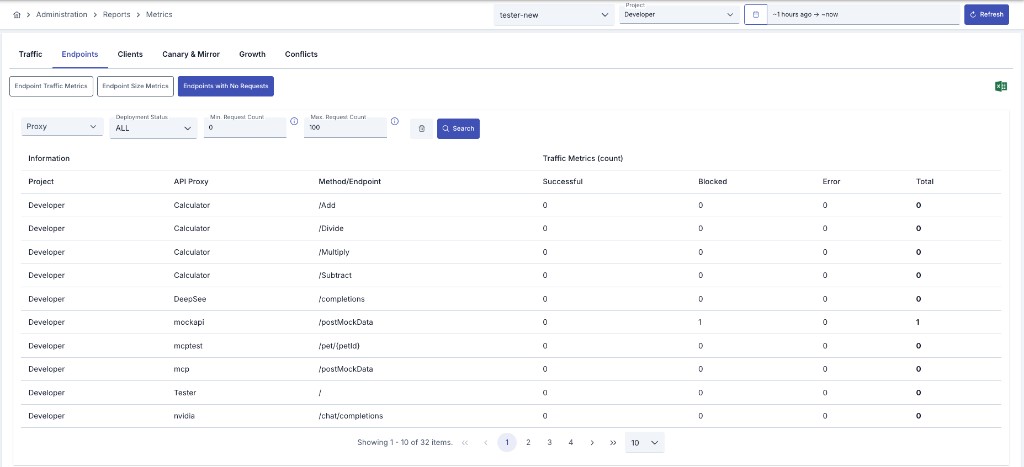
This report is the Inactive Endpoints tab of the Metrics page (full name: Endpoints with No Requests). Open it via Administration > Reports > Metrics or Reports > Metrics in the project menu.
Environment, project (Administration only), and date range on the top row are shared across sub-reports. Report-specific filters sit on the sub-report row; run the query with Search.
Filters
You can detect endpoints that receive no requests or low traffic based on the criteria below:
You must first select an environment to run the report. Environment selection is mandatory and metrics are filtered according to the selected environment.
Since an API Proxy can be loaded into multiple environments, metrics must also be evaluated according to the environment it is loaded into.
Multiple project selection is available for administrator users. When a project is selected, API Proxies in the selected projects are automatically loaded.
This filter is only visible for administrator users.
Limit analysis to selected API Proxies. Leave empty to include all proxies.
Filter by API Proxy deployment status:
- ALL: All statuses
- Deployed: Active proxies
- Undeployed: Undeployed proxies
Lower bound (inclusive) for Total requests in the selected date range. For example, 0 includes endpoints with no traffic.
Upper bound (inclusive) for Total requests. Min and Max together define a low-traffic band (e.g. 0–100).
Click Search to apply filters and reload the table. Excel Export on the shared filter row downloads the active result list.
Report Table
Report results are displayed in the following columns:
| Field | Description |
|---|---|
| Project | Project the endpoint belongs to (Administration only) |
| API Proxy | Name of the related API Proxy |
| Method/Endpoint | HTTP method and endpoint path |
| Successful | Successful request count |
| Blocked | Blocked request count |
| Error | Error request count |
| Total | Total requests (Successful + Blocked + Error) |
The Method/Endpoint column shows the method and the path together, such as GET /pet, so rows for the same path defined with different methods can be told apart. For records without method information (SOAP methods and proxies that carry no method definition) only the path is shown. The Excel output and the Report Generator preview use the same display.
All endpoints matching the filters are included in the report. Pagination in the table only divides the results into pages for display; it does not limit the number of records included in the report.
The report cannot be run for environments where Elasticsearch integration is not active. In this case, a warning message is displayed on the screen.