Dashboard
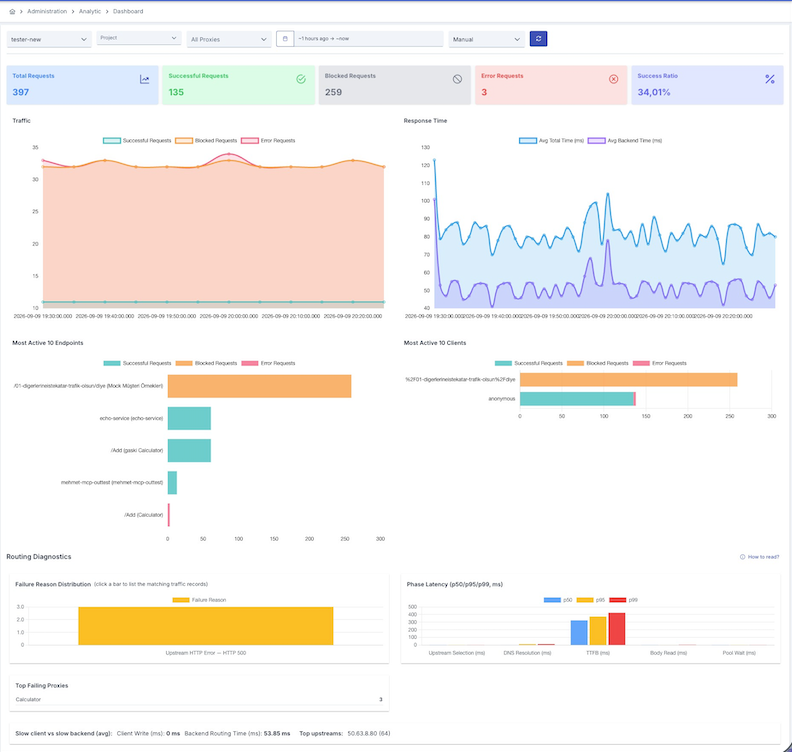
The Analytics Dashboard visualizes metrics created from log data of API Proxies within the project. The dashboard provides monitoring of API Proxy general status and performance analysis.
Querying and analytical visualization of API Traffic in Apinizer Management Console is only possible by adding an Elasticsearch Connector to the relevant environment.
Since an API Proxy can be loaded into multiple Environments, metrics are queried based on environment. Environment selection must be made from the top of the page. On Administration > Analytic > Dashboard, an additional Project filter lets you scope metrics to all projects or selected projects; the dashboard under the Project menu covers only the active project.
API and AI Views
When your license includes both the API Gateway and the AI Gateway, an API | AI switch at the start of the top row selects the view. The API view is the dashboard described on this page. The AI view shows the AI Gateway overview for AI, MCP, and A2A traffic; the other AI analytics tabs are on Reports > Metrics and Analytic > Traffic. If only one view is licensed, the switch is hidden and that view opens. Only the selected view is loaded.
Features
You can view the general status of API Proxies, total request count, success/error rates
You can analyze the average total time, the average backend time, and the latencies of routing phases
You can monitor API traffic over time, detect peak periods
You can monitor error and blocked request counts, their distribution per endpoint and client, and routing failure reasons
You can track metrics live by activating the page's automatic refresh feature
You can view separate metrics for different environments
You can have the metrics on the screen refreshed automatically by selecting an interval from the Choose Your Refresh Time list at the top of the page.
Dashboard Metrics
For the data selected with the filters on the page (environment, time range, optionally a single API Proxy via the All Proxies selector, and projects on the administration dashboard), the dashboard shows the following sections. When an API Proxy is selected, the boxes, charts, and Routing Diagnostics panel are narrowed to that proxy.
Summary Boxes
| Box | Description |
|---|---|
| Total Requests | Total number of requests in the selected range |
| Successful Requests | Number of requests that completed successfully |
| Blocked Requests | Number of requests rejected by the gateway (policy violations, unknown API Proxy or endpoint, access restrictions, etc.) |
| Error Requests | Number of requests that ended with an error |
| Success Ratio | Ratio of successful requests to total requests |
Charts
Line chart of successful, blocked, and error request counts over time
Line chart comparing Avg Total Time (ms) and Avg Backend Time (ms) over time
Successful, blocked, and error request counts for the 10 endpoints receiving the most requests
Successful, blocked, and error request counts for the 10 clients sending the most requests
Routing Diagnostics
The Routing Diagnostics panel is at the bottom of the page. It summarizes failed and slow routing attempts for the selected environment and date range: which failures dominate, where the time is spent, and which proxies and upstream addresses are involved. Hovering over the info icon in each card's title shows how to read that card.
- Failure Reason Distribution — distribution of routing failure reasons; the vertical axis shows request count
- Phase Latency (p50/p95/p99, ms) — latencies of the routing phases; the vertical axis shows milliseconds (ms)
- Top Failing Proxies — the API Proxies with the most routing failures in the selected range
The slow client vs slow backend comparison (average times) and the top upstream addresses are also shown with their units (ms, requests).
For the same signals at single-request level, see the Routing Diagnostics section in the Traffic detail view.
Automatic Refresh
The dashboard enables live tracking of metrics with the automatic refresh feature.
Select the refresh interval from the Choose Your Refresh Time list at the top of the page (default: Manual)
- Manual
- 1 minute
- 3 minutes
- 5 minutes
The summary boxes and charts are refreshed automatically at the selected interval. The Routing Diagnostics panel is not updated on automatic refresh; it reloads when the page first opens, on manual refresh, or when a filter changes.
When automatic refresh is active, metrics continue to update at regular intervals until the page is changed.
Automatic refresh sends new queries to Elasticsearch at every interval; short refresh intervals increase the load on Elasticsearch.
Environment-Based Querying
Dashboard metrics are queried based on environment. Separate metrics are displayed for each environment.
Environment Selection
Open the environment selector dropdown at the top of the page
Select the environment you want to see metrics for (Development, Test, Production, etc.)
Metrics for the selected environment are automatically loaded and displayed
Different environments may be connected to different Elasticsearch connectors. If multiple Elasticsearch Connectors are defined, data from the first Elasticsearch Connector added in Apinizer Management Console is displayed.
Time Range Filtering
The time range selector has two tabs:
- Quick Select: Define a relative range by choosing a number and unit together with "Last". Ready options are under Commonly Used: Today, Last 15 minutes, Last 30 minutes, Last 1 hour, Last 24 hours, This week, Last 7 days, Last 30 days, Last 90 days, Last 1 year.
- Absolute: Define an absolute range by choosing start and end dates.
Short time ranges (15 minutes - 1 hour) are suitable for real-time monitoring, while long time ranges (7-30 days) are suitable for trend analysis and capacity planning.
Metric Interpretation and Usage
You can monitor the health of your APIs by correctly interpreting dashboard metrics.
Success Rate Interpretation
| Success Rate | Status | Recommended Actions |
|---|---|---|
| > 99% | Very Good | Continue normal monitoring |
| 95-99% | Good | Monitor errors, make minor improvements |
| 90-95% | Attention | Analyze error causes, plan fixes |
| < 90% | Critical | Immediate intervention required, perform detailed analysis |
Response Time Interpretation
| Average Total Time | Status | Recommended Actions |
|---|---|---|
| < 100ms | Excellent | Maintain current performance |
| 100-500ms | Good | Evaluate optimization opportunities |
| 500ms-2s | Slow | Perform performance optimization |
| > 2s | Critical | Immediate optimization required, use cache |
Traffic Analysis
Peak Periods:
- Which hours have heavy traffic?
- Which days receive more requests?
- Should capacity planning be done?
Sudden Increases (Spikes):
- Are there unexpected traffic increases?
- Is there suspicion of DDoS attack?
- Is rate limiting sufficient?
Trend Changes:
- Is traffic increasing / decreasing?
- Are there seasonal changes?
- How is the impact of new feature launch?
Problem Detection and Resolution
You can detect and resolve common problems with the dashboard.
High Error Rate
Problem Detection:
- Success Ratio dropped
- Increase in the Error Requests box
- Concentrated errors on specific endpoints
Analysis Steps:
- Check endpoints with high error counts in the Most Active 10 Endpoints chart and, for routing failures, the Top Failing Proxies list in the Routing Diagnostics panel
- Filter failed requests from the Traffic page
- Perform detailed error analysis with Tracing
Possible Solutions:
- Backend API issues → Inform backend team
- Authentication errors → Check credentials
- Validation errors → Fix request format
Slow Performance
Problem Detection:
- Average total time increased in the Response Time chart
- Average backend time increased
Analysis Steps:
- In the Response Time chart, look at the gap between the average total time and the average backend time; for routing-related delays, review the Phase Latency chart in the Routing Diagnostics panel
- Analyze policy performance with Tracing
- Check backend response times
Possible Solutions:
- Add cache policy
- Optimize database queries
- Adjust backend timeout values
- Optimize or remove slow policies
Abnormal Traffic Increase
Problem Detection:
- Sudden and unexpected request increase
- Heavy requests from specific IPs
- Rate limit violations
Analysis Steps:
- Detect spikes in the Traffic chart
- Check the Most Active 10 Clients chart
- Examine suspicious requests with Traffic
Possible Solutions:
- Add rate limiting and throttling policies
- Apply IP blacklist/whitelist
- Activate DDoS protection
Use Cases
Scenario 1: Daily Operational Monitoring
Purpose: Check API health daily.
- General metrics: Success rate, total request count
- Were there any issues overnight?
- Is the error request count at normal levels?
- Are there new failure reasons in the Routing Diagnostics panel?
- Are response times normal?
- Are there slowdowns?
- Unexpected traffic increases
- New error spikes
Recommended Settings:
- Time Range: Last 24 Hours
- Automatic Refresh: 5 Minutes
Scenario 2: Weekly Performance Analysis
Purpose: Weekly trend analysis and capacity planning.
- Did traffic increase / decrease?
- Which days are busier?
- Did response times change?
- How is backend performance?
- Which APIs are used most?
- Is optimization needed?
- Is current capacity sufficient?
- Is scaling necessary?
Recommended Settings:
- Time Range: Last 7 days
Scenario 3: Post-Incident Analysis
Purpose: Root cause analysis after a problem occurs.
- Select the incident time on the Absolute tab
- Can spike or anomaly be seen?
- Which APIs were affected?
- What was the error type?
- Backend problem?
- Policy error?
- Traffic increase?
- Examine problematic requests with Tracing
- At which step did the error occur?
Recommended Settings:
- Time Range: incident time ±1 hour on the Absolute tab
- Focus: Error request counts, Routing Diagnostics, and affected endpoints
Best Practices
- Daily operational checks
- Weekly trend analyses
- Monthly capacity planning evaluation
- Record normal performance metrics
- Monitor deviations from baseline
- Set alarm thresholds
- Automatic refresh for real-time monitoring
- Appropriate refresh interval selection (1-5 minutes)
- Consider Elasticsearch load
- Separate monitoring for each environment
- Prioritize Production monitoring
- Compare between environments
- Know success rate thresholds
- Set response time expectations
- Quickly detect abnormal situations
Limitations and Considerations
Elasticsearch Connector Required:
- An Elasticsearch Connector must be added to the environment for dashboard metrics to be displayed
- If there are multiple Elasticsearch Connectors, data from the first added connector is displayed
Data Freshness Time:
- Metrics are created from data in Elasticsearch
- It may take a few seconds for log records to reach Elasticsearch
- Shows near real-time data, not real-time
Performance Tips:
- Very long time ranges (>30 days) may affect query performance
- Unnecessary frequent refresh increases Elasticsearch load
- You can get faster results by filtering