API Health Check
Overview
Continuously monitor the availability of your APIs
Track response times and success rates
Detect problems before users are affected
Receive instant notifications for quick intervention
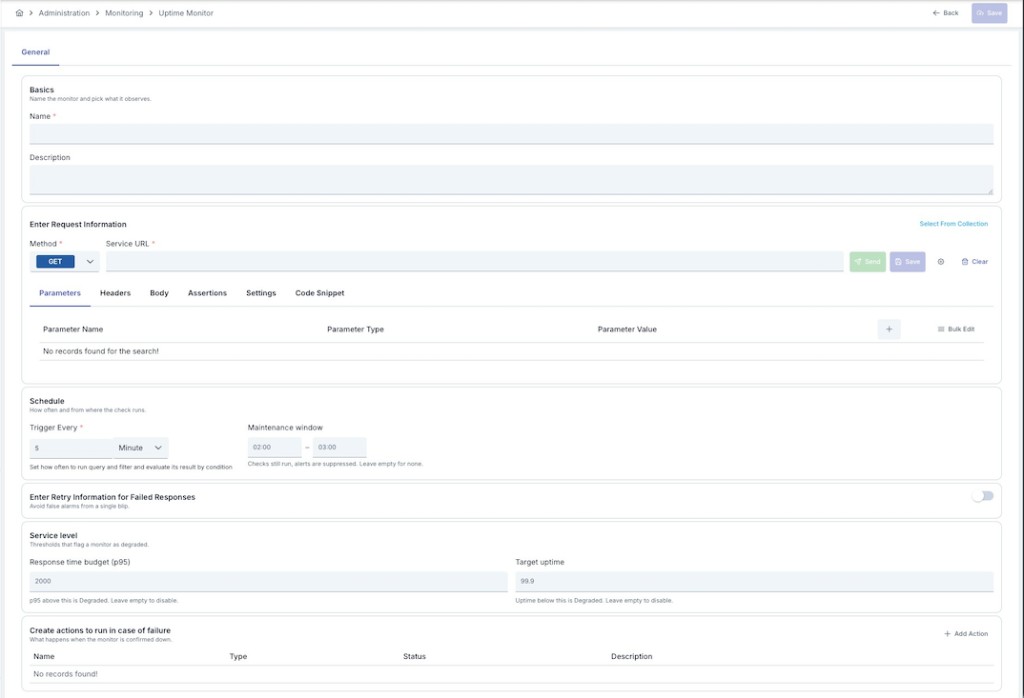
What is API Health Check?
Basic Concept
API Health Check is a monitoring system that automatically sends test requests at specified intervals to an API endpoint or web service you specify.
When to Use?
Continuous monitoring of critical APIs such as payment and authentication
Tracking and reporting of service level agreements
Monitoring API response times and trend analysis
Tracking service uptime
How Does It Work?
URL to be checked, HTTP method, expectations, and scheduling are determined
Test requests are automatically sent at specified times (e.g., every 5 minutes)
HTTP request is sent and response is received
Expectations (assertions) are checked:
- Response time check
- HTTP status code check
- Response content check
- XPath/JSONPath checks
Test result is recorded (successful/failed)
If the test fails, configured notifications are triggered
Quick Start
Creating Your First Health Check
Click Administration → Monitoring → Uptime Monitor (page title: API Health Check)
Click the "Create New" button
- Name: A name for your check (e.g., "Payment API Check")
- Description: Optional description
- HTTP Method: GET, POST, etc.
- URL: API endpoint to be tested
Determine check frequency (e.g., Every 5 minutes)
Click the "Save" button
Creating New Health Check
Step 1: Basic Information
Name - Required
Enter a unique name for the health check. This name:
- Must be unique within the project — a second health check with the same name cannot be saved, while the same name may still be used in another project
- Cannot start with a space
- System automatically checks the availability of the name
The name is checked again only when you change it. A health check whose name stays the same can always be saved, so if two checks in the same project already carry the same name — possible on installations upgraded from an earlier version, or when a health check is imported with its original name kept — both remain editable; rename one of them to clear the duplicate.
Changing only the capitalisation of a name does not count as a duplicate of the record you are editing:
renaming Payment API Monitoring to payment api monitoring is accepted and can be saved.
Good Name Examples:
Payment API MonitoringUser Service Health CheckThird-Party Integration CheckHomepage Availability Check
Description - Optional
You can enter descriptive information about the health check:
- Maximum 1000 characters
- Used to explain the purpose and scope of the check
- Displayed on the list page
Example Descriptions:
Created for 24/7 monitoring of critical payment APICustomer portal homepage availability checkThird-party service provider integration monitoring
Status - Default: Active
Determines the active/passive status of the health check:
- Active: Check runs, scheduled tests are sent
- Passive: Check is stopped, no tests are sent (historical data is preserved)
Step 2: Scheduling Settings
Determine how frequently the health check will run. Scheduling is done using Cron Expression.
Common Scheduling Examples
| Description | Cron Expression | Use Case |
|---|---|---|
| Every 5 minutes | 0 */5 * ? * * | For critical APIs (most common) |
| Every 15 minutes | 0 */15 * ? * * | For normal APIs |
| Every hour | 0 0 * ? * * | For Test/Development environments |
| Every day at 09:00 | 0 0 9 * ? * | For daily reporting |
| Every Monday at 09:00 | 0 0 9 ? * MON | For weekly checks |
Recommendations:
- Critical APIs: Every 5 minutes
- Normal APIs: Every 15-30 minutes
- Test/Development: Every hour
- Reporting purposes: Daily or weekly
Maintenance Window
You can define an optional maintenance window (a start and end time, e.g. 02:00–03:00) for
planned downtime, plus an optional time zone next to the two times — a region id (e.g. Europe/Istanbul)
or a UTC offset (e.g. +03:00). Leave the time zone empty to use the server's own time zone.
The window recurs every day between the two times, from the start minute up to but not including the
end minute. A window that crosses midnight (e.g. 23:00–01:00) is valid and applies overnight. Leaving
the start and end equal, leaving one of the two empty, or leaving both empty means there is no maintenance
window at all — the monitor is never excluded and alerts are never suppressed by this setting.
While a monitor is inside its window, its checks keep running and every result is still recorded, but the monitor is reported as Maintenance instead of Up, Degraded or Down, and failure notifications (email/webhook and other recipients) are suppressed — the first failure after the window closes is notified normally. Uptime percentage and Service Level figures still include the checks made during the window; the maintenance window changes what is reported and notified, not what is measured.
Service Level (SLA) Settings
Optional thresholds that classify the monitor's health as Degraded instead of only Up/Down:
- Alert after: Number of consecutive failures required before the monitor is considered down (avoids alerting on a single transient failure)
- Response time budget (p95): If the 95th-percentile response time goes above this value, the monitor is marked Degraded. Leave empty to disable.
- Target uptime: If uptime falls below this percentage, the monitor is marked Degraded. Leave empty to disable.
Step 3: Request Settings
In this section, you configure the information of the endpoint to be tested.
Select From Collection - Recommended
You can use test scenarios you previously created in Test Console:
Click the "Select From Collection" button
View your test collections in the opened dialog
Select the test scenario you want
Test information automatically fills the form
Advantages:
- You save time
- You use consistent test scenarios
- You can manage your test scenarios centrally
HTTP Method - Required
Select HTTP request method:
Data reading (most commonly used)
Data sending
Data updating
Data deletion
Partial update
Header information only
URL - Required
Enter the full URL of the endpoint to be tested:
Examples:
https://api.example.com/usershttps://api.example.com/payment/verifyhttp://localhost:8080/healthhttps://api.example.com/v1/products?category=electronics
Notes:
- URL must be absolute
- HTTPS and HTTP are supported
- Query parameters can be added to URL or specified in a separate field
Parameters - Optional
Used to add query parameters to URL:
Example:
- Parameter Name:
userId - Parameter Value:
12345
Result URL: https://api.example.com/users?userId=12345
Headers - Optional
Used to add headers to HTTP request:
Common Uses:
- Authorization:
Bearer token123orBasic base64encoded - Content-Type:
application/json,application/xml - X-API-Key:
your-api-key - Custom Headers: Custom headers
Example:
- Header Name:
Authorization - Header Value:
Bearer eyJhbGciOiJIUzI1NiIsInR5cCI6IkpXVCJ9...
Body - For POST/PUT/PATCH
You can enter request body:
Supported Formats:
- Raw: JSON, XML, Text
- Form URL Encoded: Form data
JSON Example:
{
    "userId": 12345,
    "action": "verify",
    "timestamp": "2024-01-15T10:30:00Z"
}
XML Example:
<request>
    <userId>12345</userId>
    <action>verify</action>
</request>
Step 4: Validation Settings
Validation (Assertion) settings determine the checks required for the test result to be considered successful.
Timeout Check (Timeout Assertion)
When this option is activated, the specified timeout value is also used for validation:
- Request must be responded to within the specified time
- Otherwise test is considered failed
HTTP Status Code Check (Status Code Assertion)
To perform HTTP status code check:
Activate the "Result Status Code" toggle
Enter the expected status code in the "Expected Status Code" field
Default Value: 200 (OK)
Common Status Codes:
200: Successful201: Created204: No Content400: Bad Request401: Unauthorized404: Not Found500: Server Error
Example Scenario:
- Expected Status Code:
200 - Actual Status Code:
200→ ✅ Successful - Actual Status Code:
500→ ❌ Failed
Response Body Check (Body Assertion)
Checks whether the response body contains specific content:
Activate the "Result Body" toggle
Enter the expected content in the "Expected Result Body" field
Use Cases:
- Response should contain specific text:
"status": "success" - Response should contain specific value:
"active": true - Response should not be empty
Example:
- Expected:
"status": "ok" - Actual:
{"status": "ok", "data": {...}}→ ✅ Successful - Actual:
{"status": "error"}→ ❌ Failed
XPath Check (XPath Assertion) - For XML
Performs check using XPath in XML responses:
Activate the "XPath Result" toggle
Enter the XPath expression in the XPath field
Enter the expected value in the Expected XPath Result field
Example:
- XPath:
/response/status - Expected Result:
success - Actual XML:
<response><status>success</status></response>→ ✅ Successful
JSONPath Check (JSONPath Assertion) - For JSON
Performs check using JSONPath in JSON responses:
Activate the "JsonPath Result" toggle
Enter the JSONPath expression in the JsonPath field
Enter the expected value in the Expected JsonPath Result field
Example:
- JSONPath:
$.status - Expected Result:
ok - Actual JSON:
{"status": "ok", "data": {...}}→ ✅ Successful
Common JSONPath Examples:
$.status: Status field at root$.data.items[0].id: ID of first item$.user.name: Name field of user object$.results[*].id: IDs of all results
Step 5: Settings
Timeout - Default: 30 seconds
Determines the maximum wait time for the request:
- Entered in seconds
- Default value:
30seconds - If no response is received within this time, test is considered failed
Recommendations:
- For fast APIs:
10-15seconds - For normal APIs:
30seconds - For slow APIs:
60seconds or more
SSL Certificate (Enable Certificate)
To use SSL certificate for HTTPS requests:
- When this option is activated, custom SSL certificate can be used
- Generally used for self-signed certificates or custom CA certificates
Step 6: Retry Settings
To automatically retry in case of temporary issues:
Retry On Fail
Activate the "Retry On Fail" toggle
Select "Retry Count": 1, 3, 5, or 10
How It Works:
- If the first request fails
- Retries are made up to the specified number
- Wait can be made between each attempt (optional)
Example Scenario:
- Retry Count:
3 - First request failed → 1st retry → failed → 2nd retry → failed → 3rd retry → successful → ✅ Successful
Delay Between Requests
To wait between retries:
Activate the "Delay Between Requests" toggle
Enter the wait time in seconds in the "Wait" field
Default Value: 3 seconds
Use Case:
- To reduce server load
- To avoid rate limiting
- To give time for temporary issues to resolve
Example:
- Retry Count:
3 - Wait:
5seconds - First request failed → wait 5 sec → 1st retry → failed → wait 5 sec → 2nd retry → successful
Step 7: Notification Recipients
Configure notifications that will be triggered when the test fails:
Adding Notifications
Click the "+" button in the Recipients table
Select notification type:
- Email: Sends email notification
- Webhook: Sends HTTP POST request
- Slack: Sends message to Slack channel
- SMS: Sends SMS notification
- And more...
Complete the notification configuration
Notification Management:
- Edit: Select "Edit" from the menu to update notification information
- Delete: Select "Delete" from the menu to remove the notification
- Active/Passive: You can activate/deactivate the notification with toggle
Notification Content: The following information is sent in notifications:
- Health check name
- Proxy name (if any)
- Target URL
- Error message
- Timestamp
- Test result details
Step 8: Saving
After filling in all information:
Make sure form validations pass:
- ✅ Name entered and available
- ✅ URL entered
- ✅ Scheduling settings configured
- ✅ At least one assertion active (recommended)
Click the "Save" button
After the health check is saved, you will be automatically redirected to the listing page
Monitoring and Reporting Results
Accessing the Detail Page
Click on the check name in the health check list
Select "Results" option from the operations menu (⋮)
There is no separate read-only "View" screen; clicking the check name always opens the Detail page
described below. Links to the old /:id/view screen no longer work.
Detail Page Sections
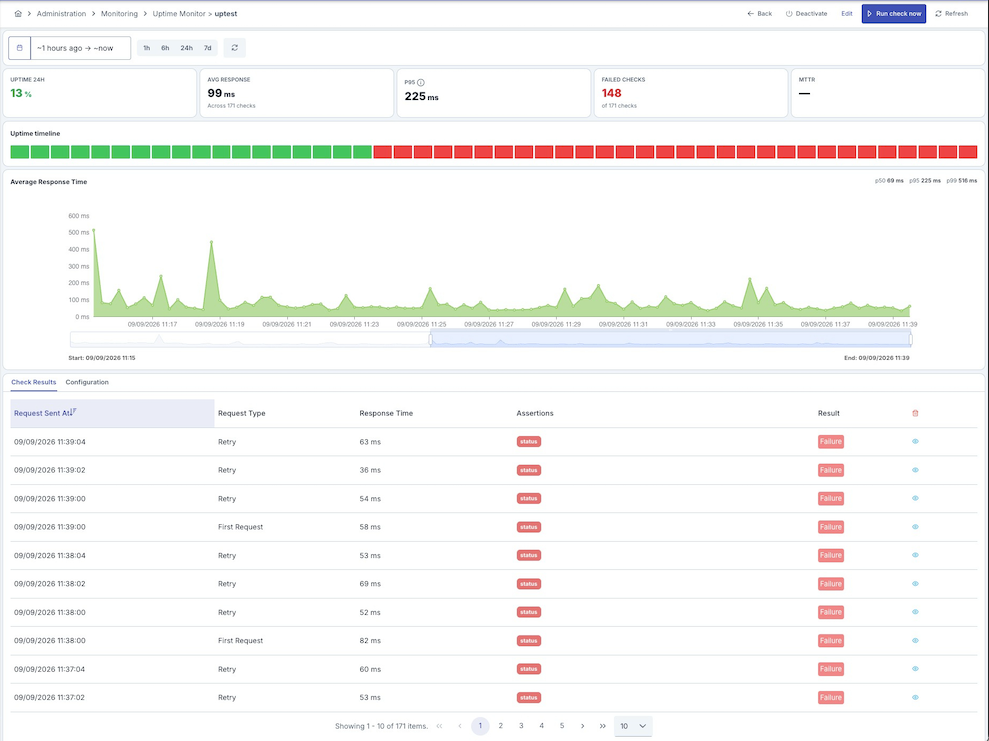
The Detail page has a date-range toolbar with quick-range buttons, 5 KPI cards, an uptime timeline, a response-time chart, and a tabbed area at the bottom.
1. Header and Toolbar
- Back, Activate/Deactivate, Edit and Refresh buttons
- Run now: Immediately triggers a check outside its schedule (requires permission to manage monitoring); the result appears in the results table shortly after
- Date range selector with quick-range buttons
Opening Edit from this page returns you to this same Detail page — on both Back and Save — instead of the check list; Edit opened from the list still returns to the list.
2. KPI Cards
- Uptime (24h): Percentage of successful checks in the selected range, with the target uptime shown below if configured
- Avg response: Average response time across all checks in the range
- p95: 95th-percentile response time, with the response-time budget shown below if configured
- Failed checks: Number of failed checks out of the total
- MTTR: Mean time to recovery (average time to return to Up after a failure)
3. Uptime Timeline and Response Time Chart
- Uptime timeline: A bar strip showing the Up/Degraded/Down state of each check bucket over the selected range
- Response time chart: p50/p95/p99 response time trend over the selected range
4. Check Results Tab
Table showing detailed results of each test run:
Columns:
- Request Sent: Date and time when the test request was sent
- Request Type:
- Initial Request: Normal test request
- Retry: Retry request
- Response Time: Response time of the request (milliseconds)
- Assertions: Checks performed and their results:
- ✅ Timeout: Request did not timeout
- ✅ Status Code: Expected HTTP status code returned
- ✅ Result Body: Response body validated
- ✅ XPath: XPath check successful (for XML)
- ✅ JSONPath: JSONPath check successful (for JSON)
- Result:
- 🟢 Successful: All checks passed
- 🔴 Failed: At least one check failed
- Detail: Eye icon (👁️) to view result details in JSON format
5. Configuration Tab
A read-only summary of the check's configuration, in four cards, followed by collapsible sections with the full detail:
Summary cards: Check definition (name, description, status), Request (method + URL, headers, assertions), Schedule & SLA (schedule, timeout, maintenance window, retry policy, alert-after, response time budget, target uptime), and Actions (notification channels).
Collapsible detail sections:
- Request details: Method/URL, timeout, certificate settings, and full Parameters and
Headers tables, plus the request body. Header and parameter values that look sensitive —
Authorization,api-key,token,password,cookie, and similar names — are shown masked. - Assertions: Every assertion (timeout, status code, body, XPath, JSONPath) with its expected value
- Retry: Retry-on-fail setting, retry count, and delay between requests
- Actions / recipients: The notification channels attached to the check, with type and enabled/disabled status
Viewing Result Details
Click the eye icon (👁️) button in the table
In the opened dialog, you can view all details of the test result in JSON format:
- Request information (URL, method, headers, body)
- Response information (status code, headers, body)
- Assertion results (result of each check)
- Error messages (if any)
- Timestamps
Deleting All Results
This operation cannot be undone! All historical data will be lost.
Click the trash can (🗑️) icon in the table header
All results are permanently deleted
Health Check Management
List Page: Overview and All Monitors Tabs
The health check list page has two tabs: Overview and All Monitors.
Overview Tab
Number of monitors currently Up, out of the total
Number of monitors currently in a Degraded state
Number of monitors currently Down
Combined uptime percentage across all monitors over the last 24 hours
Below the summary cards:
- Service level (SLA): How many monitors have an SLA configured and how many are currently breaching it, with a short list of the breaching monitors
- Maintenance: How many monitors are currently inside their maintenance window; these monitors are excluded from the Operational and Down counts above and from Needs attention below
- Response time chart: p50/p95/p99 response time trend across monitors
- Needs attention: A list of monitors that are currently Degraded or Down, with how long ago the issue started; clicking an item opens that monitor's Detail page — a monitor in its maintenance window never appears here
All Monitors Tab
A table of every monitor matching the current filters:
Search and Filtering
- Name search: Filters monitors by name
- Status filter chips: All / Up / Degraded / Down / Maintenance / Paused
- Project filter (Admin mode): Filter by one or more projects
- Clear: Resets the search text and status filter
Table Columns
- Monitor: Status dot + name (clickable, opens the Detail page) + HTTP method/URL; a Paused badge is shown for disabled monitors, and a Maintenance badge — with a tooltip explaining that checks keep running but failure notifications are held back until the window closes — is shown for a monitor currently inside its maintenance window
- Last 24h: A bar strip of recent check outcomes
- Uptime: Uptime percentage over the period
- SLA: Whether the monitor is meeting or breaching its configured service level, with the threshold shown below
- Avg. response: A small sparkline plus the average response time
- Last check: Time since the most recent check
- Project (Admin mode): Project the monitor belongs to
- Operations: Menu button (⋮)
Operations Menu
For each check, click the menu button (⋮) to perform the following operations:
- Results: Open the monitor's Detail page
- Run now: Trigger a check immediately (requires permission to manage monitoring)
- Activate / Deactivate: Enable or disable the check
- Edit: Update check settings
- Duplicate: Create a copy of the check
- Delete: Delete the check
- Move to Global (if project check): Move check to global project
Changing Status (Activate/Deactivate)
To change the check's enabled/disabled status, select Activate or Deactivate from the operations menu (⋮). The same action is also available from the Activate/Deactivate button in the top bar of the Detail page. Disabled (Paused) checks do not run, but their historical data is preserved.
Permissions
Access to health checks is governed by the Monitoring permission of your role in the project. You can see which actions your role carries under Administration → Roles.
- Monitoring → View: You can open the health check list, the Detail page and the check results. On the Detail page the Configuration tab shows the request, assertions, retry policy and notification recipients read-only, so you can review a check's settings without being able to change it.
- Monitoring → Manage: In addition to the above, you can create, edit, duplicate and delete a check, activate or deactivate it, and use Run now. Without this permission the New and Edit screens do not open at all, and the corresponding items are hidden from the operations menu.
A health check always belongs to the project it was created in, and that project decides the answer. Opening, changing, pausing, running or deleting a check is judged against the Monitoring permission you hold in the owning project — holding Monitoring in a different project grants nothing here.
Notification recipients and e-mail connections. Picking a previously defined e-mail connection in the recipient dialog additionally requires Connections → View, and defining a new one from that dialog requires Connections → Manage. These are separate permissions from Monitoring: if your role has Monitoring but not Connections, opening the recipient dialog shows a permission warning and leaves the saved e-mail connection list empty. Every other part of the health check form keeps working, and recipients already saved on the check are shown regardless.
Changed in 2026.09.3. Two things behave differently:
- A role holding Monitoring → Manage without Connections used to see a "you do not have permission" warning the moment the Edit screen opened, even though the check could be edited and saved normally. That warning was raised by a background list the screen no longer loads, and is gone.
- New and Edit now require Monitoring → Manage. A role with Monitoring → View alone previously reached the form through a direct link and only discovered on save that it was not allowed to.
Best Practices
- Use Descriptive Names: Clear names like
Payment API Check - Add Project/Module Prefix: Like
E-Commerce - Payment API - Add Environment Information: Like
Production - User API
- Critical APIs: Check every 5 minutes
- Normal APIs: Check every 15-30 minutes
- Test Environments: Check every hour
- Consider server load
- Use at least one assertion (Status Code recommended)
- Always activate timeout assertion
- Use body assertions carefully (if variable content exists)
- Make specific checks using JSONPath/XPath
- Use retry for temporary issues
- Keep retry count reasonable (between 3-5)
- Reduce server load by using delay
- Increase delay in rate limiting situations
- Use email + SMS notification for critical checks
- Send notifications to your integration systems using Webhook
- Filter to avoid notification spam
- Create notification groups
- Regularly check response times
- Track success rates (aim for 95%+)
- Perform trend analysis (examine graphs)
- Set threshold values for anomaly detection
Frequently Asked Questions
How Often Does Health Check Run?
The frequency of check execution depends on the Scheduling (Cron Expression) settings you determined when creating it. For example:
0 */5 * ? * *→ Every 5 minutes0 0 * ? * *→ Every hour0 0 9 * ? *→ Every day at 09:00
What Happens When Check is Deactivated?
When check is deactivated:
- No new test requests are sent
- Existing scheduled jobs are cancelled
- Historical results are preserved and can be viewed
- Check continues normal operation when reactivated
How Does Retry Work?
When "Retry On Fail" feature is activated:
- First request is sent
- If it fails (any assertion fails)
- Retries are made up to the number you specified
- If there is wait between requests, wait for the specified duration
- If all attempts fail, result is recorded as "Failed"
When Are Notifications Sent?
Notifications (Recipients) are triggered in the following situations:
- When test fails
- Separate notification is sent for each failed test
- Notifications are not sent for successful tests (default behavior)
How Do Assertion Checks Work?
Assertion checks are performed in the following order:
- Timeout Check: Was the request responded to within the specified time?
- Status Code Check: Does HTTP status code match the expected value?
- Body Check: Does response body match the expected content?
- XPath Check: Does XPath expression give correct result in XML response?
- JSONPath Check: Does JSONPath expression give correct result in JSON response?
Important: All active assertions must be successful. If any one fails, the test result is marked as "Failed".
What is the Use of Selecting from Test Collection?
The select from test collection feature allows you to reuse test scenarios you previously created in Test Console. This way:
- You save time
- You use consistent test scenarios
- You can manage your test scenarios centrally
What Happens When Check is Deleted?
When check is deleted:
- Check definition is deleted from database
- All test results are deleted
- Scheduled jobs are cancelled
- Historical data is permanently lost
Deletion cannot be undone!
How Long Are Results Kept?
Results are kept until manually deleted. To clean old results:
- You can use the "Delete All Results" button on the results page
- Or you can clean results regularly
Can I Use Multiple Assertions?
Yes, you can use multiple assertions. All active assertions must be successful. For example:
- Status Code: 200 ✅
- "success" text in Body ✅
- JSONPath:
$.status= "ok" ✅
If all are successful, test is considered successful.
Can I Use Dynamic Parameters in URL?
No, dynamic parameters cannot be used in URL. However:
- You can add query parameters
- You can use dynamic values in headers (in some cases)
- You can use dynamic content in body
Troubleshooting
Check Not Working
Possible Causes:
- Check may be in passive status → Check status toggle
- Scheduling settings may be wrong → Check cron expression
- URL may not be accessible → Test URL manually
Solution:
- Activate check status
- Check scheduling settings
- Make sure URL is accessible
All Tests Failing
Possible Causes:
- URL is wrong or not accessible
- Assertion settings are too strict
- Timeout duration is too short
- Authentication issues
Solution:
- Check URL
- Review assertion settings
- Increase timeout duration
- Check authentication information in headers
Notifications Not Coming
Possible Causes:
- Notification is in passive status
- Notification configuration is incorrect
- Email/SMS service is not working
Solution:
- Activate notification status
- Check notification configuration
- Check Email/SMS service settings
Response Times Too High
Possible Causes:
- API performance issues
- Network delays
- Server load
Solution:
- Optimize API performance
- Check network connection
- Check server resources
Results Not Showing
Possible Causes:
- Check has not run yet
- Date range filter is wrong
- Results may have been deleted
Solution:
- Make sure check has run
- Check date range filter
- Make sure results have not been deleted