Message Builder
This document explains the detailed usage of a specific policy. If you are using Apinizer policies for the first time or want to learn the general working principles of policies, we recommend reading the What is Policy? page first.
Overview
What is its Purpose?
- Assign variable values to target variables through template and form-based message building.
- Read data from sources such as body, header, and query parameters in the request or response to create new variables.
- Generate dynamic content with JEXL expressions and merge data from multiple sources.
- Perform variable assignment only in specific conditions with row-level conditional execution.
Working Principle
- Request Arrival: A MessageContext is created for each HTTP/HTTPS request arriving at the API Gateway.
- Policy Check: If the Message Builder policy is active, the system checks in the following order:
- Is a Condition defined? If so, is the condition met?
- Is the policy active (active=true)?
- Row Chain Execution: The row list is evaluated sequentially. For each row:
- Row condition is checked (if defined).
- Form mode: Value is read from the source variable.
- Template mode: Template is processed with
#{variable}syntax, JEXL expressions are evaluated. - Result is written to the target variable.
- Empty Value Handling:
- If value is empty and
Required=true, an error is thrown. - If value is empty, the default value is used.
- If value is empty and
- Error Handling: If
Continue on Erroris active, the row is skipped and processing moves to the next row. If inactive, the policy terminates with an error.
Features and Capabilities
Basic Features
- Two Build Modes: Form mode (simple variable copy) and Template mode (dynamic content creation with JEXL expression support).
- Row-Based Processing: Each row can be configured independently; source, target, condition, and default value are set separately.
- Drag-and-Drop Ordering: Row order can be easily changed with drag-and-drop.
- Active/Passive Status Control: Easily change the active or passive status of the policy. In passive mode, the policy is not applied but its configuration is preserved.
- Condition-Based Application: Conditions can be defined at both policy level and row level using Query Builder.
Advanced Features
- JEXL Expression Support: Mathematical, logical, and string operators can be used with
#{expression}syntax in Template mode. - Multiple Variable Sources: Data can be read from Body (JSON/XML path), Header, Query/Path/Form parameters, and Context Variables.
- Row-Level Error Management:
Continue on ErrorandRequiredflags can be set independently for each row. - Export/Import Feature: Export policy configuration as a ZIP file. Import to different environments (Development, Test, Production). Version control and backup capability.
- Policy Group and Proxy Group Support: Manage multiple policies within Policy Group. Bulk policy assignment to Proxy Groups. Centralized update and deploy operations.
- Deploy and Versioning: Deploy policy changes to live environment. See which API Proxies use it (Policy Usage). Proxy Group and Policy Group usage reports.
Usage Scenarios
| Scenario | Status | Solution (Policy Application) | Expected Behavior / Result |
|---|---|---|---|
| Dynamic Header Creation | Custom header needs to be created from information from different sources. | Template mode: User: #{body.$.userName}, Time: #{dateTime.formattedText} → target: X-Custom-Header. | Header is populated with current username and time on each request. |
| Variable Copy | A field in the request body needs to be assigned to another variable. | Form mode: Source=body.$.userId → Target=customUserId. | userId value is copied to customUserId variable, available for subsequent policies. |
| Conditional Enrichment | Data should only be extracted from body on POST requests. | Row condition: request.method = POST. Extract data from body using Template mode. | Row is skipped for GET requests, data is extracted for POST. |
| Default Value Assignment | Fallback needs to be provided for a missing header value. | Form mode: Source=header.X-Tenant-Id, Default Value=default-tenant, Required=No. | If header exists, its value is used; otherwise default-tenant is assigned. |
| Multiple Source Merging | Information from different sources needs to be combined into a single variable. | Template mode: #{header.X-User-Id}-#{dateTime.timestamp}-#{apiProxy.name}. | Combined value is written to the target variable. |
| Required Field Validation | A specific variable must not be empty. | Form mode: Source=body.$.orderId, Required=Yes, Continue on Error=No. | If orderId is empty, the policy throws an error and the flow stops. |
Configuring Policy Parameters
In this section, you can create a new Message Builder policy or configure existing policy parameters to define message building rules.
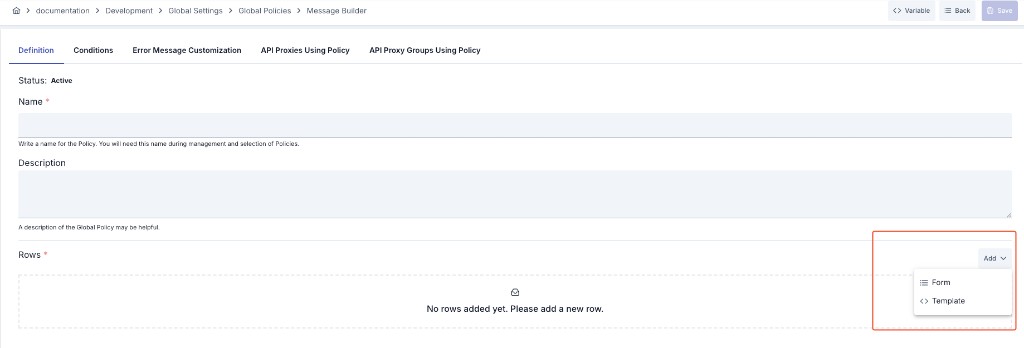
The screenshot below shows the Definition tab: policy status, name, and description; the Rows section and example Form and Template rows added via Add (source/target variables, default value, required, continue on error for Form; template editor and target variable for Template). Along the top, the Conditions, Error Message Customization, API Proxies Using Policy, and API Proxy Groups Using Policy tabs are also available.
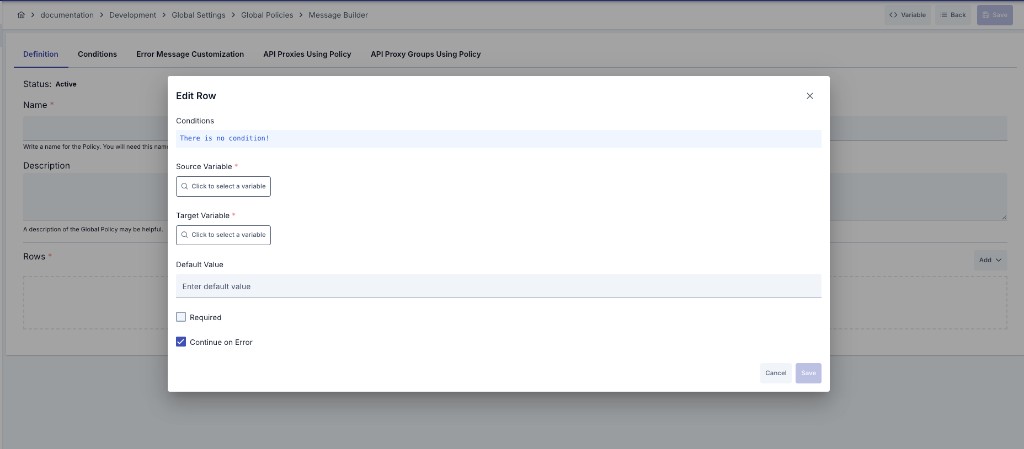
In Form mode, the row edit dialog shows source and target variables, default value, required, and continue on error.
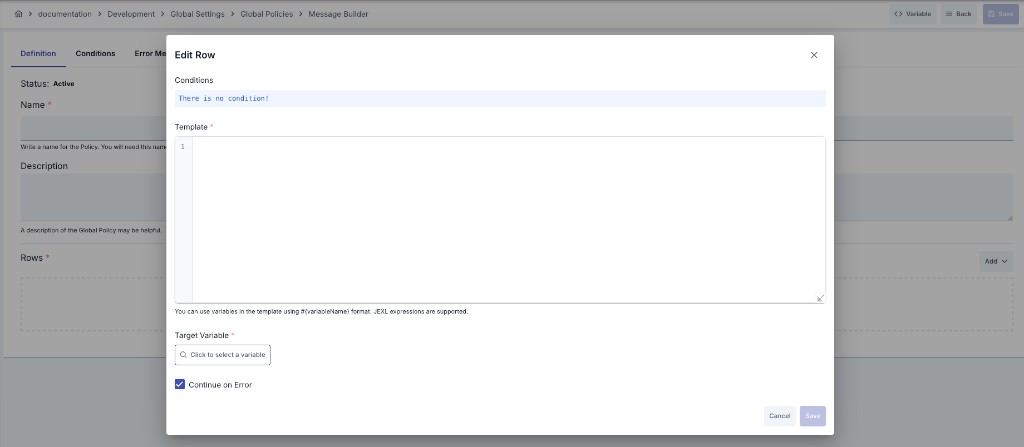
In Template mode, the template field (code editor), variable placeholders in the #{variableName} form, and target variable are shown; Continue on Error is also available.
Creating a New Message Builder Policy
Configuration Steps
| Step | Description / Operation |
|---|---|
| Step 1: Go to Creation Page | - Go to Development → Global Settings → Global Policies → Message Builder from the left menu. - Click the [+ Create] button at the top right. |
| Step 2: Enter Basic Information | Policy Status: Shows Active/Passive status. New policies are active by default. Name (Required): Example: Request_Enrichment_Builder- Enter a unique name, does not start with space. - System automatically checks: Green checkmark: available, Red X: existing name. Description: Example: "Extracts user information from request body and adds them to headers." - Max. 1000 characters. - Explain the purpose of the policy. |
| Step 3: Variable Usage | - In the action button area at the top of the page, you can use the [<> Variable] button to select dynamic values. - Using context/global variable expressions, you can manage policy parameters with variable-based values instead of fixed values. - This reduces manual update effort when values change and provides operational convenience. - For detailed information, review Dynamic Variables. |
| Step 4: Add Rows | - Click the Add Row button. - Select the build mode from the dropdown: - Form: Simple variable copy. - Template: Template-based creation with JEXL expression support. - A new row is added to the list. |
| Step 5: Edit Row | - Click Edit from the row menu or double-click the row. - Configure the following fields in the dialog: Build Mode: Select Form or Template. Source Variable (Form mode): Select the source variable from the variable selection dialog (body, header, query param, etc.). Template (Template mode): Write a template in the code editor using #{variable} syntax.JEXL expressions are supported. Target Variable (Required): Select the variable where the result will be written. Default Value: Value to use when the source is empty. Required: If checked, an error is thrown when the source value is empty. Default: No. Continue on Error: If checked, processing moves to the next row when an error occurs. Default: Yes. |
| Step 6: Define Row Condition (Optional) | - Define a row-level condition using Query Builder in the row editing dialog's Condition section. - When the condition is not met, the row is skipped. |
| Step 7: Order Rows | - You can reorder rows using drag-and-drop. - Rows execute in the order they appear in the list. |
| Step 8: Define Condition (Optional) | - Go to the Condition tab. - Define a policy-level condition to determine when the policy will be active. For details: Conditions |
| Step 9: Customize Error Message (Optional) | - Go to the Error Message Customization tab. - Customize the message returned when the policy throws an error. - Placeholders such as #{error.defaultErrorCode}, #{message.correlationId} can be used.For details: Template-Based Error Messages |
| Step 10: Save | - Click the [Save] button at the top right. Checklist: - Unique name - At least one row exists - Target variable selected in each row - Source variable selected in Form mode - Template filled in Template mode Result: - Policy is added to the list. - Can be connected to APIs. - If global policy, automatically applied. |
For descriptions of Conditions and Error Message Customization panels, you can review the Conditions and Error Message Customization sections on the What is Policy? page.
For a complete guide on all layers, priority order and scenario examples of the error message configuration system, see the Error Message Configuration Guide page.
Row Parameters
| Parameter | Description | Required | Default |
|---|---|---|---|
| Build Mode | Form: Simple copy from source variable to target variable.Template: Template-based creation with JEXL expression support. | Yes | — |
| Source Variable | Source variable to read the value from in Form mode. Body, header, query param, etc. | Yes in Form mode | — |
| Template | Template string written with #{variable} syntax in Template mode. | Yes in Template mode | — |
| Target Variable | Target variable where the result will be written. | Yes | — |
| Default Value | Value to use when the source is empty. | No | — |
| Required | If true, an error is thrown when the source is empty. | No | false |
| Continue on Error | If true, processing moves to the next row when an error occurs. | No | true |
| Condition | Row-level condition. If not met, the row is skipped. | No | — |
Template Syntax
In Template mode, variables and JEXL expressions are accessed using #{...} syntax:
Simple Variable Access:
#{body.$.userName}          → userName field from JSON body
#{body.$[0].name}           → name field of first element from JSON array body
#{body./root/name}          → Value from XML body via XPath
#{header.Authorization}     → Authorization header value
#{query.page}               → Query parameter
#{form.username}            → Form parameter
#{path.id}                  → Path parameter
#{credential.clientId}      → Authenticated credential key/username
#{request.remoteAddress}    → Client IP address (reflects forwarded IP if configured)
#{dateTime.formattedText}   → Formatted date/time (UTC, yyyy-MM-dd HH:mm:ss)
Region-Aware Variable Access (Request/Response):
#{request.body.$.field}     → Request body field (explicit region)
#{request.header.Name}      → Request header (explicit region)
#{response.body.$.data.id}  → Response body field (explicit region)
#{response.header.Name}     → Response header (explicit region)
#{request.body./root/name}  → Request body XPath (explicit region)
#{response.body./root/name} → Response body XPath (explicit region)
Custom Variable Path (JSONPath/XPath on variable content):
#{myVar.$.user.name}                → JSONPath on custom variable's JSON content
#{myVar./root/element}              → XPath on custom variable's XML content
#{myVar./bookstore/book[1]/title}   → XPath with predicate on custom variable
Context Variables:
| Syntax | Description |
|---|---|
#{context.request.httpMethod} | HTTP method (GET, POST, etc.) |
#{context.request.remoteAddress} | Client IP address |
#{context.response.statusCode} | Response status code |
#{context.message.correlationId} | Correlation ID |
#{context.apiProxy.name} | API Proxy name |
#{context.apiProxy.id} | API Proxy ID |
#{context.apiMethod.name} | API Method name |
#{context.apiMethod.httpMethod} | API Method HTTP method |
#{context.system.year} | Current year (integer) |
#{context.system.dateTime} | Date-time in UTC (yyyy-MM-dd'T'HH:mm:ss.SSS'Z') |
#{context.credential.username} | Authenticated username |
#{context.credential.email} | Authenticated user email |
#{context.credential.clientId} | Authenticated credential key/username |
#{context.environment.name} | Environment name |
#{context.environment.id} | Environment ID |
JEXL Expression (Single Line):
#{body.$.price * 1.18}                       → Add tax to price
#{body.$.firstName + ' ' + body.$.lastName}  → Merge first and last name
#{body.$.age >= 18 ? 'adult' : 'minor'}      → Conditional value
#{context.request.httpMethod == 'POST' ? 'create' : 'read'}  → Operation type by HTTP method
#{body.$.status == 'available' ? '{"label":"Available"}' : null}  → JSON string generation
JEXL Script (Multi-Line, Loop):
Multi-line scripts can be written inside #{...} blocks using for, while, var, if/else statements. JSON array values extracted via JSONPath from the body are automatically converted to lists and can be iterated with for (item : collection).
Array Iteration:
#{
  var out = '[';
  var first = true;
  for (item : body.$.tags) {
    if (!first) { out = out + ','; }
    out = out + '{"id":' + item.id + ',"name":"' + item.name + '"}';
    first = false;
  }
  out + ']'
}
Aggregation / Counter:
#{
  var total = 0;
  for (item : body.$.items) {
    total = total + item.price;
  }
  total
}
Conditional Value with if/else:
#{
  var role = body.$.user.role;
  if (role == 'admin') {
    'FULL_ACCESS'
  } else if (role == 'manager') {
    'LIMITED_ACCESS'
  } else {
    'READ_ONLY'
  }
}
Date/Time Helper (dtf):
In JEXL expressions, the dtf helper function provides timezone-aware date/time formatting. By default, #{dateTime.formattedText} returns UTC time in a fixed format. Use dtf to get time in a specific timezone or apply custom formatting:
#{dtf.format('+03:00')}                                         → 2026-03-02 15:30:45
#{dtf.format('UTC')}                                            → 2026-03-02 12:30:45
#{dtf.format('+03:00', 'dd/MM/yyyy HH:mm:ss')}                 → 02/03/2026 15:30:45
#{dtf.format('+03:00','yyyy-MM-dd\'T\'HH:mm:ssXXX')}           → 2026-07-14T11:57:13+03:00
#{dtf.format('Europe/Istanbul')}                                → 2026-03-02 15:30:45
#{dtf.epochMillis()}                                            → 1740912645000
For full documentation including zone parameter formats, pattern syntax, and escape rules, see Date/Time Helper (dtf) in the Dynamic Variables reference.
In JEXL Script, the value of the last evaluated expression is returned. The return keyword is not used.
This policy can only be used in HTTP API Proxies. It is not supported in gRPC API Proxies.
Deleting the Policy
For deletion steps of this policy and operations to be applied when in use, you can refer to the Removing Policy from Flow section on the Policy Management page.
Exporting/Importing the Policy
For export (Export) and import (Import) steps of this policy, you can refer to the Export/Import page.
Connecting the Policy to API
For the process of how this policy will be connected to APIs, you can refer to the Connect Policy to API section on the Policy Management page.
Advanced Features
| Feature | Description and Usage Steps |
|---|---|
| JEXL Expression Chain | - Select Template mode. - Write complex expressions using #{expression} syntax in the template.- Mathematical ( +, -, *, /), logical (&&, ||, !), comparison (==, !=, <, >) and conditional (? :) operators can be used. |
| JEXL Script with Loop and Condition | - Write multi-line scripts inside #{...} blocks in Template mode.- for, while, var, if/else statements are supported.- JSON array values extracted from body are automatically converted to lists; iterate with for (item : body.$.list).- The value of the last evaluated expression is returned; return is not used. |
| Multiple Source Merging | - Use multiple sources in Template mode. - Example: ID: #{body.$.id}, Name: #{header.X-User-Name}, Time: #{context.system.dateTime}- The combined value is written to a single target variable. |
| Conditional Row Execution | - Define a condition using Query Builder in the row edit dialog. - Example: Only parse body for requests with Content-Type = application/json.- When condition is not met, the row is skipped, other rows continue to execute. |
| Intermediate Variable Chain | - Use a custom variable created in one row in subsequent row templates. - Example: Assign a value to petName in the first row, use #{petName} in later rows.- This pattern enables building complex JSON outputs in stages. |
| Custom Variable with JSONPath/XPath | - Run JSONPath or XPath directly on a custom variable's content to extract a specific value. - In Template mode: Use #{myVar.$.user.name} for JSONPath or #{myVar./root/element} for XPath on the variable's content.- In Form mode: Select a custom variable as source, then specify the content type (JSON or XML) and provide the path expression. - Example: A custom variable fullResponse contains a JSON body; use #{fullResponse.$.user.name} in a template to extract just the name field. |
Best Practices
Things to Do and Best Practices
| Category | Description / Recommendations |
|---|---|
| Row Ordering | Bad: Ordering dependent rows randomly. Good: Ordering independent rows first, dependent rows after. Best: Putting frequently used and light rows at the beginning, leaving heavy template operations at the end. |
| Mode Selection | Bad: Using Template mode for simple copying. Good: Using Form for simple copies, Template for complex creation. Best: Preferring Form mode by default, switching to Template only when multiple sources or expressions are needed. |
| Error Management | Bad: Leaving Continue on Error=No for all rows.Good: Using No for critical rows, Yes for optional rows. Best: Configuring Required and Continue on Error flags separately based on row importance. |
| Default Values | Bad: Leaving non-required rows without a default value. Good: Setting meaningful default values for optional rows. Best: Setting default values according to downstream service expectations. |
Security Best Practices
| Security Area | Description / Warnings |
|---|---|
| Sensitive Data Handling | Be careful when using sensitive data (passwords, tokens) in templates. Choose target variable names that won't appear in logs. |
| JEXL Expression Safety | Avoid using values coming directly from user input in expressions. |
| Target Variable Control | Do not accidentally overwrite security-critical variables (authentication tokens, etc.) as target variables. |
Things to Avoid
| Category | Description / Warnings |
|---|---|
| Empty Row List | Why to avoid: No operation is performed even if policy is saved. Alternative: Define at least one row. |
| Unnecessary Template Usage | Why to avoid: Using Template mode for simple variable copying creates unnecessary parsing cost. Alternative: Use Form mode for simple copies. |
| Unconditional Required Rows | Why to avoid: Required check is performed on every request, unnecessary errors may be thrown on some endpoints. Alternative: Add appropriate conditions to required rows. |
Performance Tips
| Criterion | Recommendation / Impact |
|---|---|
| Mode Selection | Recommendation: Prefer Form mode whenever possible. Impact: Avoids JEXL parsing cost. |
| Row Count | Recommendation: Keep row count to a minimum, avoid unnecessary assignments. Impact: Each row is a separate processing cycle, fewer rows = lower latency. |
| Template Complexity | Recommendation: Use simple expressions in templates, move complex business logic to Script policy. Impact: JEXL engine load is reduced. |
| Condition Usage | Recommendation: Filter unnecessary rows with conditions. Impact: Rows are skipped for irrelevant requests, throughput increases. |
Frequently Asked Questions (FAQ)
| Category | Question | Answer |
|---|---|---|
| General | What is the difference between Form and Template mode? | Form mode performs simple copying from a single source variable to target. Template mode generates dynamic content from multiple sources using #{variable} syntax and JEXL expressions. |
| General | Can this policy be used in gRPC API Proxies? | No, Message Builder policy is only supported in HTTP API Proxies. |
| Technical | What types of variables can be used in templates? | Body (JSON path body.$.path or XPath body./path), Header (header.Name), Query (query.name), Form (form.name), Path (path.name) parameters and Context Variables can be used. |
| Technical | What operators do JEXL expressions support? | Arithmetic (+, -, *, /), comparison (==, !=, <, >, <=, >=), logical (&&, ||, !) and ternary (? :) operators are supported. |
| Usage | Does row order matter? | Yes, rows execute in the order they appear in the list. A row's target variable can be the source of the next row. |
| Usage | What happens when the source value is empty? | If Required=Yes, an error is thrown. If Required=No, the default value is used. If there is no default value either, an empty string is assigned. |
| Technical | Can I use a for loop inside a template? | Yes, multi-line JEXL Script can be written inside #{...} blocks. You can iterate over JSON array elements with for (item : body.$.items). JSON array values are automatically converted to lists. |
| Technical | Should I use return in JEXL Script? | No, return keyword is not used. The value of the last evaluated expression at the end of the block is automatically returned. |
| Technical | Can I produce a JSON string containing {} inside a template? | Yes, the balanced brace scanner allows { and } to be used freely inside #{...} blocks. Example: #{status == 'active' ? '{"label":"Active"}' : 'null'} |
| Technical | How do I access an element if the body is a JSON array? | Use #{body.$[0].field} syntax to access the first element of the array. Other elements can be reached with $[1], $[2], etc. |
| Technical | Can I extract a specific value from a custom variable using JSONPath or XPath? | Yes. In Template mode: Use #{myVar.$.path} for JSONPath or #{myVar./xpath} for XPath directly in the template. In Form mode: Select a custom variable as source, choose the content type (JSON or XML), and provide the path expression. This is useful when a custom variable holds a full JSON or XML body and you need only a specific field. |
| Technical | Can I specify request or response explicitly in templates? | Yes. Use #{request.body.$.field} or #{response.body.$.field} to target a specific region. Similarly, #{request.header.Name} and #{response.header.Name} are supported. Without a prefix, the default region of the policy (request or response pipeline) is used. |
| Technical | How can I get date/time in a specific timezone? | All dateTime.* variables return UTC values. Use #{dtf.format('+03:00')} for a specific timezone, or #{dtf.format('+03:00', 'dd/MM/yyyy HH:mm:ss')} for a custom pattern with timezone. Named timezones like Europe/Istanbul are also supported. |