Account Settings
Overview
Update your full name, email, interface language, and default project
Create and manage personal tokens for the Apinizer Management API
View the projects and teams you belong to
Change your account password
Access
Click your avatar at the top right of the top bar, then select "My Profile" from the menu.
Profile

Username - Read-only
Your username is shown below the avatar and cannot be changed.
Full Name - Required
You can update your display name. Must be between 1 and 255 characters.
Email - Required
You can update the email address used for notifications and session identity. Must be a valid email format and not already in use by another user.
Preferred Language
Segmented buttons that select your interface language; selecting one applies it to the interface immediately. The highlighted button shows the language stored on your profile — the one applied every time you sign in. Press Save to make a new selection your profile language; without saving, the change lasts only for the current session (the same effect as the language list in the top bar account menu), and your next sign-in returns to the profile language.
Default Project
Determines which project is automatically selected when you sign in. Selected from a searchable list.
Roles - Read-only
The roles you hold (System Admin, System Analyzer, Portal Manager, Portal Business, Portal Developer, Promotion Manager, User, etc.) are listed as badges. Roles are assigned by an administrator and cannot be changed from this screen. See Users for details.
Click the "Save" button at the top right to save your changes.
Personal API Access Tokens
You can generate a personal access token that needs access to the Apinizer Management API.
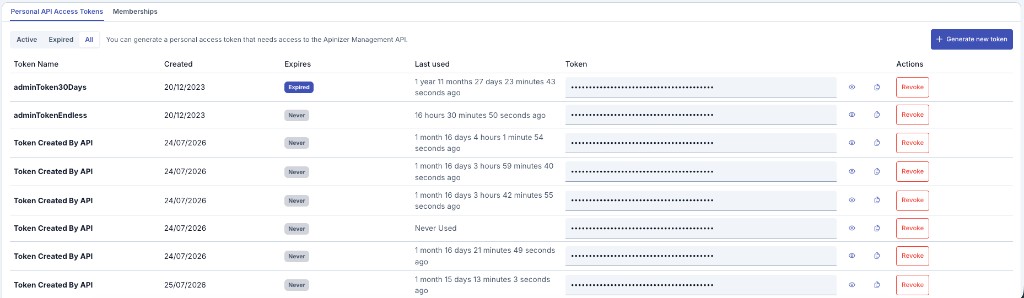
Token List
- Filter segment: All / Active / Expired
- Table columns: Token Name, Created date, Expires (badge, color changes as it approaches expiration), Last used, Token (masked — the eye icon reveals it, the copy icon copies it to the clipboard), Actions
- If there are no tokens, an empty-state message "No token yet." is shown
Creating a New Token
Clicking "Generate new token" opens a two-step dialog:
- Token Name: Required, enter a unique name
- Expiration: Segmented options — 30 Days / 60 Days / 90 Days / Custom / No Expiration
- Selecting Custom opens a date picker (a date before today cannot be selected)
- Selecting No Expiration shows an amber warning: tokens without an expiration never expire, and a limited lifetime is recommended for better security
After the token is created, it is shown in full only at this step; use the copy icon to copy it to the clipboard. Afterwards, you can only view it masked in the token list, or reveal and copy it via the eye icon.
Revoking a Token
You can remove a token from the list with "Revoke". The confirmation dialog states that applications using this token will lose access immediately and that the action cannot be undone.
Every token is judged on its own record. An account may hold several tokens at once: a revoked or expired token stays refused, while a newly created token is accepted from its first call. An older token left on the account can never cause a valid one to be rejected.
Revoking works by value, not by record: "Revoke" removes every stored copy of that token. A token value can end up stored more than once on the same account — after a regeneration, a user import or a restore from backup — and all of those copies stop working together, so the token is never left partially revoked.
For details on Management API authentication, see APIops.
Memberships
You can view the projects you can access — directly or through a team — and the teams you belong to. This tab is read-only.
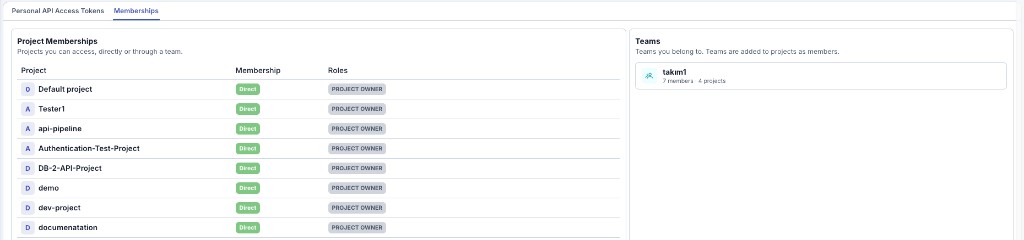
Project Memberships
For each project you can access:
- Project: Project name
- Membership: A "Direct" badge if you are a direct member of the project; otherwise the team name(s) through which you have access, shown as badges
- Roles: Your roles in that project
Teams
For each team you belong to, the team name and an "N members · M projects" summary are listed. Teams are added to projects as members; when you are added to a team, you also gain access to every project that team belongs to.
Top Bar Account Menu
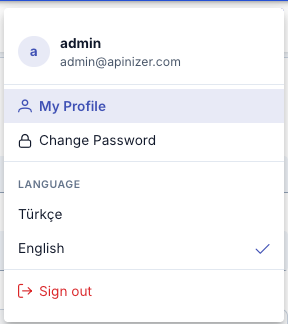
From anywhere on the page, click your avatar in the top bar to open a quick-access menu:
- Identity header: Your full name and email address
- My Profile: Takes you to this page (Account Settings)
- Change Password: Takes you to the password change screen
- Language list: A checkmark appears next to the currently selected language; clicking a language changes the interface language immediately for the current session only; the Preferred Language on the Profile card (and the language applied at sign-in) changes when you save it there
- Sign out: Ends your session, with a confirmation dialog
Interface Theme
The appearance of the interface is a personal preference, like the interface language. Open the settings (gear) button to change it.
What You Can Change
- Primary color: The accent color used across the interface
- Surface: The background tone of panels and cards
- Dark mode: Switches the whole interface between the light and dark palette
- Menu mode: How the left menu behaves (drawer, static, overlay, slim, horizontal, and so on)
- Menu theme and top bar theme: The color of the left menu and of the top bar
Your selection is applied immediately and is remembered: it is still in place after you refresh the page, open a new tab, or sign in again.
The theme is stored per user in the browser you are using. Two people working in the same browser do not see each other's theme, and signing in on another computer or another browser starts from the default theme; select it again there once.
If the browser blocks site data (for example a private window), the interface still works normally — the selection applies for the current session but is not remembered.
Changing Password
Select "Change Password" from the menu, or use the link directly on the Profile card.
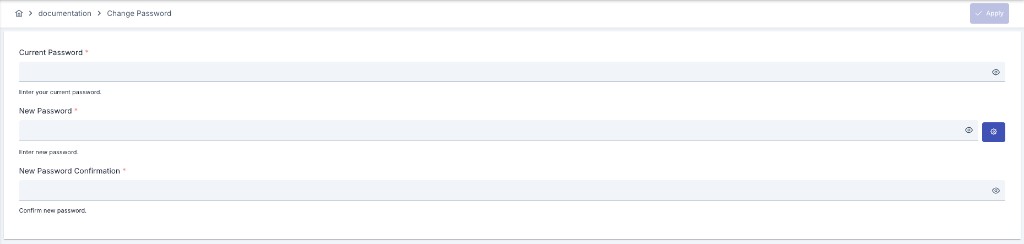
Form Fields
- Current Password: Required
- New Password: Required; the generate password button (⚙) next to it suggests a random password that meets the password policy
- Confirm Password: Required; must match the New Password
- A warning is shown if the current and new password are the same
Password Requirements
A list of requirements generated from the system password policy is checked off live (a satisfied requirement turns green):
- Length range (min–max characters)
- Required number of different character classes (if configured)
- Uppercase / lowercase / digit / special character requirement (active or inactive depending on policy)
- Must differ from your last N passwords (if a password history policy is configured)
- Must differ from your current password
Forced Password Change
If your password has expired or was reset by an administrator, an orange banner is shown at the top of the page, and you cannot use the rest of the platform until you set a new password.
After a Successful Change
When the password is changed successfully:
- If you were in a forced-change flow, your session is ended and you are redirected to the login page so you can sign in with your new password
- Otherwise the screen shows "Back to Profile" (primary) and "Change Password Again" (secondary) buttons