API Mapping Creation
Mapping List
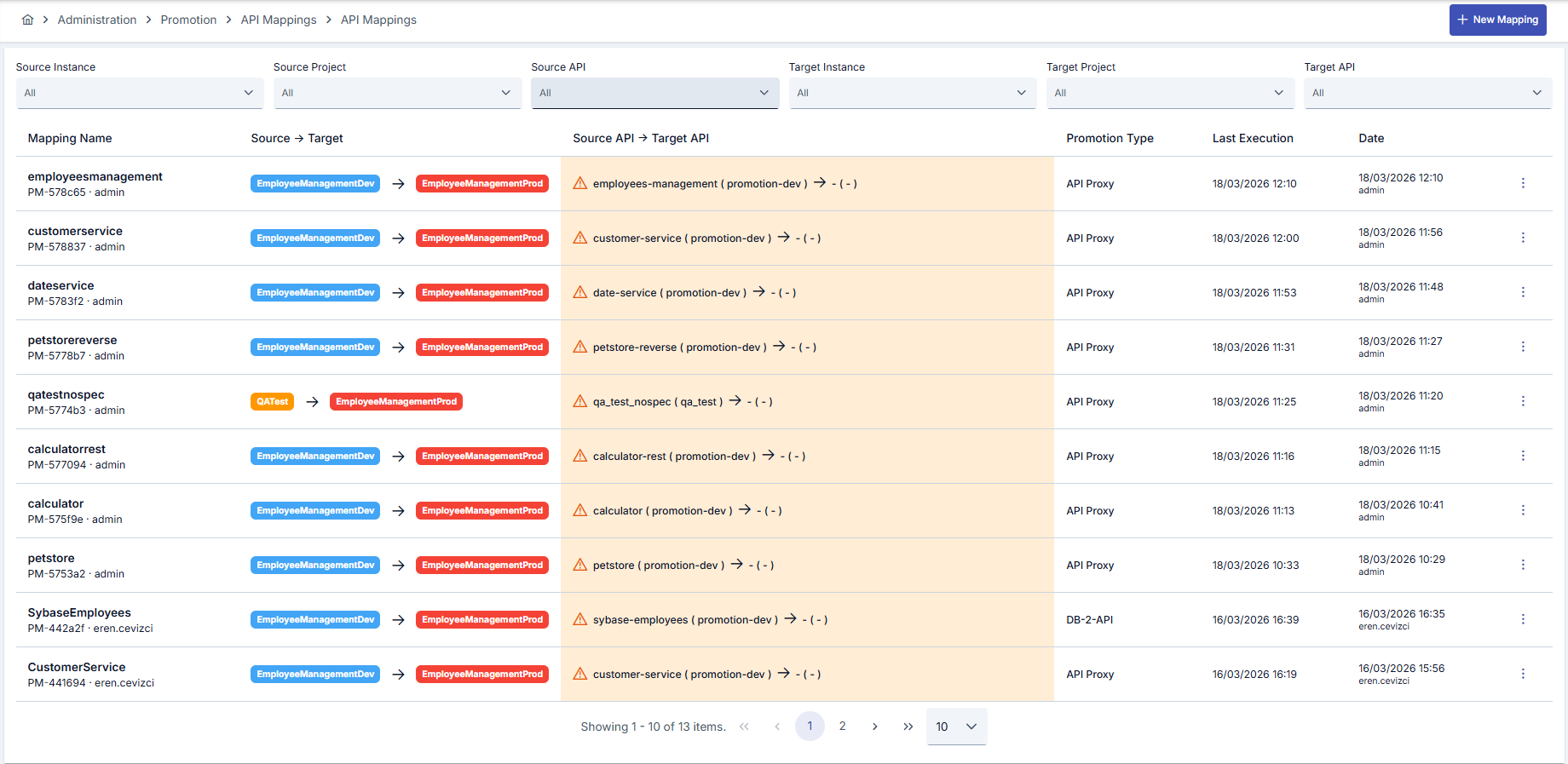
In the mapping list, you can view all defined mappings. The list offers the following filtering options:
- Source Instance / Project / API: Filter by a specific source
- Target Instance / Project / API: Filter by a specific target
- Status: Filter by Draft, Warning, or Ready status
Each mapping row shows source and target information, environment variable status (number of missing variables), and last execution time.
Mapping Wizard
When you click the New Mapping button, a multi-step wizard opens. The wizard presents different steps depending on the promotion type you select.
The Create button (and the Save button on the edit screen) stays disabled until all required fields (Promotion Type, Source/Target Instance, Source/Target Project, Source API, and Mapping Name) are filled in with a valid selection. While the button is disabled, no mapping record is created — a record is only persisted once the button becomes active and is clicked. The Save button on the edit screen also stays disabled until every dependency (see Global Policy and Certificate Mapping) is mapped or created, and the target API is defined.
Step 1: General Info & Variables
In this step, you enter the basic configuration information:
Promotion Type Selection

First, select what you want to transfer:
| Type | Description |
|---|---|
| API Proxy | Single API Proxy transfer. Creator dependencies are automatically detected |
| DB-2-API | Transfer DB-2-API Creator definition independently |
| Script-2-API | Transfer Script-2-API Creator definition independently |
| Mock API | Transfer Mock API Creator definition independently |
| Proxy Group | Transfer Proxy Group with all its contents |
Source and Target Definition

After selecting the promotion type, specify the source and target information:
- Select Source Instance and Source Project
- Select Target Instance and Target Project
- Select the source API
If the source and target instances point to the same environment, a warning message is displayed.
Dependency Detection (API Proxy Type)
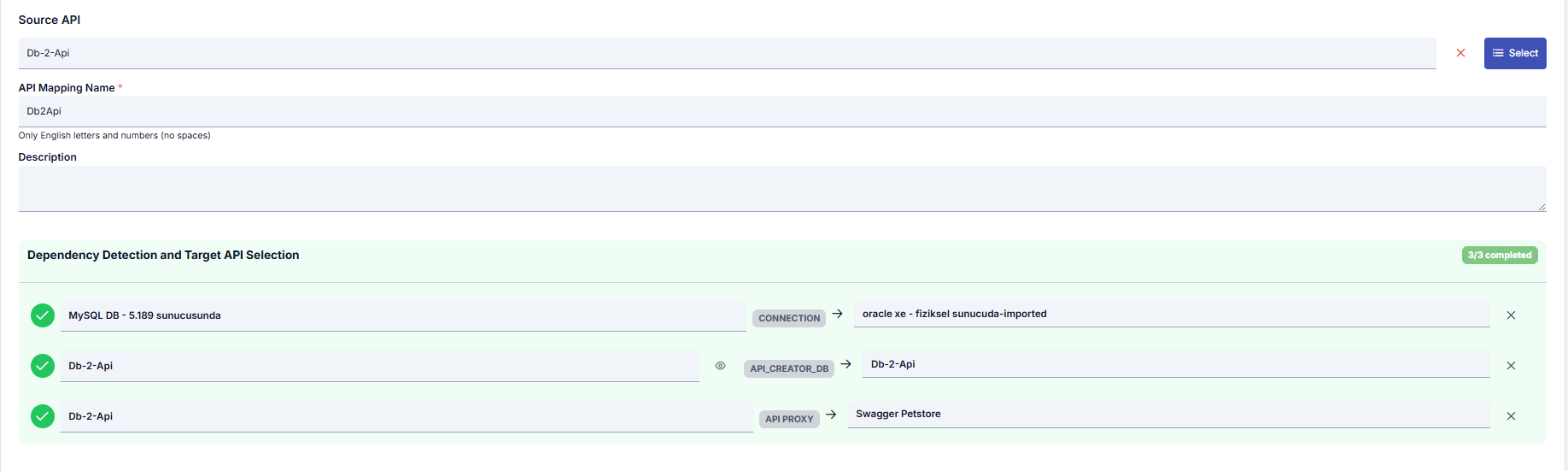
When a source API is selected, the system analyzes the API's creation type and automatically displays the required dependencies:
- Manually created API Proxy: No dependencies, only the proxy definition is transferred
- API Proxy created via DB-2-API: Creator + Database Connection are transferred together (mandatory)
- API Proxy created via Script-2-API: Creator is transferred together (mandatory)
- API Proxy created via Mock API: Creator is transferred together (mandatory)
Dependencies are completed in sequential steps. Each step becomes active after the previous one is completed.
Global Policy and Certificate Mapping
Dependency detection is not limited to Creator objects: Global Policies and certificate-family records (Certificate, KeyStore, CryptoKeyInfo, JWK — see Secrets Management) used in the source API Proxy or Proxy Group definition are also automatically scanned and listed.
Two options are offered for each dependency row:
- Map to an existing target record: Select a same-type (Global Policy) or same-kind (Certificate) target record from the dropdown. When a key/name match is found, this mapping is automatically suggested
- Create: Creates a new record on the target environment directly from the source definition
Each row shows a status: Mapped, Created, or Pending. The total, resolved, and pending dependency counts are summarized above the section.
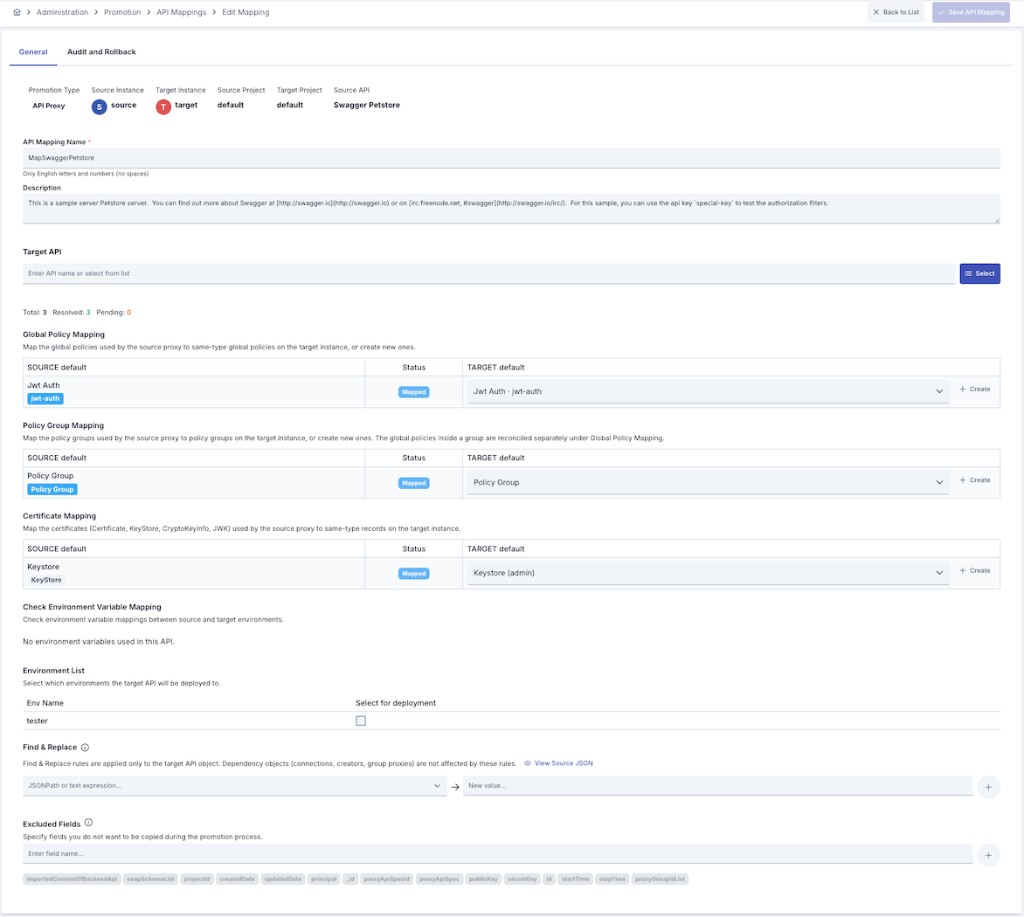
Certificate dependencies contain secret material that cannot be transferred across environments automatically, so they can only be mapped or created in this step — they are not created automatically during execution. The mapping cannot be saved while a dependency is still pending.
This mapping logic mirrors the "map to existing / create new" logic in the Export Import wizard.
Target API Selection
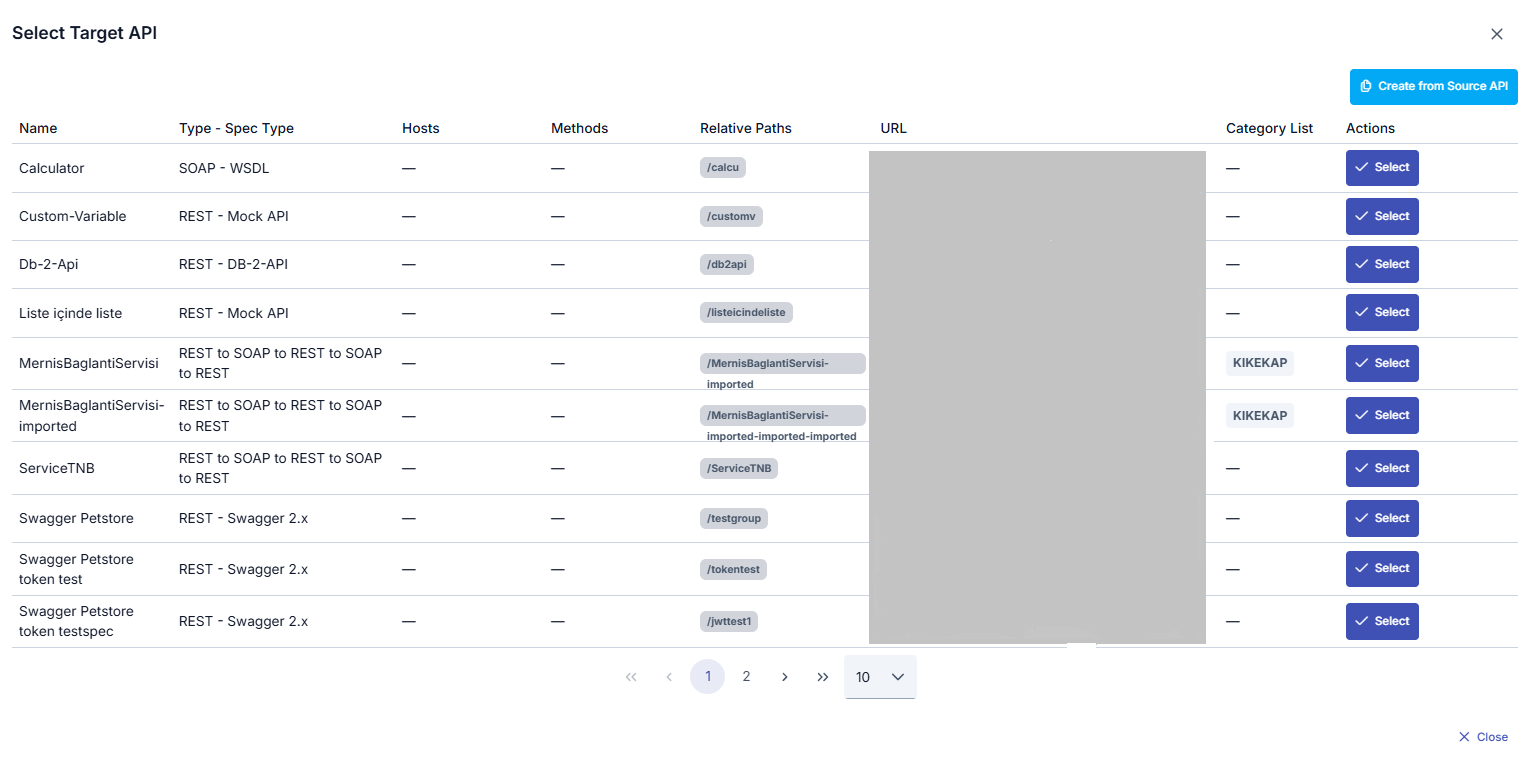
In the target environment, you have two options:
- Update Existing API: Select an existing API from the target project. The API's current configuration will be replaced with values from the source environment
- Create New API: Create a new API in the target environment from the source API
When using the update existing API option, the target API's current configuration will be replaced with values from the source environment. This operation cannot be undone.
If there is no matching API in the target environment, you can use the Create from Source button to automatically create a new API in the target environment from the source API.
Proxy Group Scenario
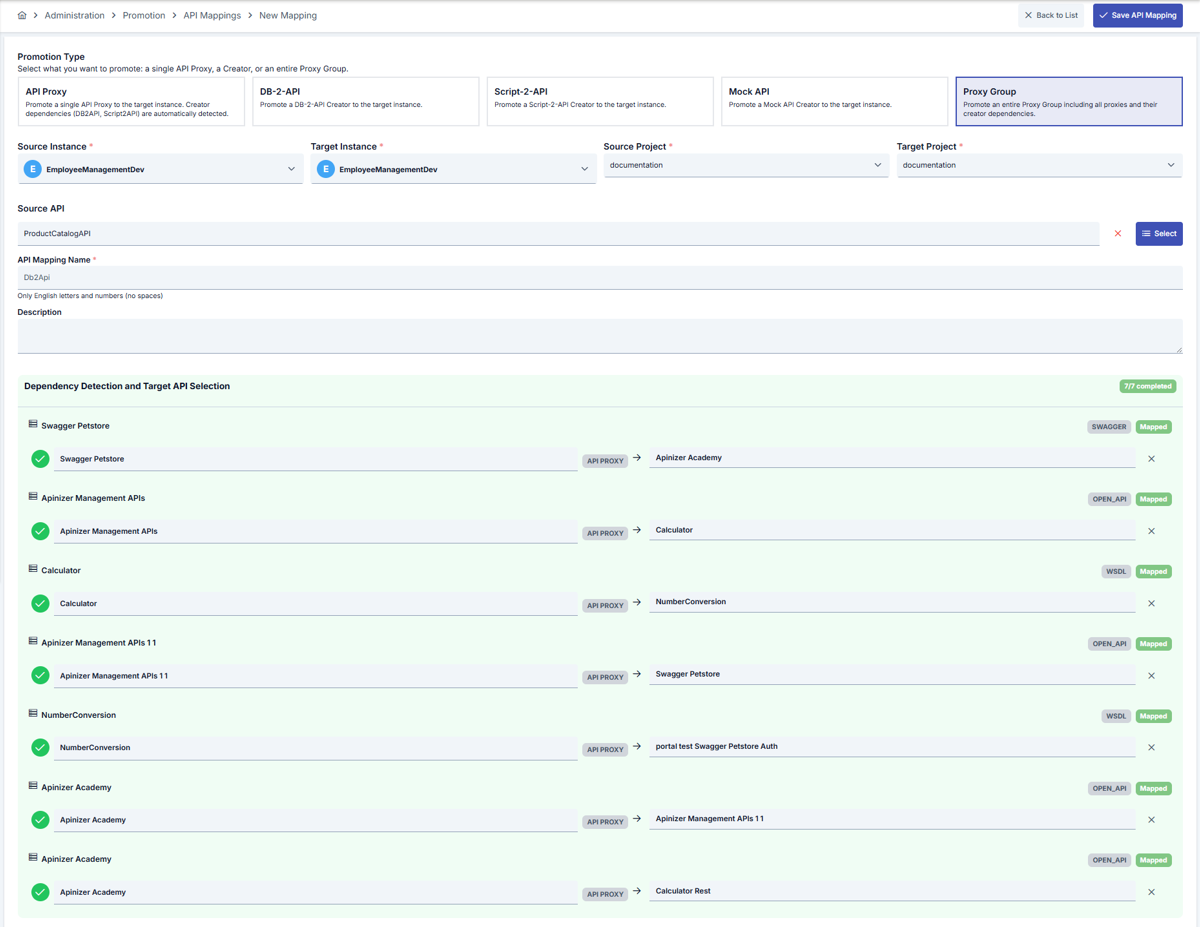
When a Proxy Group is selected, all proxies within the group are listed. Target mapping must be defined for each proxy:
- Transfer order: Group settings (CORS, authentication, rate limit, client route) first, then each proxy and its dependencies in sequence
- Creator-based proxies require Creator + Connection
- Manual proxies only transfer the proxy definition
Deployment Environments
You can select which environments on the target instance the API will be deployed to.

Step 2: API Proxy Comparison
In this step, the differences between source and target API configurations are displayed.
Diff Summary
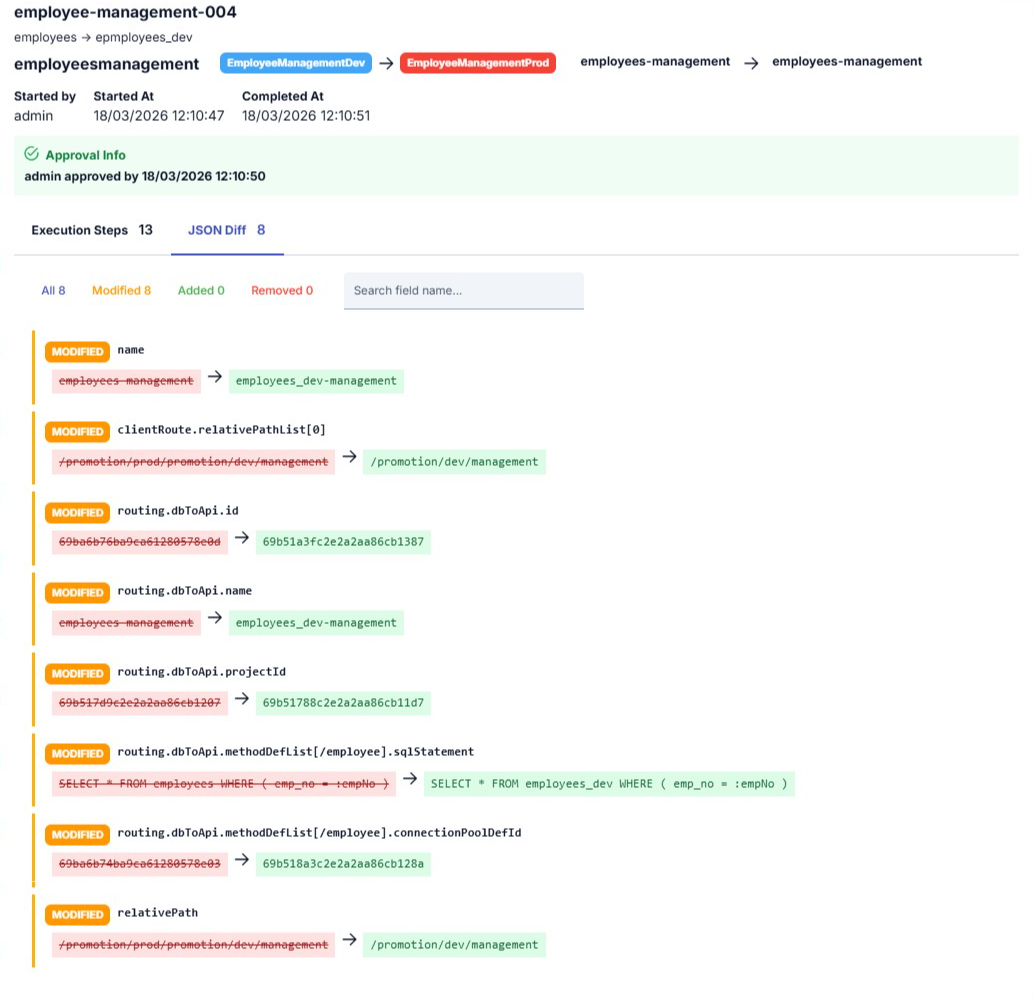
The comparison results show the following information:
- Total number of differences
- Changed fields: Fields present in both source and target but with different values
- Added fields: Fields present in source but not in target (will be added to the target)
- Removed fields: Fields present in target but not in source (will be removed from the target)
Find & Replace Rules
You can define rules to automatically change specific fields or values in the API definition during the transfer. Each rule consists of a Find and a Replace value.
Rules can be defined as JSONPath expressions or plain text:
- JSONPath example:
$.routing.routingAddressWrapperList[0].address— changes the Backend URL - Plain text: Replaces a specific text value with another value
Find & Replace rules are applied only to the target API object. Dependent objects (connection, creator, group proxy) are not affected by these rules.

Excluded Fields
You can exclude specific fields from comparison and transfer. An excluded field keeps the value it currently has in the target environment: the source value is not written over it, and if the field does not exist in the target, it is not created there either.
There are two types of excluded fields:
- System Defaults (cannot be modified): Environment-specific fields such as ID, creation/update date, user information are automatically excluded. This list is managed by the system — you cannot edit it, and you cannot add one of these names as a user-defined entry
- User-Defined Fields: You can add additional fields you want to exclude

Writing Field Paths
Every user-defined entry is a field path:
- An entry without a dot, such as
cacheActive, matches only the field with that name at the top level of the API definition - An entry with a dot reaches a field inside a nested object. For example,
cacheSettings.ttlexcludes only the cache duration inside the cache settings; the remaining fields of that object are still compared and transferred
Entries that address a list element are not supported: an entry containing [, ], $, or * is rejected when the mapping is saved. To change values inside lists during the transfer, use the Find & Replace rules described above — those rules transform the value being transferred, they do not preserve the target value.
An entry without a dot now applies to the top level only. Previously such an entry also hid same-named nested fields from the comparison screen, while the transfer still overwrote those fields in the target. Comparison and transfer now give the same answer, so a nested field with the same name appears as a difference again. If you relied on an entry without a dot to protect a nested value, rewrite it as a full path — for example cacheSettings.ttl instead of ttl.
Why a Field Could Not Be Preserved
The execution detail lists every excluded field and states whether the target value was preserved. A field cannot be preserved in three cases:
- The field does not exist in the target: There is no value to preserve, so the field is dropped from the definition being written instead of being carried over from the source
- The parent object does not exist in the transferred definition: Nothing is created for it — a missing object is never produced just to carry an excluded field
- A name in the middle of the path is not an object: If an intermediate name holds a plain value or a list, the path cannot be followed and nothing is changed
Step 3: Variables Mapping
The counterparts of environment variables used in the source API are mapped in the target environment in this step.
The system automatically detects environment variables in the source API and auto-maps variables defined with the same key in the target environment. Status information is shown for each variable:
- Present: A variable with the same key exists in the target environment
- Missing: No variable with this key was found in the target environment
If there are missing environment variables in the target environment, it is recommended to define these variables in the target environment before the transfer.
You can filter between variables: All, Present, or Missing.

Step 4: Pre-Flight Check
You can run pre-checks to verify that the configuration is complete before the transfer. Checks are performed in three categories:
| Category | Checks |
|---|---|
| System Checks | Target environment connectivity, reachability |
| Configuration Checks | API version conflicts, project existence |
| Security Checks | Authorization verification, token validity |
Each check result is reported as Success, Warning, or Error.
Step 5: Summary & Done
In the final step, a summary of the entire configuration is displayed:
- Instance information (source and target)
- Mapping information (API mapping)
- Environment variables status
- Find & Replace rules
- Excluded fields
- Connection status
After reviewing the summary, you can save the mapping with the Complete button.
Viewing and Editing Mappings
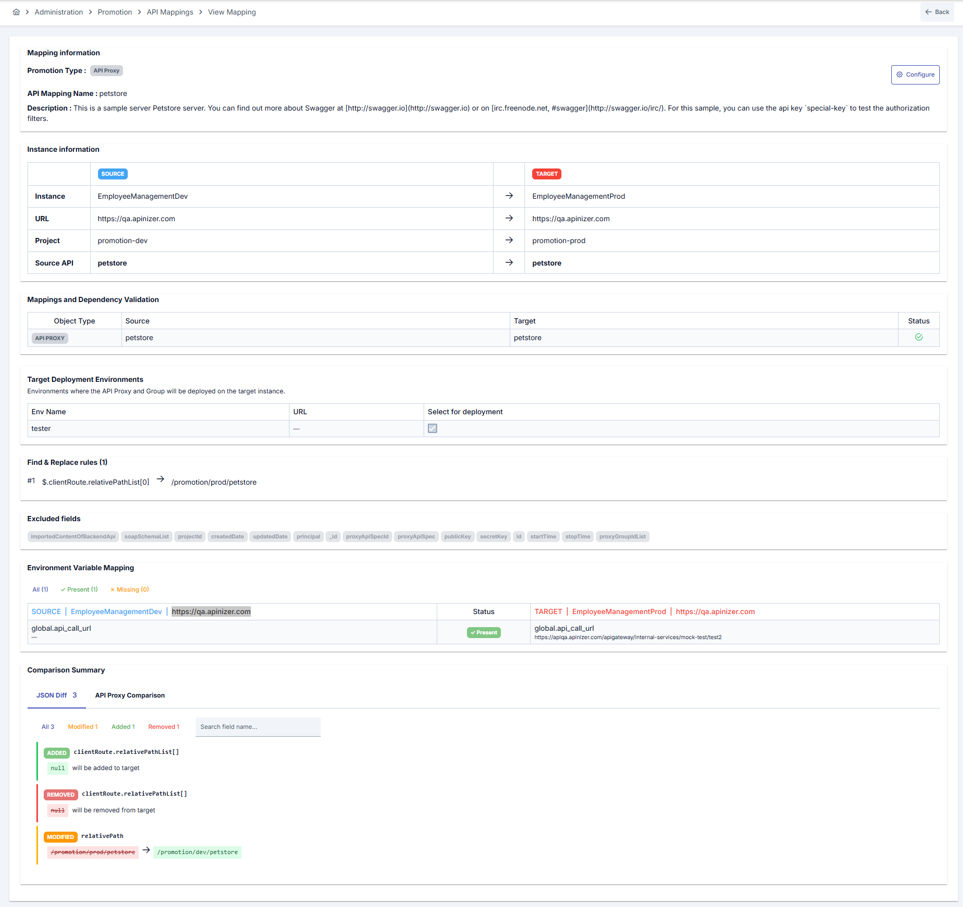
You can view and edit the details of a saved mapping. In the mapping detail screen:
- You can view source and target information
- You can update environment variable mappings
- You can edit Find & Replace rules
- You can refresh comparison results
- You can execute the mapping
Cloning a Mapping
You can clone an existing mapping to quickly create a similar configuration for a different API or environment.