Execution and Monitoring
Execution List
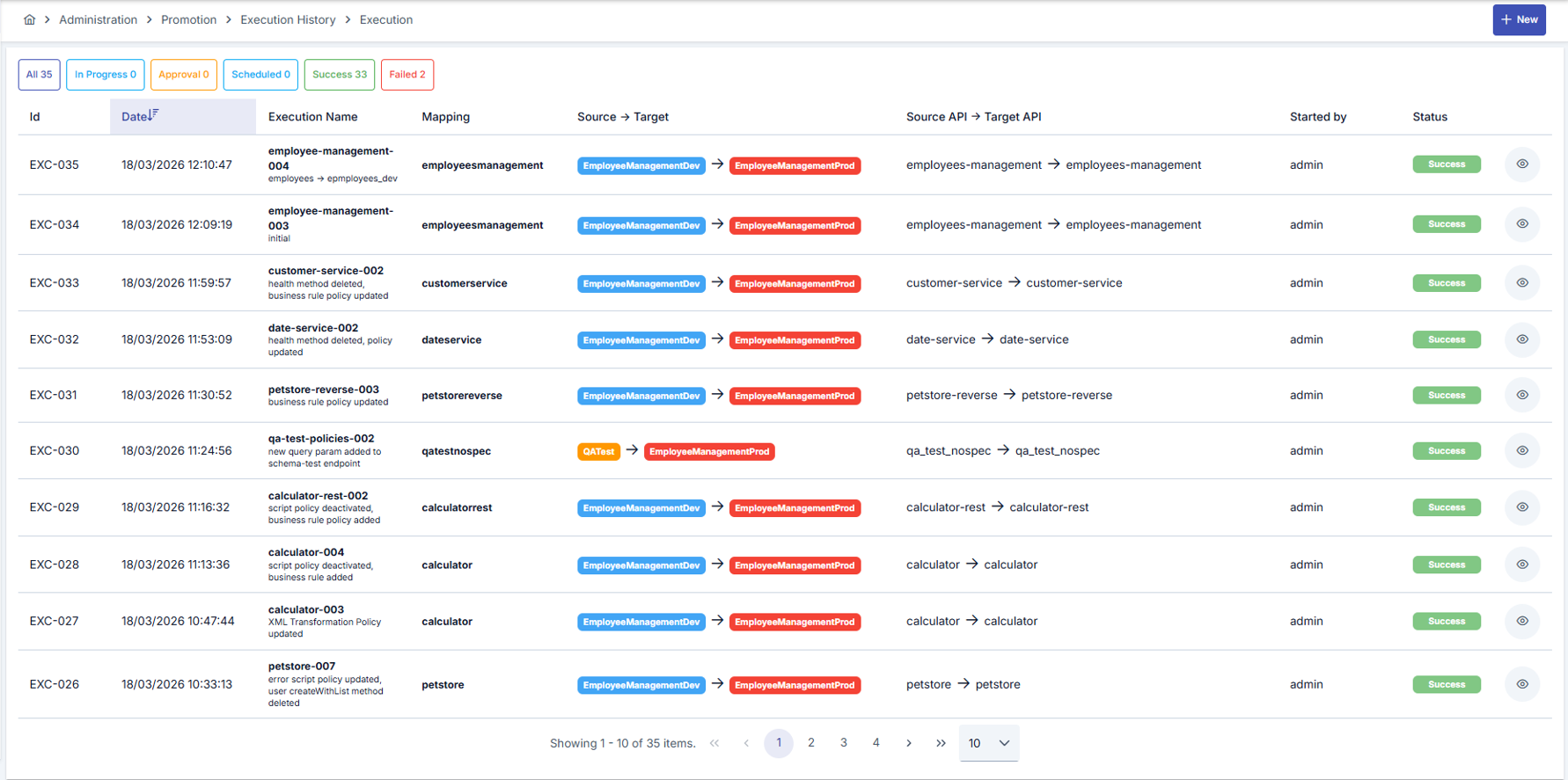
In the execution list, you can view the entire transfer history. The list can be filtered by status tabs:
| Tab | Description |
|---|---|
| All | All executions |
| In Progress | Currently running transfers |
| Approval | Transfers waiting for approval |
| Scheduled | Transfers scheduled for a future date |
| Success | Successfully completed transfers |
| Failed | Failed transfers |
Each row shows the execution name, mapping information, source-target APIs, initiating user, date, duration, and status.
Statistics
Next to each status tab, the corresponding execution count is shown:
- All: Total number of all executions
- In Progress: Number of executions currently in progress
- Approval: Number of executions waiting for approval
- Scheduled: Number of executions scheduled for a future date
- Success: Number of successfully completed executions
- Failed: Number of executions that ended with an error
Single Execution
To execute a mapping, use the Execute button from the mapping list or mapping detail screen.
When an execution is started:
- If the target instance does not require approval: Execution starts immediately
- If the target instance requires approval: Execution enters "Approval Waiting" status
Batch Execution
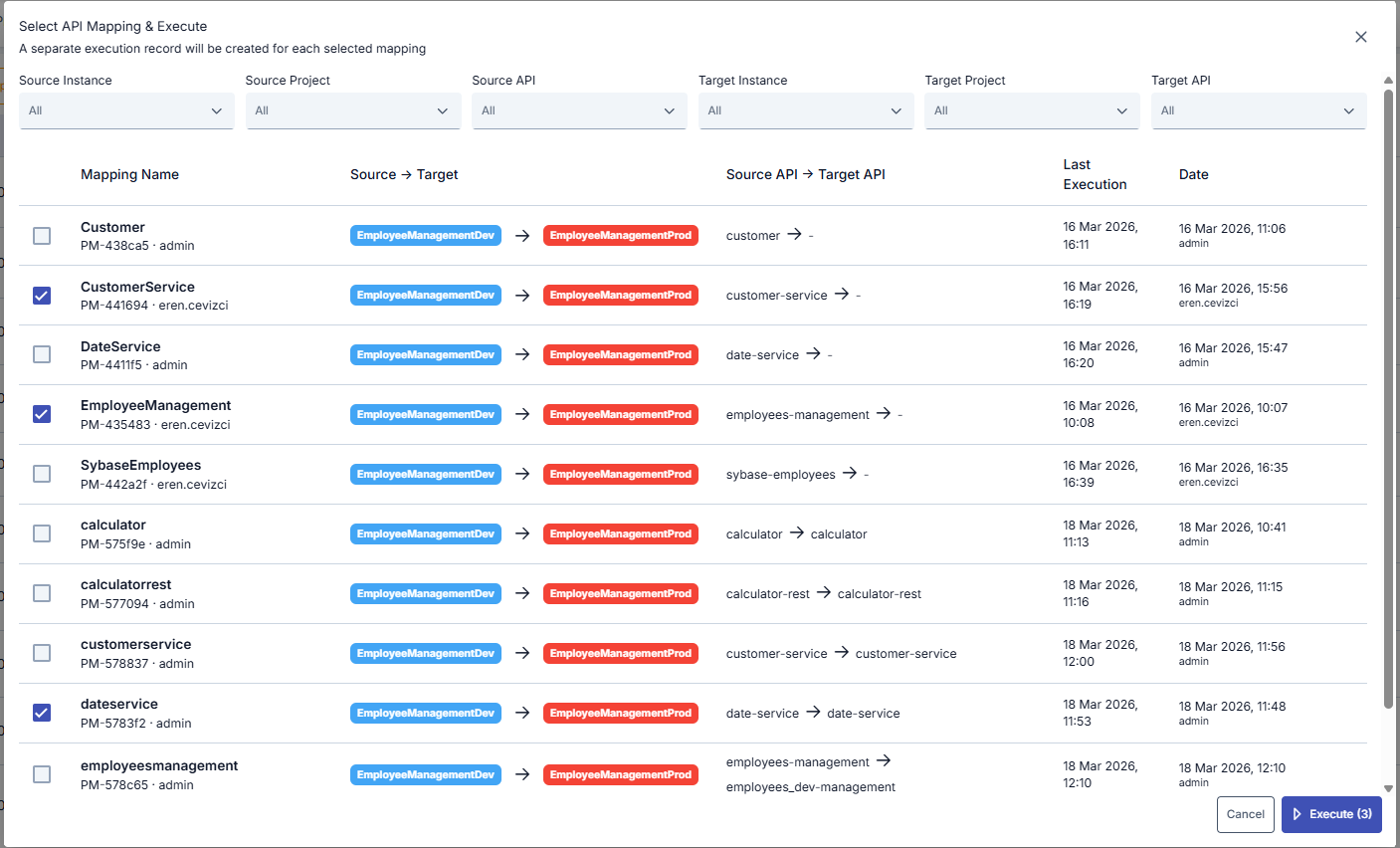
To execute multiple mappings at once, use the New button. In the dialog that opens:
- Select the mappings you want to execute (or use Select All to check all)
- Approval status is shown for each mapping
- Click the Execute button after selection
- Enter an execution name and description
- A separate execution record is created for each selected mapping
Approval Process
If the approval mechanism is active on the target instance, the execution automatically enters Approval Waiting status.
Approving
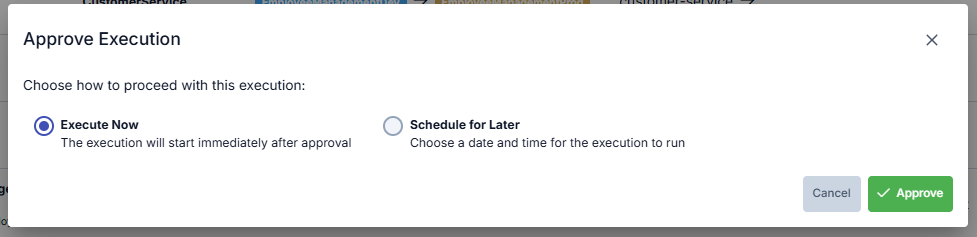
A user defined as an approver can approve a pending execution. During approval, two options are presented:
- Execute Now: Execution starts immediately after approval
- Schedule for Later: Select the date and time for the execution to run
Rejecting
The approver can reject a pending execution. Rejected executions enter Cancelled status.
Scheduled Execution
Executions scheduled for a future date are displayed in the Scheduled tab. For a scheduled execution:
- Execute Now: Run immediately without waiting for the scheduled date
- Cancel: Cancel the scheduled execution
Execution Detail and Monitoring
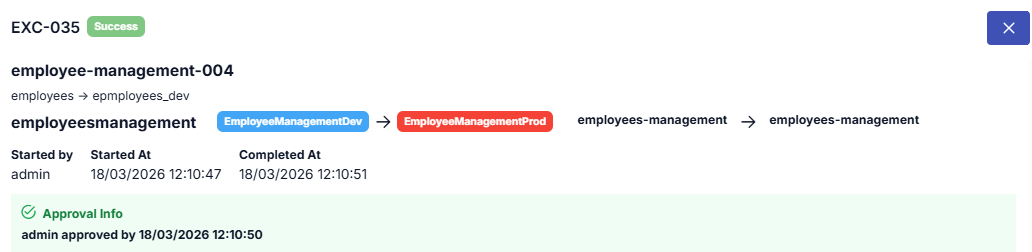
You can open an execution's detail view to track step-by-step progress.
Execution Information
General information is shown at the top of the detail screen:
- Status: Current status of the execution
- Start / End: Execution time information
- Duration: Total execution time
- Executed By: User who started the operation
- Promoted APIs: APIs included in the transfer scope
Execution Steps (Timeline)
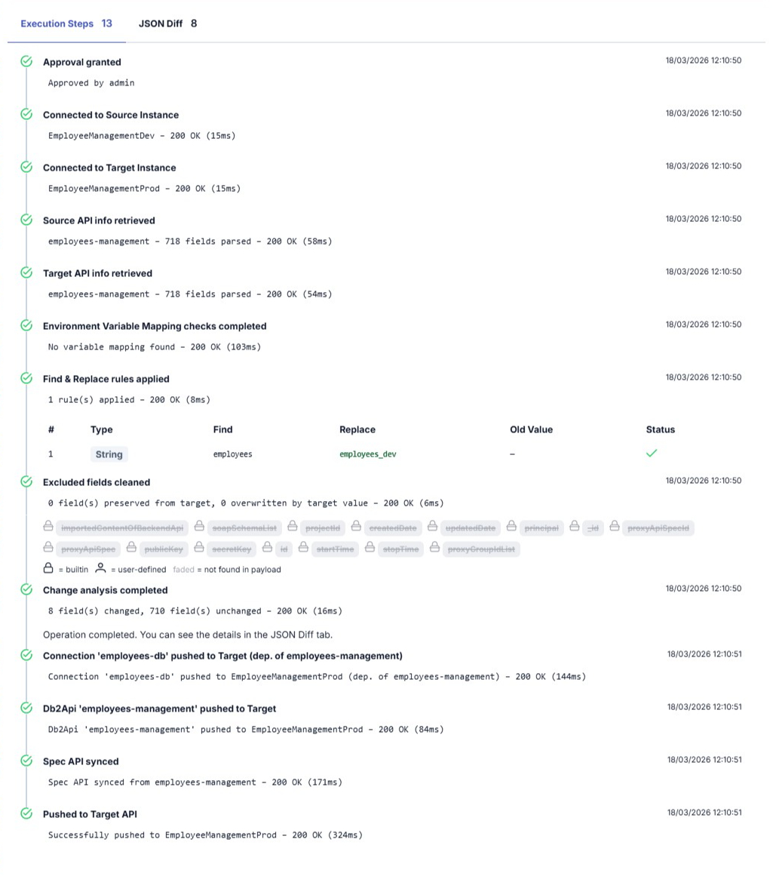
Each execution consists of multiple steps. Steps are displayed sequentially in a timeline view:
- Start and end time of each step
- Status of each step (successful, failed, in progress)
- Detailed error message in case of failure
JSON Diff View
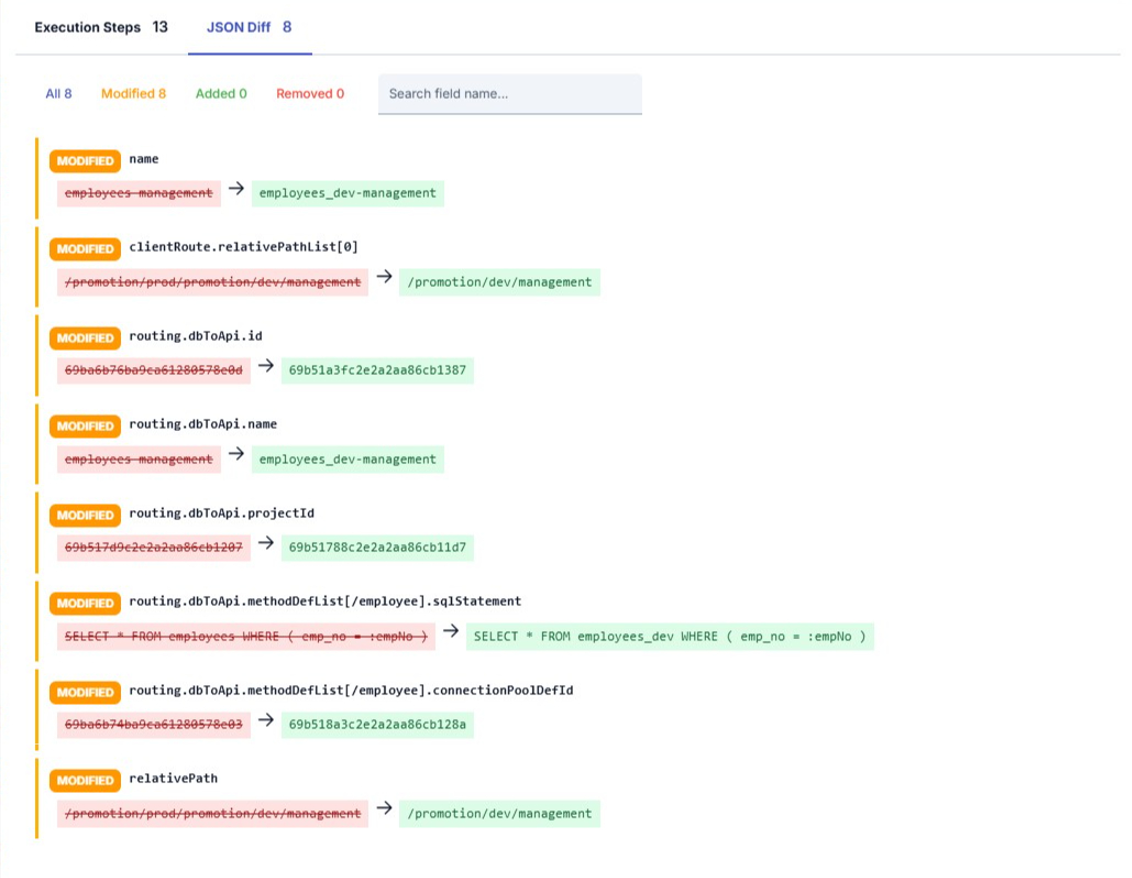
When an execution is completed, you can view the changes made between source and target API in the JSON Diff tab in detail:
- Changed fields: Previous value (target) and new value (source) are shown side by side
- Added fields: Fields added to the target environment are marked
- Removed fields: Fields removed from the target environment are marked
You can search by field name and filter by change type (All, Changed, Added, Removed).
Excluded Fields
Fields excluded in the mapping definition are not included in the comparison. You can see which fields were excluded in the execution detail. For each field, the detail also states whether the target value was preserved and, when it was not, the reason — see API Mapping Creation for what these reasons mean.
Pre-Flight Check Results
Pre-check results performed before execution are also displayed in the detail screen.
Error Management
Failed Execution
When an execution fails:
- You can see at which step the error occurred in the timeline
- You can examine error message details
- You can restart the same execution with the Retry button
Execution Cancellation
You can stop a running execution with the Cancel button. Cancelled executions enter Cancelled status.
Status Flow
Statuses and transitions that an execution can go through:
| Current Status | Next Status | Condition |
|---|---|---|
| Pending | Approval Waiting | If approval mechanism is active on the target instance |
| Pending | Running | Starts directly if no approval is required |
| Approval Waiting | Running | If approver selects "Execute Now" |
| Approval Waiting | Scheduled | If approver selects a future date |
| Approval Waiting | Cancelled | If approver rejects |
| Scheduled | Running | When scheduled date arrives or manually started |
| Scheduled | Cancelled | If user cancels |
| Running | Success | If all steps complete successfully |
| Running | Failed | If an error occurs at any step |
| Running | Cancelled | If user cancels during execution |
| Failed | Running | If restarted with "Retry" |
Every stage of an execution's lifecycle — creation, approval, rejection, a scheduled or early start, completion, and cancellation — also writes a corresponding record to Audit Records and, once a destination is configured, to a SIEM (see SIEM & Log Forwarding).